
Add Mosaic
Draw a mosaic box on videos, images, or PDFs for privacy protection.
How to Blur or Pixelate Video, Photo, or PDF
Instantly apply mosaic effect, including blur, pixelate, frosted, and solid mask to sensitive areas on any video, image, or PDF.
Add Mosaic Boxes to Blur or Pixelate Video
If you need to share and post a video or photo about user-generated content, blur personal information by drawing rectangle boxes. Here are the steps:
- Open Poindeo editor, click to upload a video.
-
Locate the frame requiring blurring.
-
Click the Mosaic icon on the timeline.
-
Draw a rectangle over any sensitive area directly.
- Change the effect to blur, pixelate, frosted, or solid mask. And adjust intensity as needed.
-
Press the Delete or Backspace key to remove unwanted blurring instantly.
- Click the Export button on the top right corner to get the blurred video.

Note: Click Apply to all scenes to apply blur, pixelate, or frosted effect and intensity to all files.
Draw to Redact PDF
If you need to redact a PDF or black out text on a PDF:
-
Upload the PDF file.
-
Locate the PDF page and position you want to redact.
-
Click the Mosaic icon on the timeline.
- Draw a rectangle over any sensitive area.
-
Choose a color and adjust intensity as needed. Press the Delete or Backspace key to remove unwanted redaction instantly.
- Click the Export button on the top right corner to get the redacted PDF page.
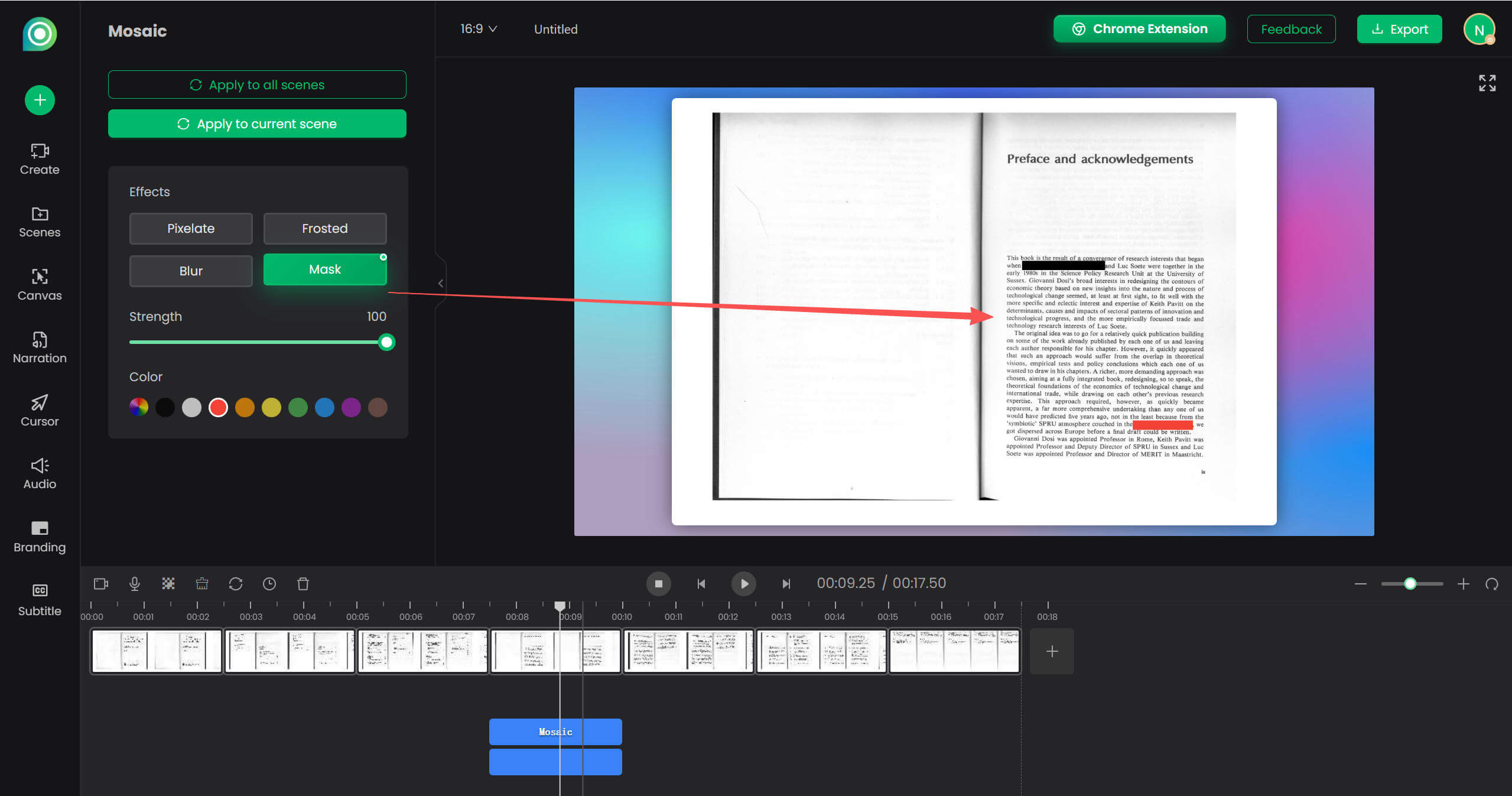
Note: Click Apply to all scenes to apply the solid mask effect and intensity to all PDF pages.