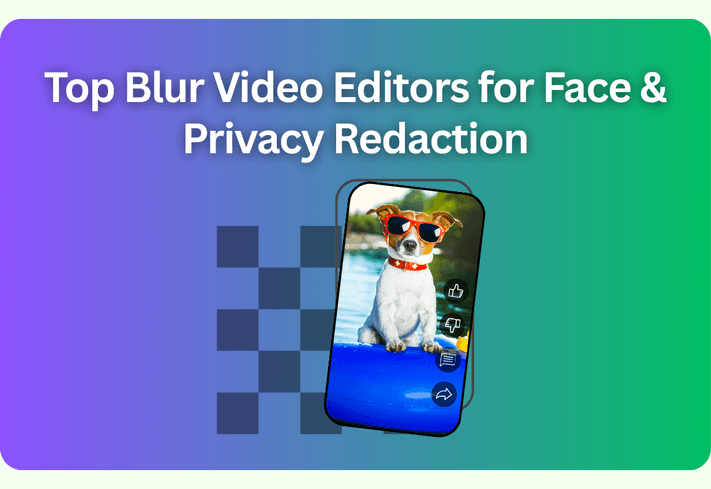
If you publish social media clips or marketing videos, you'll probably need to hide privacy information like a face, license plate, on‑screen email, or remove visual distractions. The catch: doing it fast, precisely, and without needing complex techniques. The best blur video editor makes privacy blurs easily—ideally right in the browser, with options like pixelate/mosaic, customizable position, and presets for different platforms.
We tested and scored popular online editors on selective blur precision, speed to publish, automation (face detection/tracking), output quality, batch repeatability, pricing limits, and reliability. Below are the top 5 blur video editors.
Key Takeaways
- The best blur video editor for most creators balances precise selective blur and fast export—without forcing app installs.
- If you batch-edit Shorts or video clips, favor tools that let you apply the same blur box and intensity across clips like Poindeo.
- Auto face blur/tracking can help on moving subjects, but manual precision still matters for logos, screens, and UI redaction.
- Always check free-plan limits (watermarks, caps) before you commit your workflow.
Top 5 Blur Video Editors Online (Ranked)
Below are the top picks, including how its blur feature works, benefits and limits, who it’s best for, etc. We prioritized real-world blurring tasks like faces, plates, and on-screen UI, and more.
1. Poindeo — Best for repeatable privacy blurs across multiple videos
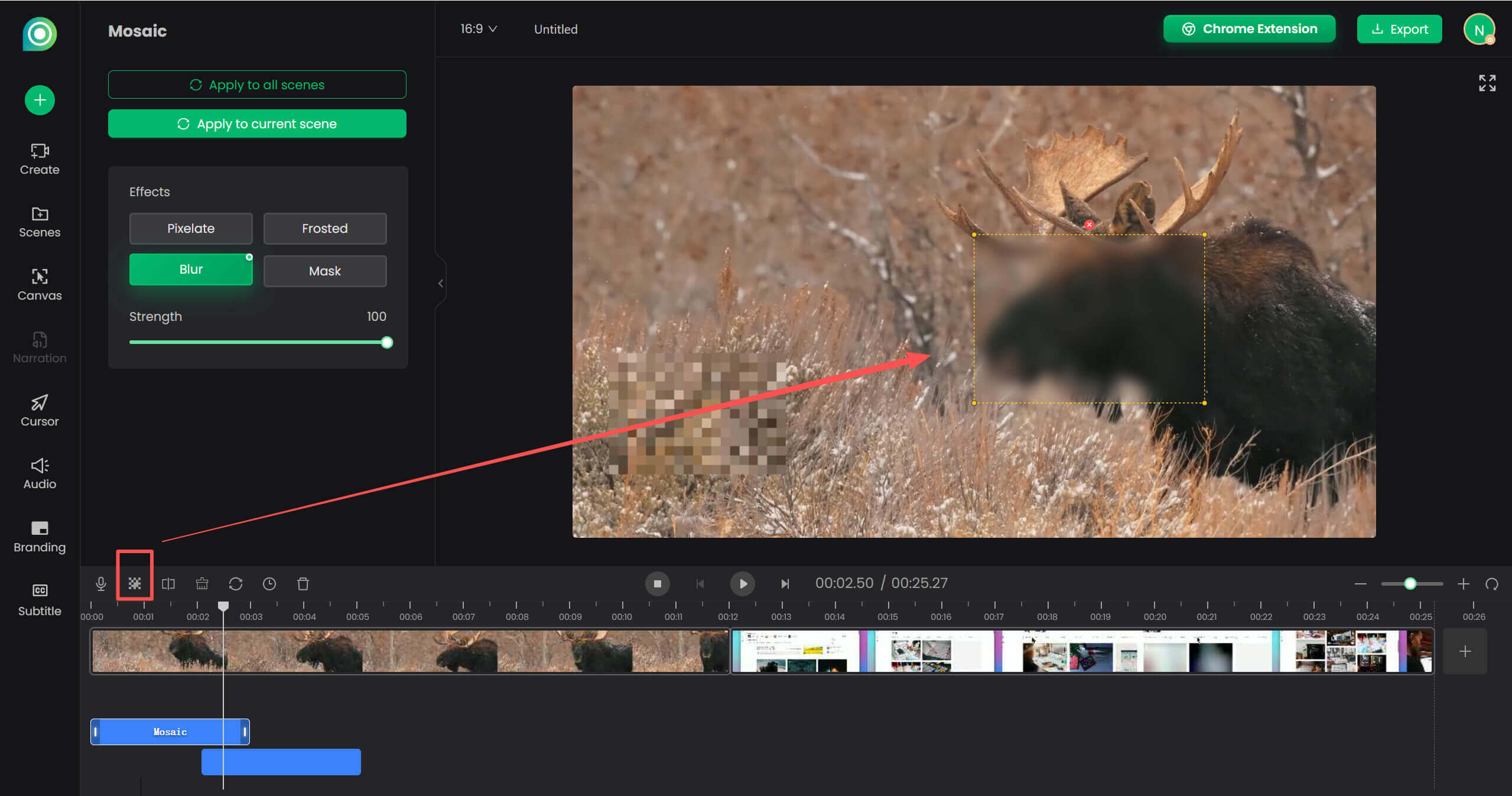
Poindeo is a browser‑based editor designed for quick and engaging edits for product demos, tutorials, and short‑form social clips. Instead of a blur the whole frame effect, it focuses on box-style privacy blurring. Whether you need to blur the whole screen or any part of a video, the Mosaic tool activates from the timeline and lets you place one or more resizable blur boxes. Then choose to change its position by draging boxes on the canvas, or customize duration by draging handles on the timeline. More importantly, you can apply the same blur position and strength across videos with one click.
Beyond blur, Poindeo also includes easy editing features such as auto zoom recording, music addition, video splitting, and more for your content.
Pros:
- Flexible styles for different redaction needs, including Blur, Pixelate, Frosted, Mask.
- Blur the full frame or select with precise, resizable boxes.
- Customizable blurry position and duration.
- Supports multiple aspect ratio presets (9:16, 16:9, 1:1, etc.) and watermark branding.
- Re‑apply the same box and intensity across clips with minimal steps.
Cons:
- No auto face tracking.
Best for: Laptop‑first creators who need consistent, reusable privacy boxes across many short clips.
Price & free limits: Free plan with watermark; Pro from $19.99/month or $69.99 lifetime.
Platforms: Web & Chrome Extension.
2. CapCut — Popular editor with mask-based blur and tracking tools
CapCut is a widely used cross-platform video editor available on web, desktop, and mobile.
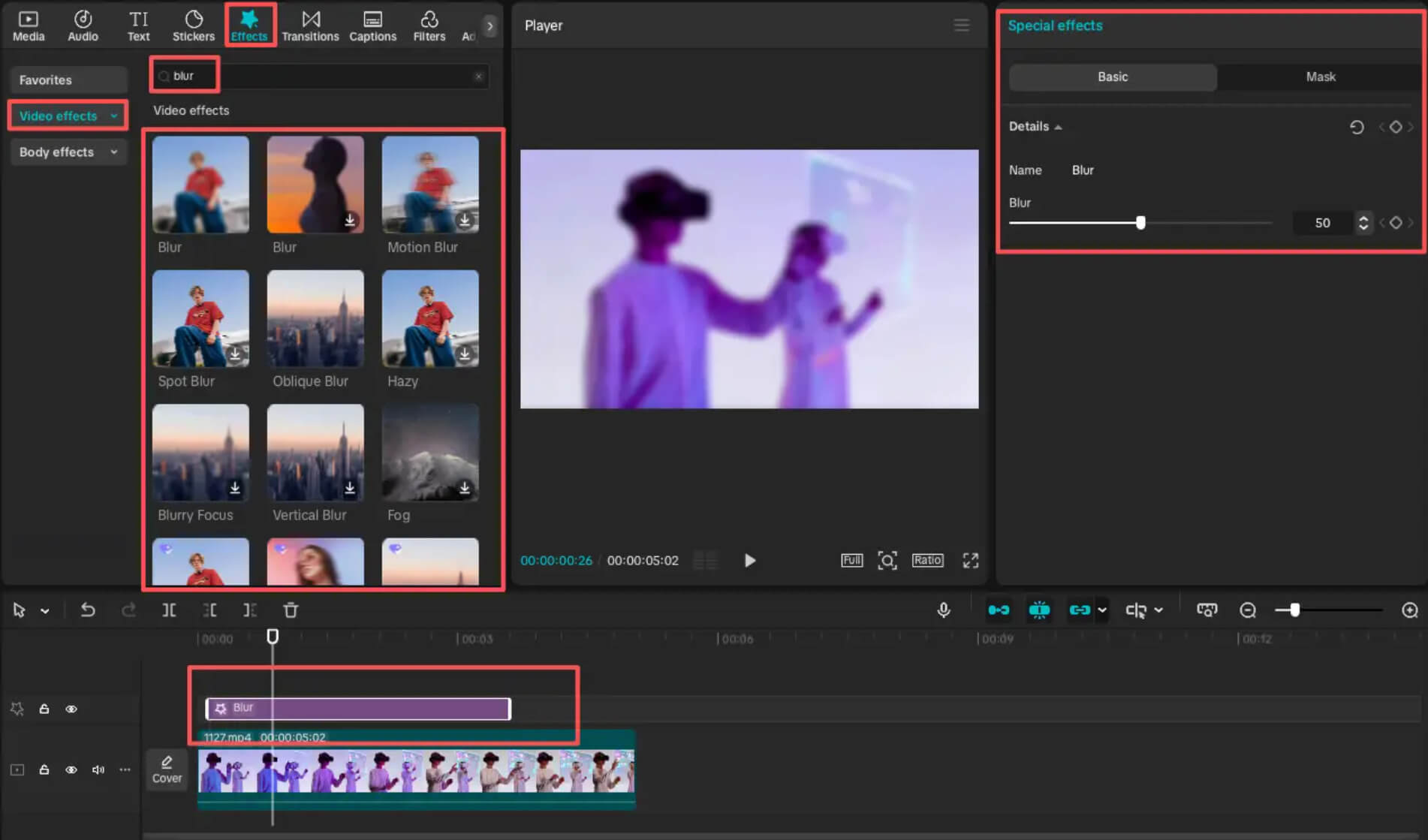
Its blur workflow combines timeline effects with masking tools, allowing users to blur an entire video, specific regions, or backgrounds. Editors can duplicate clips, apply a blur effect to the lower layer, and then use shapes such as rectangles or circles to mask the area that should remain blurred. For moving subjects, CapCut also provides mask tracking so the blur can follow faces or objects across the timeline.
Pros:
- Apply blur to the full frame or only specific sections of clips.
- Mask shapes (circle, rectangle, etc.) allow targeted privacy blurring.
- Mask tracking lets blur follow moving faces or objects.
- Free exports can be watermark-free if Pro assets are not used.
Cons:
- Partial blur often requires layering duplicated clips and masks, which adds extra steps.
- Precise tracking may require manual keyframes for complex motion.
Best for: Creators who need flexible blur control with tracking options and are comfortable using masks and keyframes.
Price & free limits: Free plan available; Pro starts around $19.99/month. Watermarks may appear if Pro assets are used, and pricing may change.
Platforms: Web, Desktop, iOS, Android.
3. VEED — Best for quick browser-based blur and creative video effects
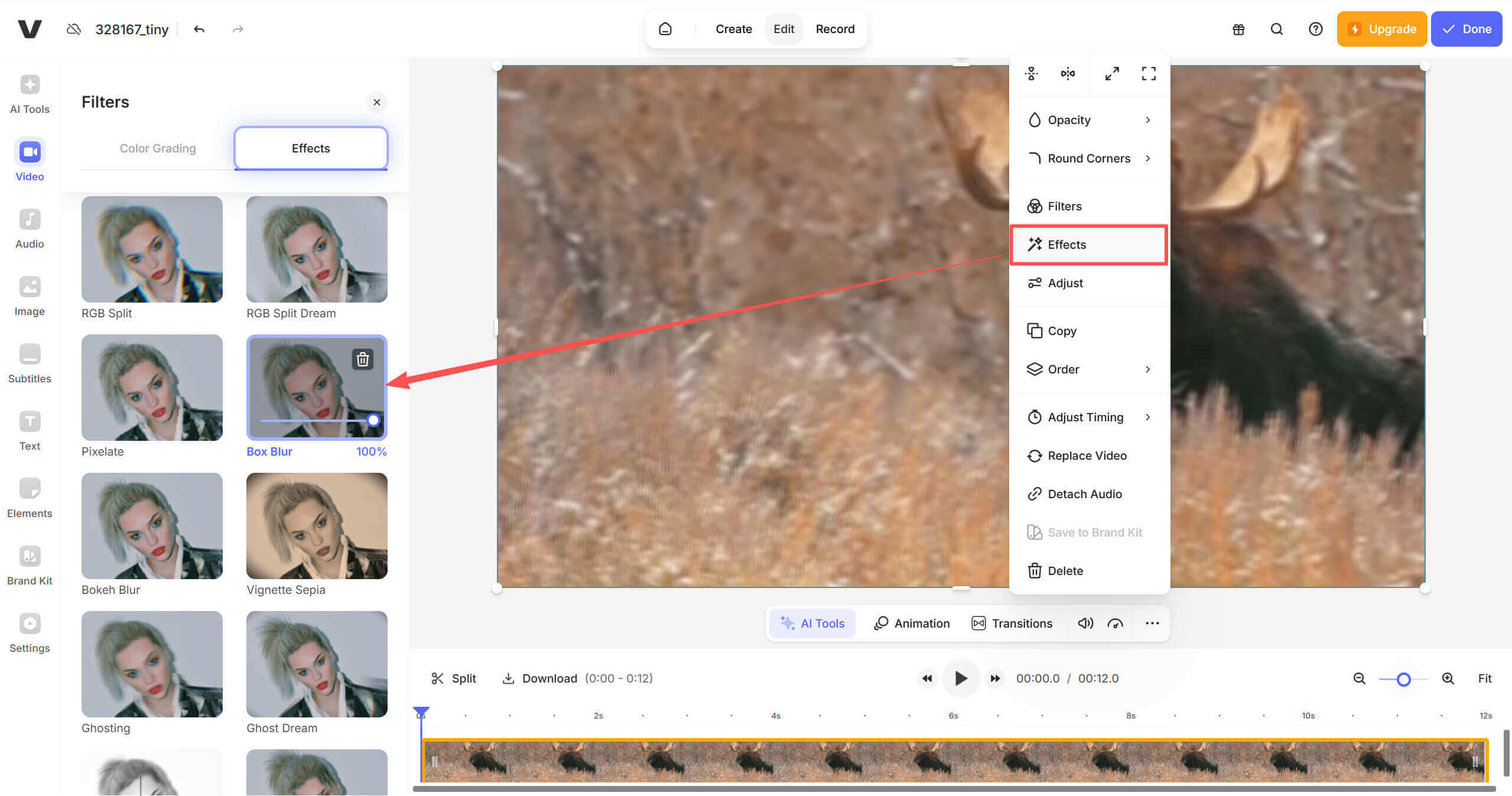
VEED is a browser-based video editor that lets users blur videos online without installing any software. Its blur tool is included with creative effects. You can blur faces, personal data, or sensitive content by applying effects such as pixelate, box blur, or bokeh blur.
Beyond blur, VEED also includes additional editing features such as trimming, subtitles, color adjustments, overlays, and animations, making it a lightweight all-in-one editor for social media content creation.
Pros:
- Multiple blur styles including Box Blur, Pixelate, and Bokeh effects.
- Adjustable blur intensity.
- Straightforward interface.
Cons:
- Partial blur is complex, requiring duplicating and cropping layers instead of automated masking.
- Lack of selective video blurring.
Best for: Creators who want a quick online blur tool combined with basic editing features for social media videos.
Price & free limits: Free plan available (export limitations and watermark may apply); paid plans unlock more features.
Platform: Web.
4. Kapwing — Quick social publishing with adjustable intensity
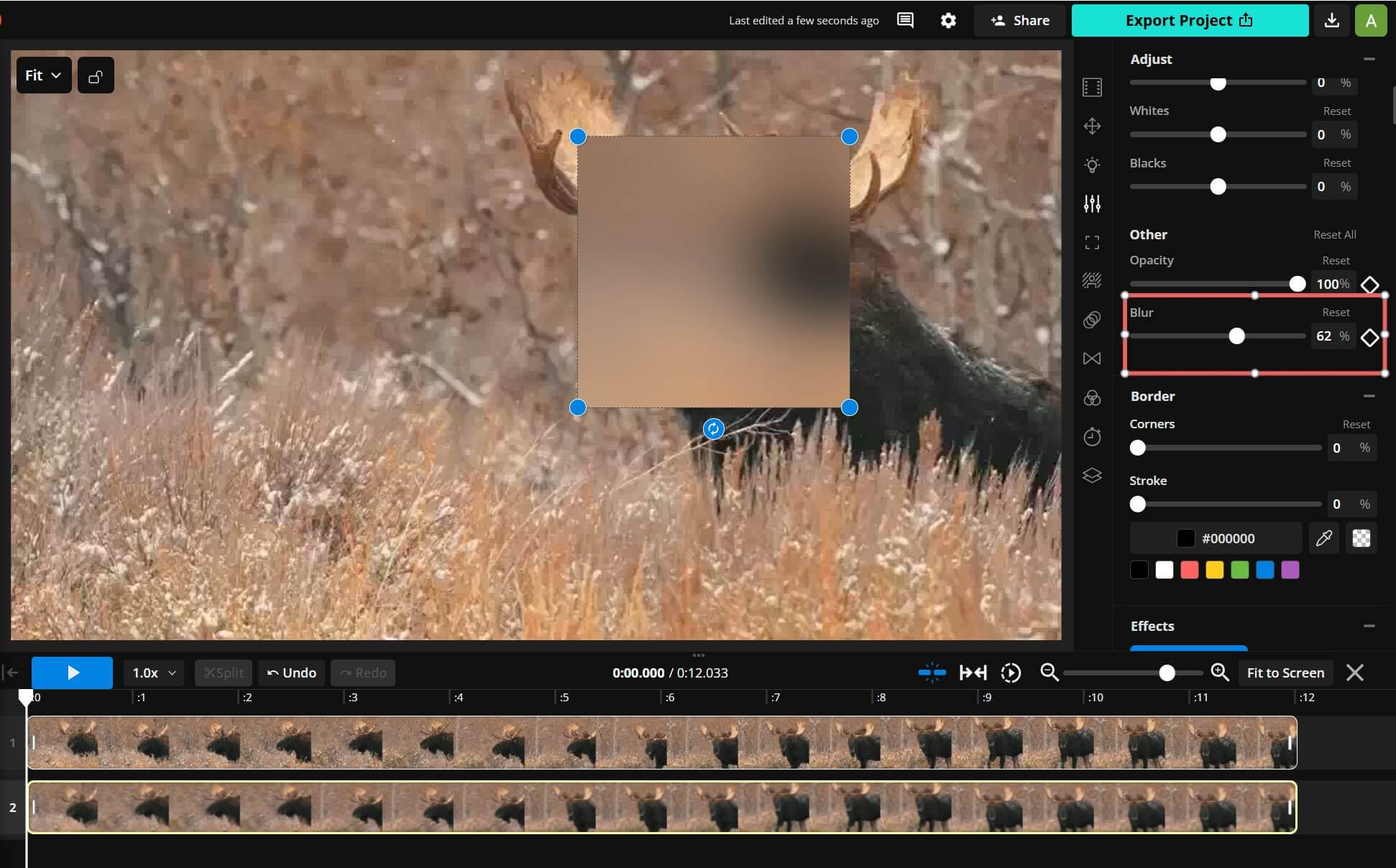
Kapwing is a cloud-based video editing platform designed for fast online content creation, especially for social media clips, tutorials, and marketing videos. Its blur tool allows users to obscure parts of a video, soften backgrounds, or create stylistic blur effects. For more targeted privacy blurring, creators need to duplicate and crop layers to blur only specific areas.
Pros:
- Easy to learn.
- Adjustable blur intensity with a simple slider for quick control.
- Supports keyframes to change blur position or strength over time.
- Quick publishing to social formats.
Cons:
- Targeted blur requires manual layer duplication and cropping.
- Free exports include a watermark.
- No pixelate/mosaic options.
Best for: Creators who want a simple online tool to quickly blur full frames, especially with templated social edits.
Price & free limits: Free plan with watermark and strict caps; Pro from roughly $16/user/month annually.
Platform: Web.
5. Clideo — Simple full-frame blur
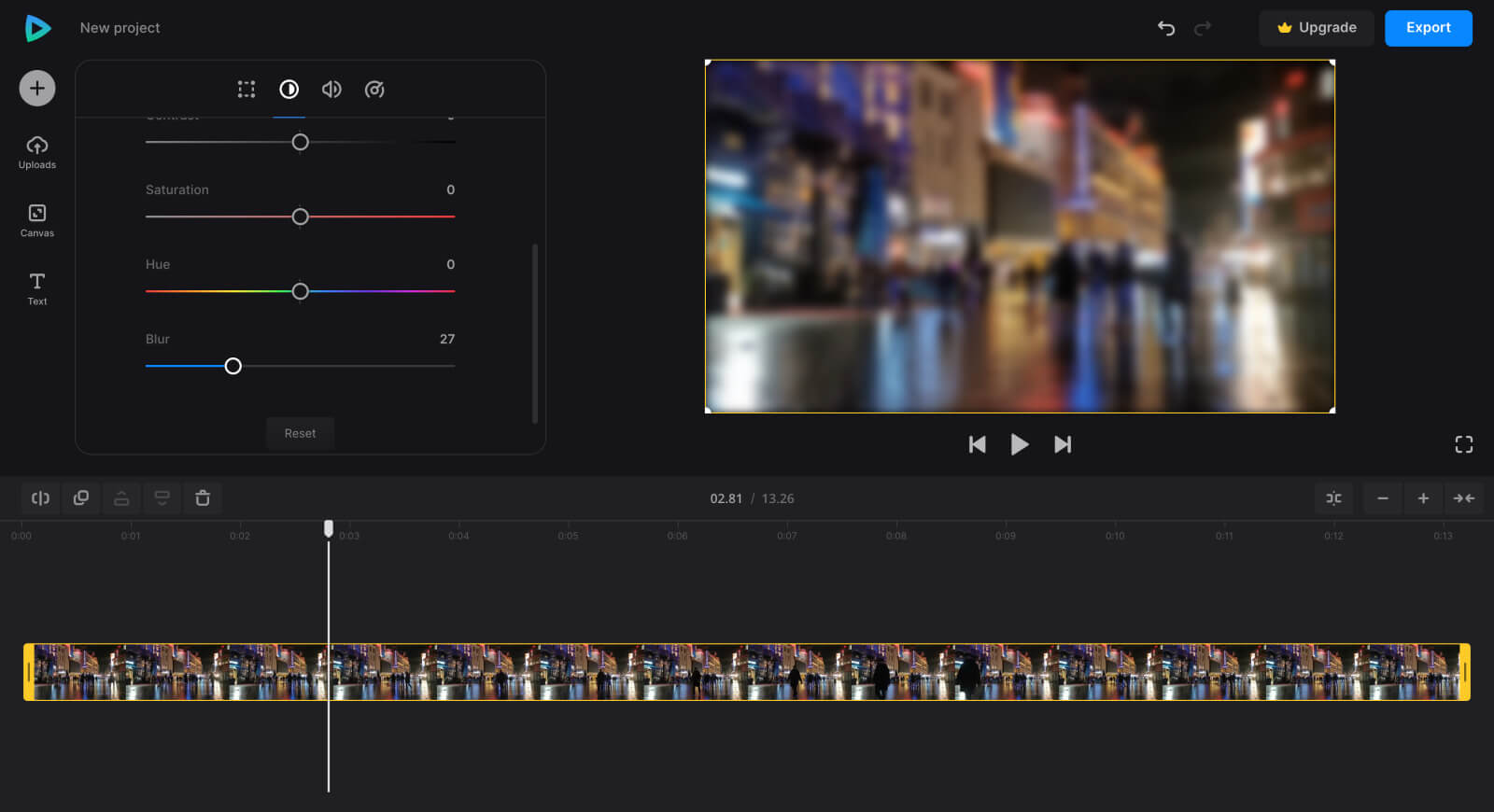
Clideo is a browser-based video editing platform designed for quick, single-purpose tasks such as trimming, resizing, filtering, and adding blur effects. Its blur feature is integrated into the Adjust panel with a simple blur intensity slider.
But it’s not designed for drawing a precise blur box over a face. You can only apply to the whole video frame. If you need to hide a particular area, adding an overlay element (such as a black caption box) and positioning it over the sensitive region as a workaround.
Pros:
- Very simple blur control with an adjustable intensity slider.
- Background blur slider inside resizer/editor.
- No registration required for files up to 500 MB.
Cons:
- No built-in option to blur specific areas like faces or license plates.
- Lacks motion tracking or mask-based blur tools.
- Free exports with watermarks.
Best for: Creators who only need a quick full-frame blur effect without installing software.
Price & free limits: Free plan exports with watermark; Pro required for clean exports; pricing varies and is subject to change.
Platform: Web.
How to Choose the Top Blur Video Editors
We scored each tool against seven criteria weighted for creator workflows:
- Selective blur precision & control — masks/boxes, adjustable area/intensity, timeline control.
- Batch repeatability for privacy blurs — re‑applying the same blur box across clips/projects quickly.
- Speed to publish in browser — upload‑to‑first‑export time and required steps; no installs.
- Automation capabilities — face detection/tracking reliability.
- Output quality & platform presets — clear exports, 9:16/1:1/4:5 presets, watermark handling.
- Pricing & free‑plan limits.
- Reliability & learning curve.
Test clips included: a 30‑second 1080p moving‑face shot, a 20‑second vertical TikTok clip, and a 15‑second product UI demo for box‑style blurs. Rankings reflect how efficiently each editor handled these common scenarios relative to online competitors.
What is the Right Tool for Common Blurring Needs
Need a mask + motion handling for a moving face? CapCut does well with mask tracking/keyframes.
Need a flexible selection, or apply the same privacy box across many clips? Poindeo’s Mosaic workflow supports simple, one-click application for blurs.
Need simple background blur during resizing? Clideo’s resizer does it quickly.
Need templated edits and titles more than precision blurs? Kapwing are fine, but they’re not precision redaction tools.
FAQs about Blur Video Editors
Which one should I choose: pixelate vs. blur?
Choose pixelate when you need stronger anonymization for faces or small text; use a standard blur for softer backgrounds or less sensitive areas. Always preview after platform compression to ensure redaction holds up.
How can I blur part of a video?
Choose a tool with selective blurring boxes like Poindeo.
What is the best blur video app for TikTokers?
If you edit primarily on a phone, CapCut is the best blur tool with mask shapes and tracking, plus exports that can be watermark‑free when you avoid Pro assets. If you prefer a laptop browser for batch videos, Poindeo’s Mosaic styles and vertical presets help you keep a consistent look while speeding up repeated blurs across many clips.
Conclusion
Blur video editors help hide privacy information like faces, addresses, accounts in social media clips, marketing videos, training materials, or online courses. This article reviewed the top 5 editors that work directly in the browser. You can directly upload a clip, apply the blur or filter, and export the finished video in a few steps.
Most of them provide precise selective blur, minimal steps to export, sensible presets, and clear free‑plan rules. If you want to try a simple workflow with flexible settings and one-click apply blurs across many clips, start a quick free test with Poindeo.