Have you ever left a website because you couldn’t figure out how the product actually worked? In today’s fast-paced digital era, creating a product with the help of AI is no longer a challenging feat. With just a single prompt, you can build something that once took days of coding to complete. However, while making a product has become easier, getting it noticed by users has grown increasingly difficult. So, how do you make your product stand out in a crowded market? When users land on your website, you can’t expect them to instantly understand how to use your product or grasp its value.
This is where a demonstration video becomes your most powerful tool. It functions as a universal currency of trust, transforming abstract features into something users can immediately see and understand. According to Wyzowl’s annual Video Marketing Report, 96% of people have watched an explainer video to learn more about a product or service and 85% of people have been convinced to buy a product or service by watching a video. This makes video one of the most powerful conversion assets available.
If you are still using only text and static images, you are losing customers. This guide covers the strategies and real-world examples you need to create that perfect “Aha!” moment that converts.
What is a Product Demonstration Video?
At its core, a product demonstration video (or product demo) is a visual walkthrough that proves your product does exactly what you claim it does. Unlike a high-level "explainer video," which focuses on the concept of a problem, a demo focuses on the execution of the solution. It shows the user interface (UI), the user experience (UX), and the tangible results a user can expect.
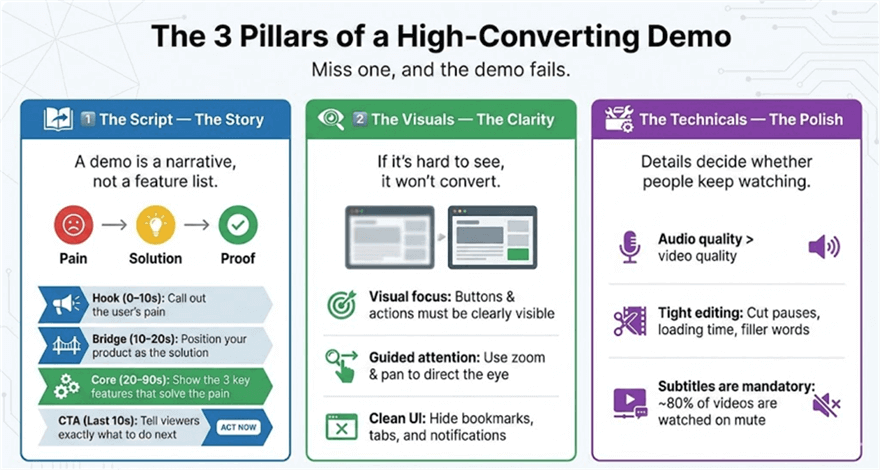
The 3 Pillars of a High-Converting Demo
To create a video that actually moves the needle on your revenue, you must master three specific pillars. If one is missing, the entire video collapses.
1. The Script (The Story)
A common mistake is thinking a demo is a "feature list." It’s not. It’s a narrative. A high-converting script follows the Pain-Solution-Proof framework:
- The Hook (0-10s): Address the specific pain point your user is feeling right now. "Struggling to track your team's velocity?"
- The Bridge (10-20s): Introduce your product as the bridge from that pain to a better reality.
- The Meat (20-90s): Show the 3 most important features that solve that pain.
- The CTA (Final 10s): Clearly instruct them on the next step.
2. The Visuals (The Clarity)
In a world of high-definition displays, a blurry, zoomed-out screen recording looks amateur. This is where most founders fail.
- Visual focus: When you mention a specific button or feature, it should be clearly visible on screen.
- Guided attention: Subtle zooming and panning help direct the viewer’s eye, making complex interfaces feel simple and easy to follow.
- Clean presentation: Hide bookmarks, close unnecessary tabs, and turn off notifications so the interface remains the sole focus.
3. The Technicals (The Polish)
- Audio Quality: People will forgive average video, but they will turn off a video with bad audio. Use a dedicated USB microphone and record in a quiet room.
- Editing: Remove the "ums," "ahs," and the 5 seconds it takes for a page to load. Your demo should be "all killer, no filler."
- Subtitles: 80% of social media videos are watched on mute. If your demo doesn't have captions, you are ignoring the majority of your audience.
7 Product Demo Examples That Master the “Aha! Moment”
The best way to learn is to watch great products explain themselves. Below are seven real-world product demo videos from YouTube that set a high bar for clarity, pacing, and user understanding.
1. How to Use Slack: Your Quick Start Guide
Slack’s onboarding demo succeeds because it centers on real team workflows, not abstract features.
The “Aha!” Moment:
Seeing messages, files, and mentions flow naturally inside a single channel, replacing scattered emails and tools.
The video is calm, structured, and practical. It walks viewers through real use cases with clear UI shots, reinforcing Slack’s positioning as a shared workspace—not just a messaging app, but a true digital hub for teams.
2. The High-Energy “Hype” Demo: Get Started With ClickUp
ClickUp faces a classic demo challenge: too many features, too little time.
The “Aha!” Moment:
Watching tasks shift seamlessly between list, board, and calendar views without losing context.
Instead of teaching every feature, the video focuses on momentum. Fast cuts, bold motion, and rapid UI transitions communicate power and flexibility, making ClickUp feel like a command center rather than a complex tool.
3. The Founder-Led Walkthrough: How to Get Started with Loom
Loom’s demo reflects its product philosophy: simple, human, and face-to-face.
The “Aha!” Moment:
Seeing the speaker’s face appear in the corner while they explain content on screen—instantly conveying context and personality.
The demo feels conversational, not scripted. By showing a real person using Loom in real time, it builds trust and demonstrates exactly how Loom replaces long emails and meetings with short, personal videos.
4. The Problem–Solution Masterclass: Everything You Can Do With monday.com
Monday.com excels at visual transformation.
The “Aha!” Moment:
Watching a cluttered, manual workflow evolve into a structured, color-coded, automated board.
The video leans heavily on contrast. By showing “before” chaos and “after” clarity, it taps directly into the emotional pain of disorganization and positions the product as a sense-making tool, not just a project tracker.
5. The Feature Deep-Dive (SaaS): Figma in 5 – Auto Layout
Figma’s demos shine when explaining complex features with precision.
The “Aha!” Moment:
When one element moves and the rest of the design automatically adapts.
The video uses tight framing, clear cursor movement, and deliberate pacing. Zooms and highlights remove cognitive overload, making an advanced layout system feel intuitive—almost magical.
6. The “Silent” Social Demo: Meet Magic Studio | Let the Power of AI Supercharge Your Work
Canva designed this demo for viewers who may never turn sound on.
The “Aha!” Moment: Seeing a short text prompt instantly generate polished visual designs.
Everything is visual-first. Clean UI, smooth transitions, and immediate results make the value obvious without narration. The demo is perfectly suited for social feeds where attention is limited and clarity is critical.
7. The Launch-Day 60-Second Demo: Arc Browser | A Quick Tour of Arc Basics
Arc Browser reimagines a familiar category through design and motion.
The “Aha!” Moment: Watching the sidebar collapse and Split View appear, changing how browsing feels.
The demo is short, stylish, and confidence-driven. It avoids over-explaining and instead invites curiosity, making it a textbook example of a launch-day or Product Hunt–style demo.
How to Make a Demo Video with Ease (The Poindeo Method)
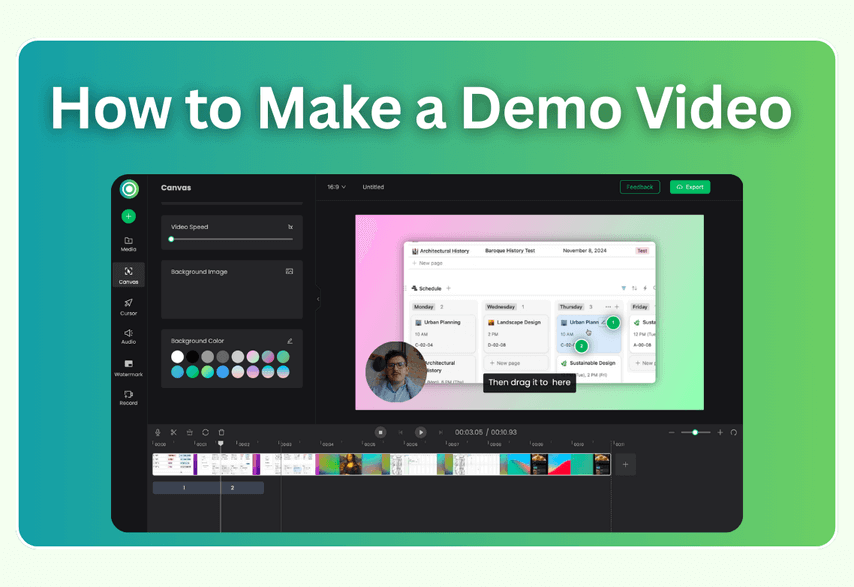
You don’t need a $10,000 production budget, complex software, or advanced editing skills to create a professional product demo. With Poindeo, the entire process—from recording to export—can be done in one simple, browser-based tool.
Poindeo is designed specifically for product demos: it removes technical friction so you can focus on clarity and storytelling, not editing timelines.
Step 1: Define Your “3 Wins” (What Actually Matters)
Before recording, decide on the three moments that matter most. Trying to show everything usually results in showing nothing.
- Win 1: The problem or setup
- Win 2: The core workflow
- Win 3: The result or outcome
This structure keeps your demo focused and ensures every minute earns attention.
Step 2: Record Once, Cleanly
With Poindeo, you can record:
- The full screen, a specific window, or a browser tab
- Your screen and webcam at the same time
Once you stop recording, the video is automatically placed on the timeline, ready to edit—no file importing, no setup.
Tip: Recording in 1080p or 4K ensures UI details stay readable, even on mobile screens.
Step 3: Turn a Recording into a Demo (The Poindeo Advantage)
This is where Poindeo stands out.
- Auto Zoom & Highlighting: Poindeo’s Chrome extension automatically zooms into key actions—clicks, inputs, and UI changes—so viewers always know where to look.
- Zoom & Narrate: You can upload product images or PDFs and record voiceovers while using zoom animations to explain features visually. This is ideal for walkthroughs, pitch-style demos, or feature explanations.
- Simple Editing, No Learning Curve: Split clips, add visual emphasis, background music, or auto subtitles directly on the timeline—without complex controls.
Step 4: Brand, Export, and Publish
Finish strong with:
- Branding elements like text or logos
- High-quality export up to 4K at 60fps
Your demo is ready to share on landing pages, Product Hunt, social media, or sales outreach—fast.
10 Critical Mistakes That Will Kill Your Demo Video
Even with the best tools, many founders fall into these traps. Avoid these to stay ahead of 90% of your competition.
- Starting with a "Logo Intro": You have 3 seconds to grab attention. Don't waste it on your logo spinning. Start with the pain point.
- Showing the "Settings" Page: Nobody cares about your billing settings or API keys. Show the value, not the plumbing.
- Monotone Narration: If you sound bored, your audience will be bored. Drink a coffee, stand up while recording, and use an enthusiastic tone.
- Moving the Mouse Too Fast: Rapid mouse movement makes viewers dizzy. Move with intention.
- No Subtitles: We've said it before, but it bears repeating. In 2026, no subtitles = no viewers.
- Being Too Long: If your demo is over 3 minutes, you aren't making a demo; you're making a training manual. Save the long stuff for the Help Docs.
- Bad Audio: A $50 USB mic is the best investment you'll ever make.
- Ignoring Mobile Users: Test your video on your phone. If you can't read the text in the video, you need to use more zoom effects.
- No Clear CTA: What should they do when the video ends? If you don't tell them, they will just scroll to the next video.
- Over-Editing: You don't need 3D explosions. You need a clear, clean view of your software.
FAQ: Everything You Need to Know About Product Demos
Q: How long should a product demo video be?
A: It depends on where the viewer is in the funnel.
- Social Media/Launch Day: 30–90 seconds.
- Landing Page: 2–3 minutes.
- Sales Walkthrough: 3–5 minutes.
Never exceed 5 minutes unless it's a requested technical deep-dive.
Q: Do I need a professional voice actor?
A: In 2026, authenticity beats "polished" perfection. A founder or product manager’s voice is often more convincing because it carries genuine passion and expertise. However, if your accent is very thick or you are extremely camera-shy, AI voiceovers (like Suno or ElevenLabs) have become high-quality enough to be a viable alternative.
Q: What is the best software for product demos?
A: For quick, casual screen sharing: Loom.
- For professional-grade, high-converting demos with dynamic zooms: Poindeo.
- For high-end animated explainers: After Effects.
Q: Should I show my face in the video?
A: Yes, whenever possible. A "webcam bubble" makes the video feel like a conversation rather than a lecture. It humanizes your brand and builds trust.
Q: How do I handle my UI changing frequently?
A: This is a common SaaS struggle. The best strategy is to keep your demos modular. Instead of one 5-minute video, create five 1-minute videos. When one feature changes, you only have to re-record one minute.
Conclusion
A product demonstration video is more than just a marketing asset; it is the bridge between a "visitor" and a "customer." It removes the friction of the unknown and replaces it with the confidence of seeing a solution in action.
By focusing on visual clarity, narrative structure, and dynamic zoom effects, you can create a demo that doesn't just show your product—it sells your vision.
Ready to make your UI pop?
Don't let your hard work get lost in a blurry screen recording. Use Poindeo to add professional zooms, clear subtitles, and cinematic polish to your next demo.
Try Poindeo for Free Today and start turning your viewers into users.