Ready to Blur an Image and Protect Privacy?
Need to protect privacy, blur text or face? Use Poindeo's image blur tool to hide any part of an image online.
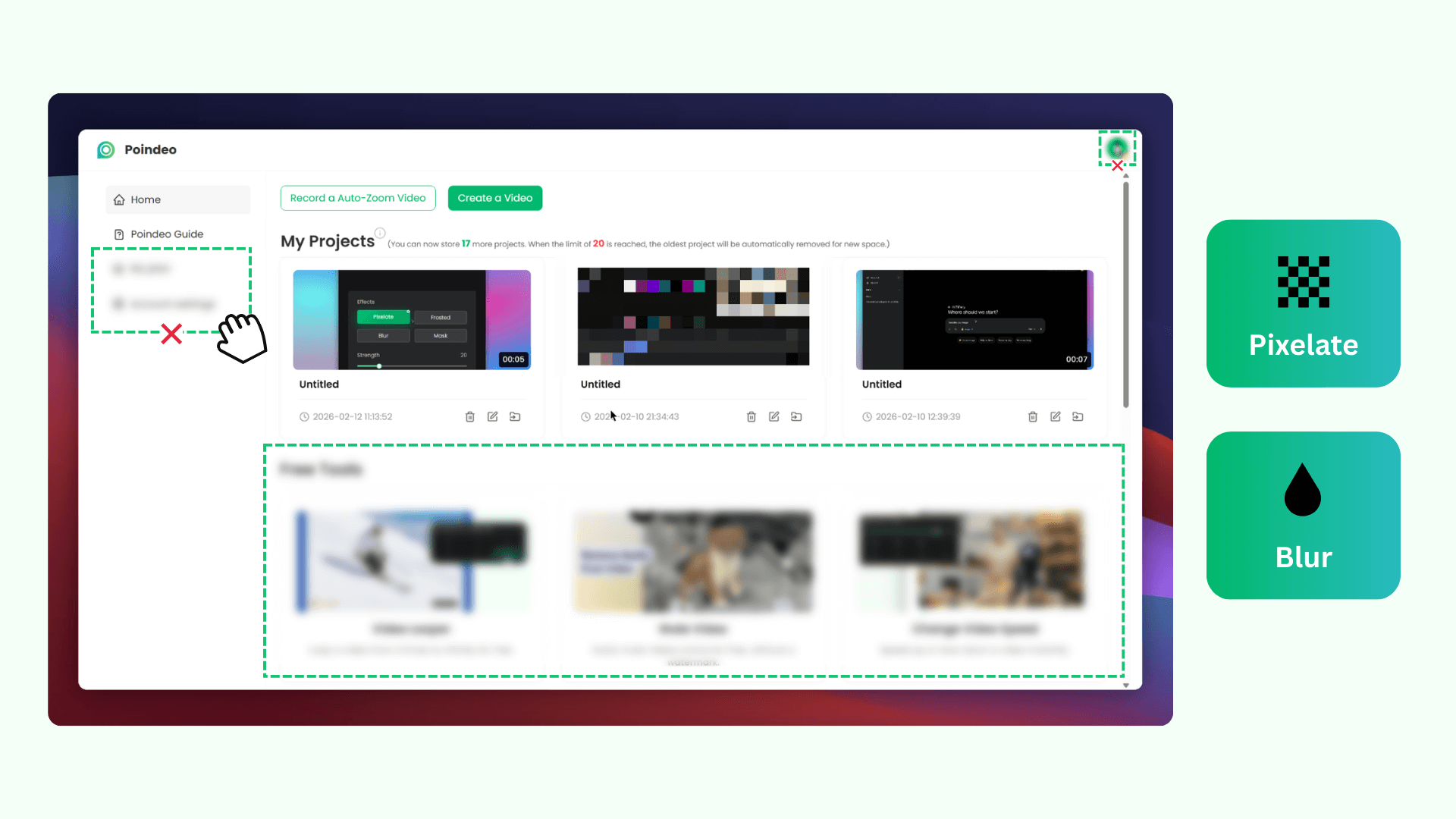
Click “Blur Images for Free” above to open the Poindeo editor. Upload a single image or multiple photos to get started.
Click the Mosaic icon on the timeline to activate the tool. Click and drag your cursor over the canvas to draw a box over the spots you want to hide. Change the box effect to Blur, Pixelate, Frosted, or Mask.
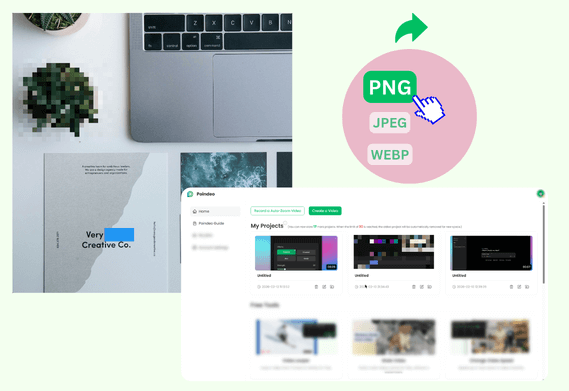
Use the Strength slider to adjust intensity, drag the box to reposition or resize the area on the canvas, click delete icon or Backspace key to remove it. Once satisfied, click Export to save your images as PNG, JPEG, WEBP, or even MP4.
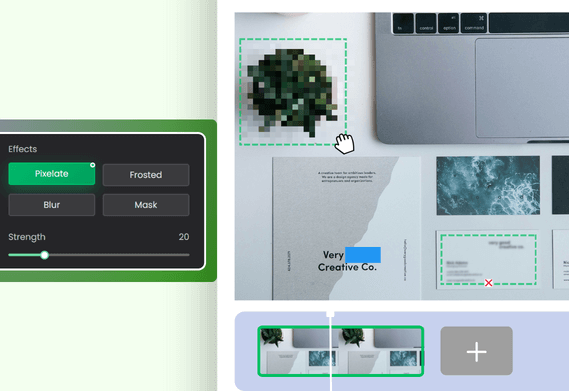
Designed for simple editing. No complex layers or technical skills required. Just one click to add a Mosaic track and define your blur area on the canvas. Easily switch Blur to Pixelate, Frosted, or Mask effect to find the perfect look for your image.
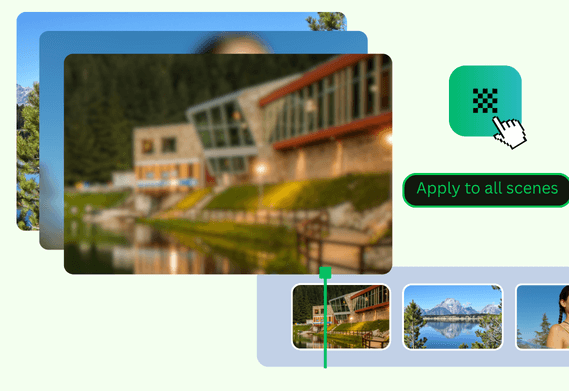
This blur tool allows you to upload multiple images and apply the same blur position and strength. It is the perfect solution for hiding elements in fixed locations like web page headers, footers, or account information. The free plan covers up to 2 images; Pro unlocks unlimited batch blurring.
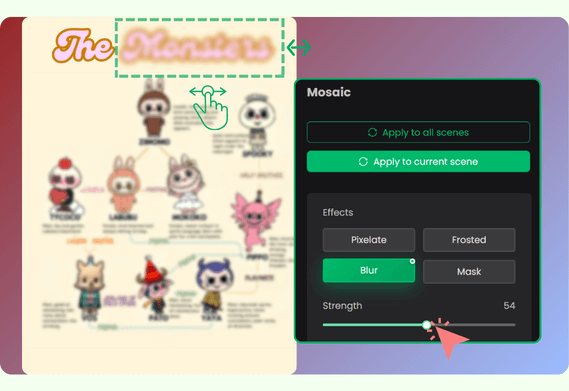
Control blurring with adjustable intensity, position, and coverage area. Use the Strength slider to hide details subtly or completely. Draw a custom blur area — Whether it's a tiny text or a large background area, just click and drag to define exactly what needs to be hidden. Then choose to pull the corners of the box to resize the blur area, or reposition it.
Use the Poindeo image blur tool for privacy protection and sensitive data. Easily blur faces in a picture before sharing. The customer support team covers up users' accounts in screenshots. Creators blur the faces or details for posting on social media. Marketers and educators hide cluttered information for demonstrations or tutorials.
Yes. Your images are processed locally within your browser. Your private files won't be stored and only you can view them.
You can upload and blur up to 2 images for free. Upgrade to Poindeo Pro to unlock unlimited batch processing.
Yes. After clicking the Mosaic icon, the canvas becomes interactive. Draw a selection box over the full image or any part of the image. You can even add multiple boxes to redact different information across the same photo. Pull the corners of the selection box to resize any one of them.
Yes. You can add multiple selection boxes to hide different parts of a single image. Each box can be resized and adjusted independently.
Click the Export button to save the blurred image as PNG, JPEG or WEBP. If you processed multiple pictures, select one by one to export.
Simply select the blur box on the canvas and hit Backspace or click the Delete icon. You can also re-add one or adjust it at any time.
Need to protect privacy, blur text or face? Use Poindeo's image blur tool to hide any part of an image online.
Poindeo is more than a simple blur tool. It's also a video and demo editor built for efficiency. You can do more with Poindeo:
Capture your entire screen, a browser tab, webcam, and audio directly in your browser. Auto-sync to the timeline for seamless editing.
Organize visuals, zoom sequences, and multiple audio tracks on a simple timeline.
Automatically highlight specific visual areas to guide your viewer's attention - perfect for showcasing product details or demonstrating a process.
Choose from stunning backgrounds, stylish padding, and music to enhance your storytelling.
Add your logo and text, customize fonts and colors, and apply your brand identity to every creation.
Make eye-catching videos for professional demos, audio-enhanced materials, and compelling content for YouTube, Instagram, and online courses.