You cut your clip in DaVinci Resolve, and there is one moment — a face in the corner of the frame, a setting buried in a screen recording, a highlight that deserves a closer look — that needs a zoom. But Resolve is a deep program, and half the tutorials out there quietly assume you own the $295 Studio version.
Good news first: every zoom technique you actually need is in the free version of DaVinci Resolve. A static punch-in, the built-in Dynamic Zoom, and fully keyframed zooms all work without paying anything. This guide walks through each method, when to use it, and the gotchas that trip people up — plus what really is locked behind DaVinci Resolve Studio, because zooming is not on that list.
Key Takeaways
- All three zoom methods in this guide — static punch-in, Dynamic Zoom, and keyframed zoom — work in the free version of DaVinci Resolve.
- Use a static punch-in when the whole clip needs a fixed crop, Dynamic Zoom for a quick animated move, and keyframes when the zoom has to start, hold, or release at specific moments.
- Dynamic Zoom always spans the entire clip. To zoom in the middle of a clip, split it with the Blade tool or use keyframes.
- DaVinci Resolve Studio ($295, one-time) locks AI effects, advanced noise reduction, HDR grading, and exports above 4K — none of the zoom features.
- If your footage is a screen recording and zoom is most of the edit, a browser tool like Poindeo adds click-to-place zooms in minutes.
Two Kinds of "Zoom" in DaVinci Resolve (and Which One You Want)
Before the steps, a quick disambiguation — this confusion shows up constantly in Resolve communities, and it wastes hours. "Zoom" can mean two completely different things in DaVinci Resolve:
- A zoom effect on your video. The footage itself is magnified, and the zoom is visible in the exported file. That is what this guide covers.
- Interface zoom. Magnifying the viewer or the timeline so you can work more precisely. It changes nothing in your export.
If you are here for the second one: the Edit page viewer has its own zoom setting inside the viewer's options menu, and the timeline zooms separately from the picture. Set those and get back to editing. Everything below changes what your viewers actually see.
Still deciding which editor to do it in? The general version of this workflow — how to zoom in on a video in any editor — covers the same decisions without the Resolve specifics.
Method 1: Static Punch-In With the Inspector (Easiest)
The fastest zoom in Resolve is not animated at all — it is a fixed crop-in on the whole clip. Use it to reframe a shot, hide something at the edge of the frame, or push a static clip closer.
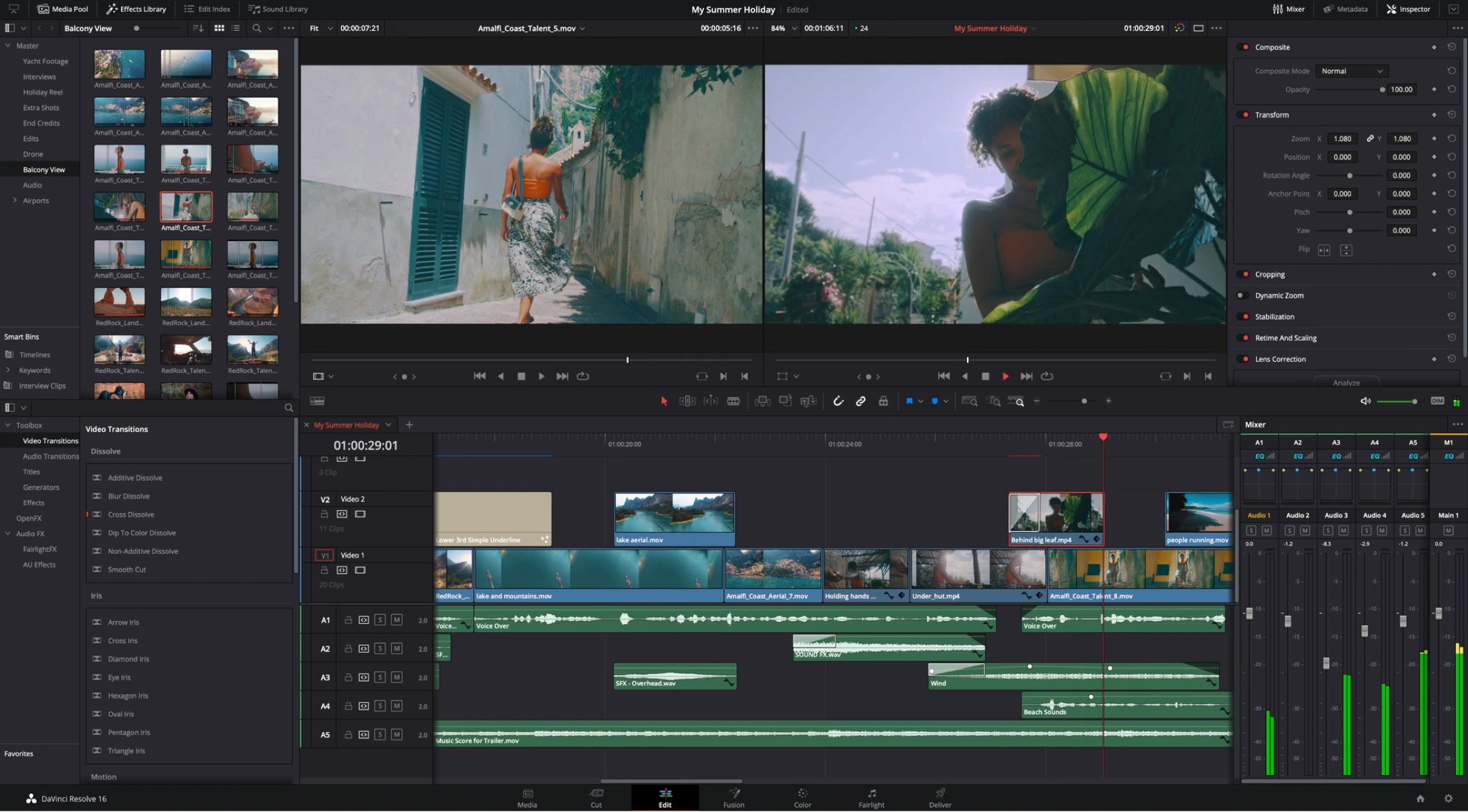
The Edit page in DaVinci Resolve — the Inspector's Transform section on the right is where the Zoom controls live. Image: Blackmagic Design.
- On the Edit page, click the clip in your timeline so it is selected.
- Open the Inspector — the toggle at the top right of the Edit page, next to the viewer.
- Make sure the Video tab is selected at the top of the Inspector panel.
- In the Transform section, increase the Zoom value. Try 1.2 to 1.4 for a subtle punch-in. Drag the value, or click it and type an exact number.
- If the subject drifts off-center as you zoom in, adjust Position X and Position Y to re-frame it.
Play it back: the entire clip is now closer, with no animation. Two things worth knowing:
- Higher zoom values crop away more of the frame and enlarge the remaining pixels. On 1080p footage delivered at 1080p, zooms beyond roughly 130–140% start to look soft. If you know you will punch in hard, record or export at a higher resolution than you deliver.
- This applies to the whole clip. If you want the zoom to happen during the clip — the classic effect — you need Method 2 or 3.
Method 2: Dynamic Zoom (Fastest Animated Zoom)
Dynamic Zoom is Resolve's built-in animated zoom: you frame where the shot starts and where it ends, and Resolve animates between the two. No keyframes, no curves.
- Select a clip on the Edit page timeline (the Cut page has its own Inspector too, but stick to Edit for this walkthrough).
- Open the Inspector and scroll down to the Dynamic Zoom section, just below Transform in the Video tab.
- The viewer now shows a green box — your start framing — and a red box — your end framing. Drag the boxes and their corners to set where the zoom begins and ends.
- In the Dynamic Zoom section, pick an easing mode. Ease In and Out gives the move a natural start and stop; use the Swap button if your zoom is moving the wrong direction.
- Play the clip back to check the move.
Three gotchas worth knowing before you fight with them — all of them regular complaints on the Blackmagic Design forum:
- Dynamic Zoom spans the entire clip. There is no way to hold it, delay it, or stop it partway. The workaround: split the clip with the Blade tool (shortcut B) and apply Dynamic Zoom only to the piece that should move. For anything more precise, use keyframes.
- A paused frame may not show it. Dynamic Zoom is rendered as a live effect, so on some systems the viewer only displays the move while the clip is playing. Do not re-adjust your boxes based on a paused frame — play it back, and trust the export.
- It does not touch Transform. The Inspector's Zoom value stays at 1.0 even while a Dynamic Zoom move plays back. That is by design, not a bug — the two systems are independent.
Method 3: Keyframed Zoom (Full Control: Smooth, Hold, Pan)
When the zoom needs to start mid-clip, hold on the subject, then release — or combine a zoom with a pan — keyframes are the tool. This is the most flexible method, and it is still only a few minutes of work.
- Select the clip on the Edit page and open the Inspector's Video tab.
- Move the playhead to the moment the zoom should start.
- In the Transform section, click the small diamond icon next to Zoom. That records a keyframe at the current value (1.0) — your "before" state. If you plan to pan as well, click the diamonds next to Position X and Position Y too.
- Move the playhead to the moment the zoom should finish.
- Change the Zoom value to your target — 1.3 to 1.5 is a comfortable range. Resolve records the second keyframe automatically as you change the value. Adjust Position at the same moment if you are panning toward the subject.
- Play it back. The zoom now ramps between your two moments. By default the move is linear, which looks a little mechanical.
- To smooth it: click the small keyframe graph icon next to the parameter in the Inspector to open the curve view, select your keyframes, and switch interpolation from Linear to Ease In and Out.
- To zoom back out, repeat the pattern: a keyframe holding the zoomed value where the hold should end, then a final keyframe back at 1.0 where it releases.
That last pattern — zoom in, hold, zoom out — is the exact effect Dynamic Zoom cannot do, and it is why keyframes are worth learning despite the extra minute.
Which Zoom Method Should You Use?
| Method | Best for | Animated? | Effort |
| Static punch-in | Reframing the whole clip, hiding edges | No | About 30 seconds |
| Dynamic Zoom | One smooth zoom across a short clip | Yes, whole clip | About 1 minute |
| Keyframed zoom | Mid-clip zooms, holds, pan + zoom combos | Yes, fully timed | 3–5 minutes |
Start simple. Most punch-in needs are static, and animating a zoom only pays off when the movement itself adds meaning — a reveal, a redirect of attention, or a push toward a detail the viewer would otherwise miss.
Is Zooming Free in DaVinci Resolve? What Studio Actually Locks
Everything above runs in the free download of DaVinci Resolve from the Blackmagic Design website. Dynamic Zoom, the Inspector's Transform controls, and keyframing are core editing features — they have never been on the Studio-only list.
What DaVinci Resolve Studio does lock, for the record:
- Neural-engine AI effects — face refinement, object removal, voice isolation, and similar
- Advanced spatial and temporal noise reduction
- HDR grading tools
- A set of Resolve FX and stereoscopic 3D tools
- Delivery above 4K Ultra HD, plus some professional codecs and accelerated hardware support
Studio is a $295 one-time license (Blackmagic occasionally discounts it, and a license key ships free with many Blackmagic cameras). If zoom effects are why you were considering it, save the money — the free version is genuinely complete for this job.
The Faster Route When Your Footage Is a Screen Recording
One honest scoping question before you keyframe anything: is the clip you are zooming actually a screen recording, product demo, or tutorial capture — and is zoom (plus a caption or highlight) most of the edit you need? A full NLE is overkill for that job, and a browser editor built around zoom effects skips most of the steps above.
Poindeo is a browser video editor whose core interaction is exactly this workflow. Import your recording, click anywhere on the canvas to drop a zoom point, drag the point to retarget it, and the zoom lands there with easing built in. There are no keyframes to place and no clip splitting for mid-video zooms — each point carries its own timing on the timeline, and chaining a zoom toward the next spot is just another click.
It is not a general-purpose editor, and it does not replace Resolve for grading, multicam, or complex audio work. But for zoom-and-pan on a recording, it is the whole job — and it starts free with 720p export, with 4K export on the Pro plan at $19.99 per month, $3.33 per month billed annually, or a $99 lifetime license.
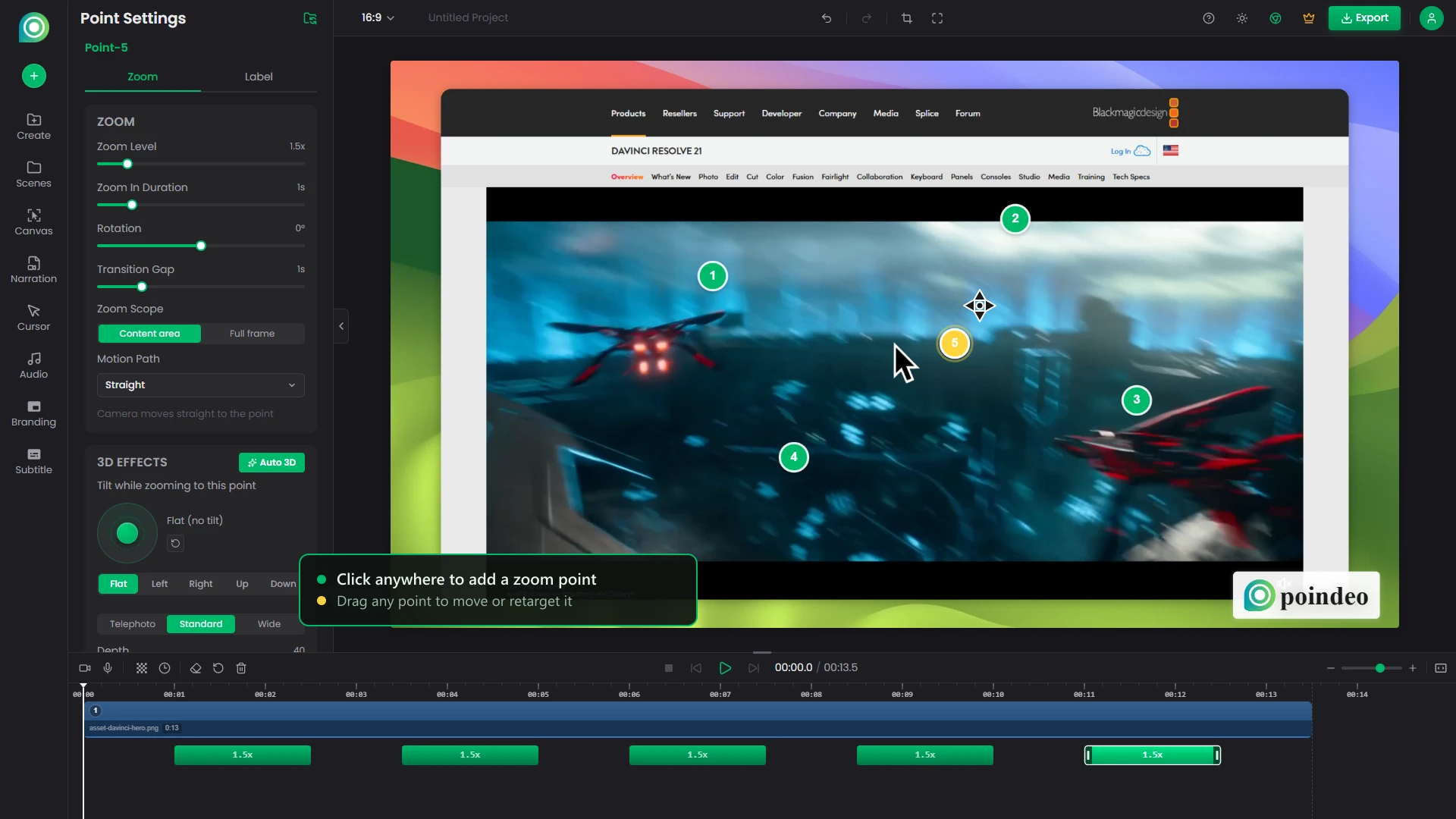
If you record tutorials regularly, the fuller workflow — capture, auto zoom placement, and export settings — is covered in how to add auto zoom to screen recordings.
FAQs About Zooming In on a Video in DaVinci Resolve
Is Dynamic Zoom free in DaVinci Resolve?
Yes. Dynamic Zoom, the Inspector's Transform zoom, and keyframing are all included in the free version — none of them appear on the Studio-only feature list.
Why is Zoom grayed out in my Inspector?
The most common causes: no clip is selected on the Edit page timeline, or the Transform section is collapsed — click its disclosure triangle to expand it. Also check you are on the Inspector's Video tab, not Audio.
How do I zoom the interface instead of the video?
Use the zoom setting in the viewer's options menu above the playback controls for the picture, and the timeline's own zoom controls for the tracks. Interface zoom never appears in your exported video.
Does the free version of DaVinci Resolve add a watermark?
No. Exports from the free version are clean, up to 4K Ultra HD resolution.
Why does my Dynamic Zoom only show while the clip is playing?
Dynamic Zoom is computed as a live effect, so on some systems a paused frame does not render it. Judge the move during playback or in the exported file, not on a paused frame.
Can I zoom in without losing quality?
Only partially. Zooming crops the frame and enlarges the remaining pixels, so heavy zooms soften the image. The cleanest punch-ins come from recording or exporting at a higher resolution than you deliver — 4K footage in a 1080p timeline, for example — and keeping zooms under about 150%.
The Short Version
Three zooms, one free download. Most edits need nothing more than the Inspector's Zoom control. Dynamic Zoom buys you animation in about a minute. Keyframes buy you total control for the zoom-hold-release pattern. The steps are the same in every recent version of Resolve, free or Studio.
We have covered the same workflow for Premiere Pro users — and if your "video" is really a screen recording, Poindeo's screen recorder with auto zoom records and zooms in one pass, no editor required.