Your screen recording is flat, and viewers can tell within the first three seconds. It plays like a slideshow of cropped screenshots while the product launch videos everyone compares you to have that subtle move: the camera pushes in toward a button, and the frame tilts slightly as if you were leaning over a desk toward a real monitor. That move is a 3D zoom effect, and it is the single cheapest upgrade you can make to a product demo or tutorial.
Here is the part most people get wrong, though. Search for "3D zoom effect" today and you mostly find CapCut photo templates that animate a still image for TikTok. That is a different thing. What a screen recording needs is video-native perspective: a tilt applied to a moving clip, timed to a zoom, that keeps every pixel of your UI readable.
The good news is that you do not need After Effects and you do not need to keyframe anything by hand. This guide covers the fastest way to do it — a browser editor where every zoom point carries its own 3D tilt — plus the dedicated tools and the manual route, so you can pick based on your workflow rather than a marketing page.
A zoom point with the Right tilt preset (12°): flat overview, tilted push-in, hold, and back. Four-second loop.
Key Takeaways
- A 3D zoom effect is a camera push-in combined with perspective tilt, so the frame reads as a surface in space instead of a flat crop.
- The fastest path is a browser editor: Poindeo applies 3D tilt per zoom point — one-tap presets at 12°, a joystick for angles up to 45°, depth-of-field control, and one-click Auto 3D. The free tier exports 720p.
- Dedicated tools cover other cases: TiltIt (browser, 70 preset camera moves), FocuSee and AutoZoom (desktop recorders with automatic 3D motion).
- The manual route in After Effects, Premiere, or DaVinci Resolve gives the most control and costs the most time — easily 20 minutes per shot.
- Keep the tilt subtle. 8–12° reads as intentional; text readability collapses somewhere past 30°.
- 3D rendering depends on browser hardware acceleration. If the 3D controls are greyed out, that is the first thing to check.
What a 3D Zoom Effect Actually Is
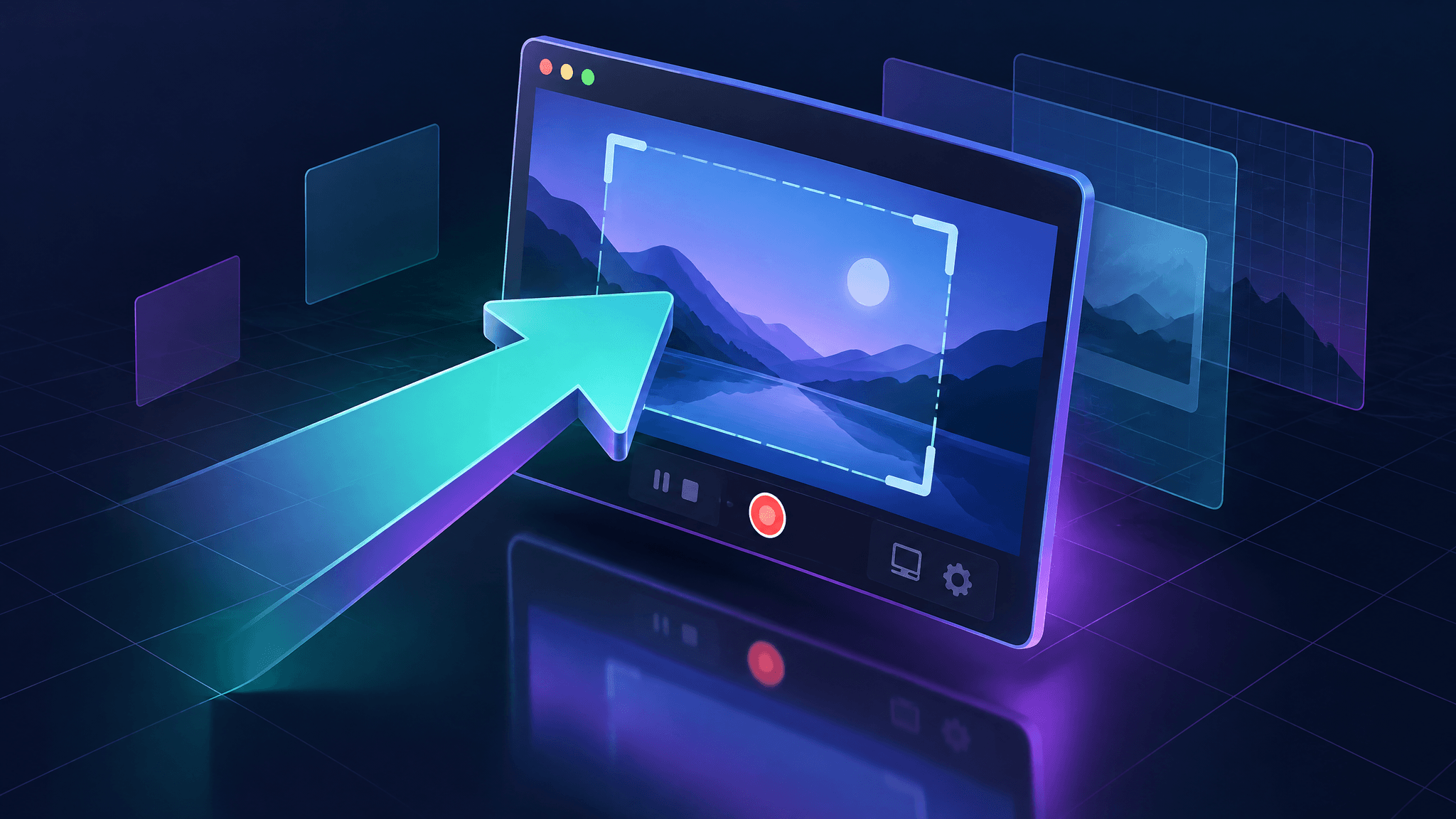
A 3D zoom effect is a zoom and a perspective tilt applied together. As the camera pushes toward a target area, the frame rotates a few degrees on its X or Y axis, so it reads as a screen receding in space instead of a flat crop — near edge larger, far edge smaller. A plain zoom enlarges; a 3D zoom adds depth.
The tilt has to stay small, because your UI text must remain legible: screen-recording 3D is typically tuned to around 12° — enough to read as depth, not enough to skew a settings panel into a parallelogram. And it has to be video-native, applied to the moving clip and timed to the moment you want to emphasize, not stamped onto a still photo.
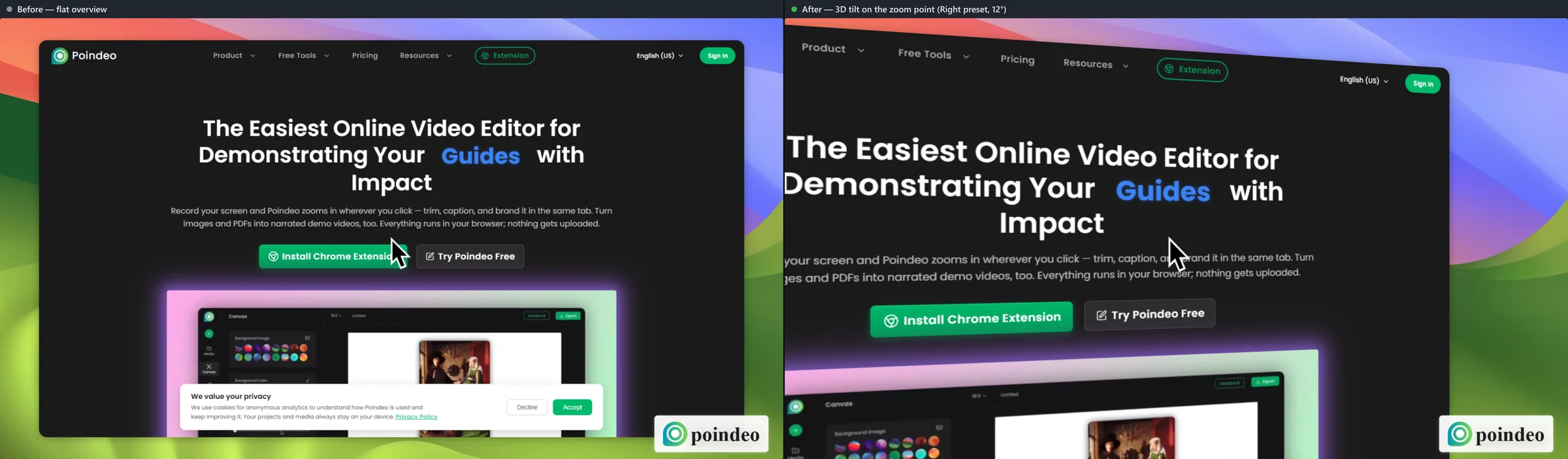
Left: the flat overview before the zoom point. Right: during the zoom point with the Right tilt preset — the frame reads as a surface in space.
Which Approach Should You Choose?
Before the detail, the honest map. Every route below genuinely produces a 3D zoom effect; they differ in where the 3D is applied, how much control you get, and what they cost.
| Approach | Best for | 3D control | Cost |
| Browser editor (Poindeo) | Click-driven product demos — 3D tilt attached to every zoom point | Per-point tilt presets + joystick to 45°, depth presets, Auto 3D | Free (720p); Pro from $3.33/mo; $99 lifetime |
| Dedicated 3D camera tool (TiltIt) | Preset-driven cinematic camera moves on one clip | 70 camera presets + timeline editing | Reported $79 one-time |
| Desktop recorders (FocuSee, AutoZoom) | Record and auto-polish on Windows/Mac | Automatic 3D motion + manual mode | From $49.99/yr; $69 lifetime |
| Mac apps (SmoothCapture, ScreenSage Pro) | Mac-only recording plus 3D in one native app | 3D device mockups / 3D camera movement | Varies — check current pricing |
| Pro editors (After Effects, Premiere, Resolve) | Exact custom moves; you already own the suite | Fully manual keyframes | Subscription or already owned |
If you are editing an existing screen recording and want 3D on the moments that matter — the clicks — Method 1 was built for exactly that. If you want a preset "cinematic" move over the whole clip, Method 2 fits. If you are on a Mac and want recording plus 3D in one app, Method 3. If you live in a pro editor already, Method 4.
Method 1: Add a 3D Zoom Effect in a Browser Editor (Poindeo)
Poindeo is a browser-based video editor for product demos. Its 3D Effects feature attaches a camera tilt to each zoom point, so every push-in carries its own perspective instead of getting one global camera move for the whole video. It runs in Chrome, Edge, and other desktop browsers — nothing to install — and the free tier is enough to test the entire workflow end to end.
Step 1: Upload your screen recording
Open the editor at poindeo.com and drag your recording onto the canvas. Video, image, GIF, and PDF imports all work; a screen recording in MP4 or WebM is the typical input. One requirement up front: 3D rendering uses WebGL, so your browser needs hardware acceleration enabled. On Chrome that lives under Settings, then System, then "Use graphics acceleration when available". If it is off, the editor detects it and disables the 3D module rather than rendering it badly.
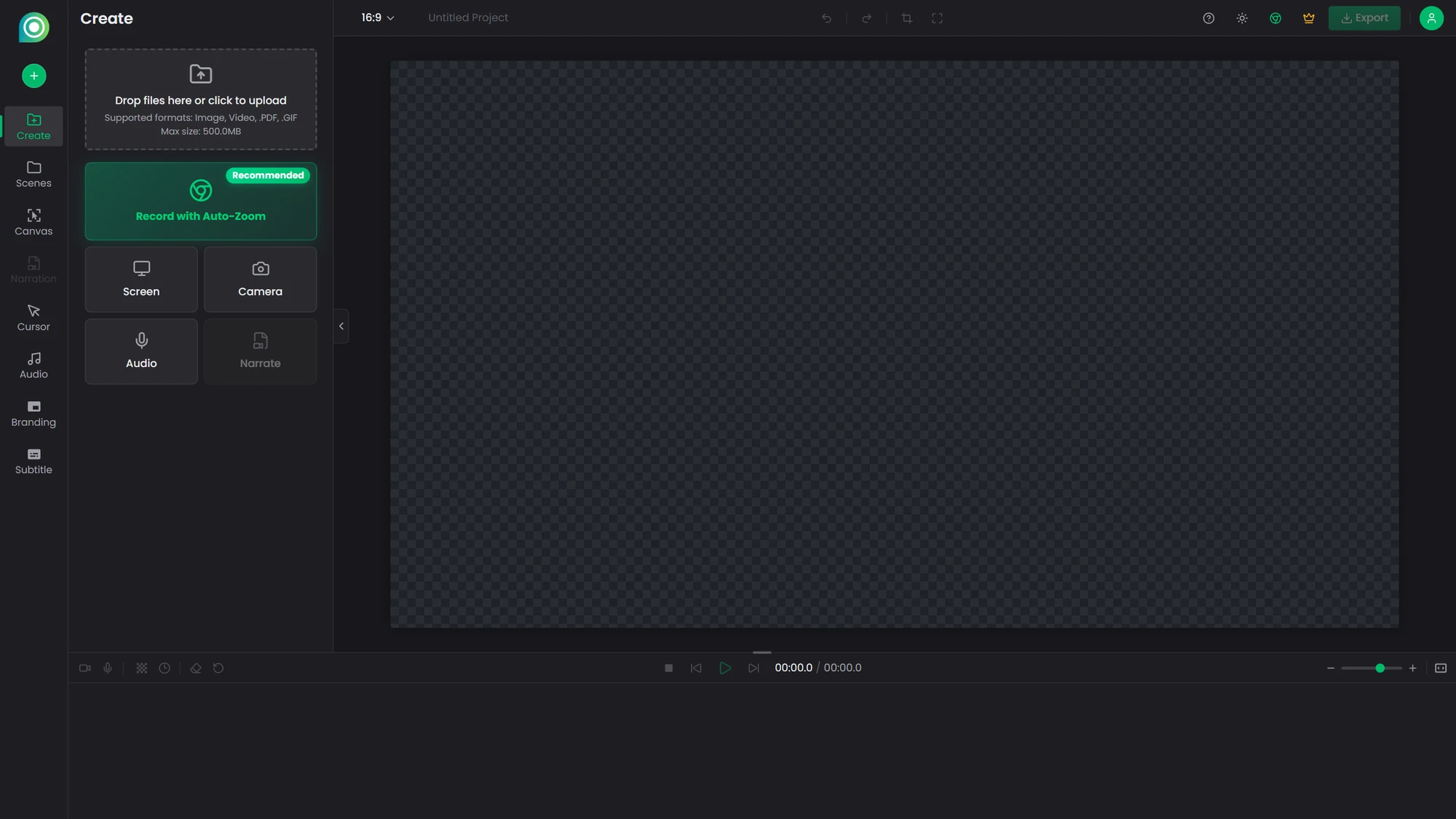
The editor's start state — drag your recording onto the canvas or use the upload button.
Step 2: Add the zoom points first
3D tilt rides on top of zoom points, so add those before touching any tilt control. Click anywhere on the canvas and the editor creates a zoom point there — zoom in, hold, zoom out — with a description label you can fill in or leave empty. Click every button, menu, or form field you want the camera to visit.
Each point is a block on the timeline that you can drag to retime or resize to change how long the camera lingers. If you have never worked with zoom points at all, the auto zoom guide walks through the basics — this article picks up where it ends.
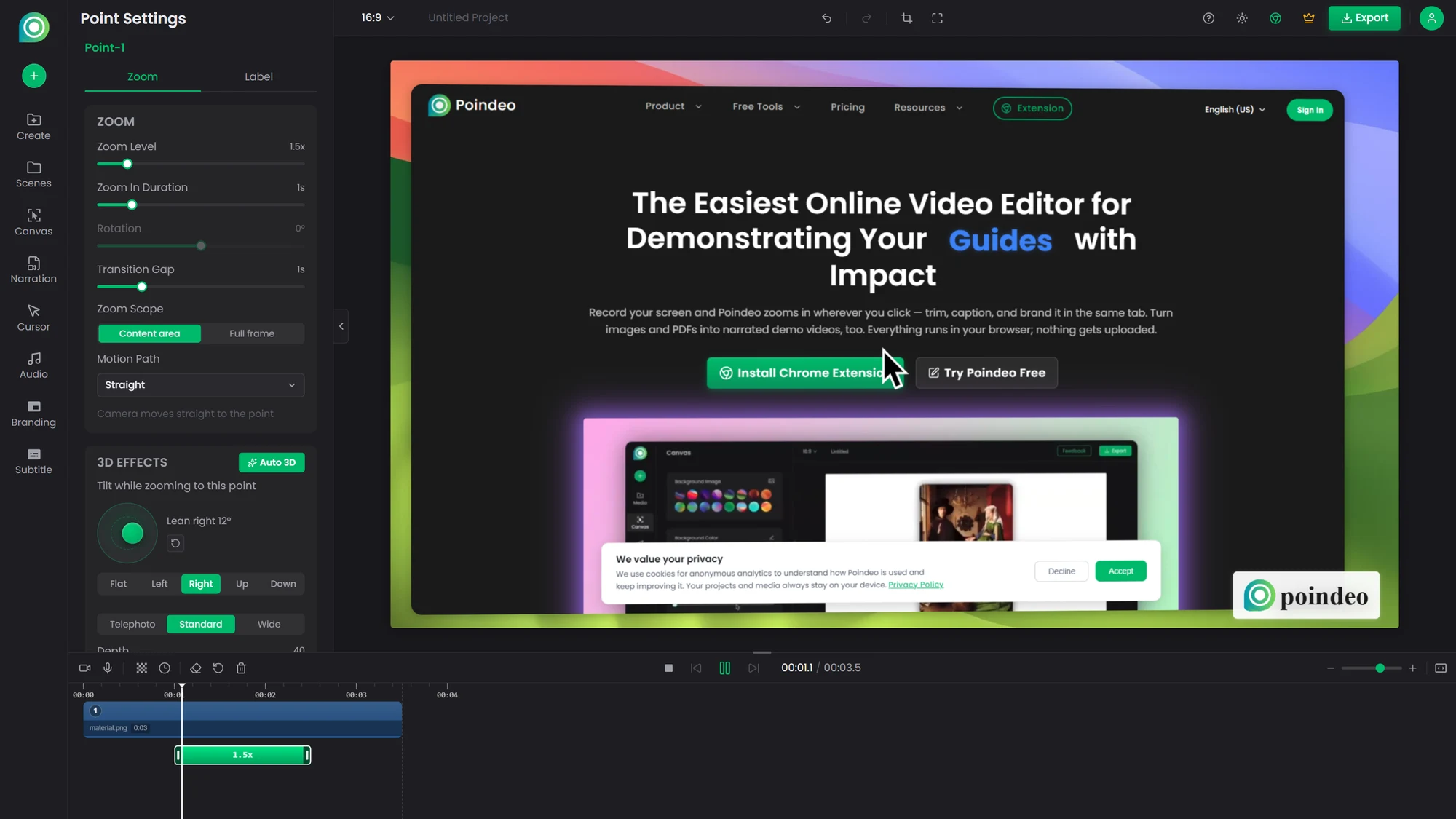
Two zoom points added by clicking the canvas; each becomes a block on the timeline.
Step 3: Tilt the camera on each point
Select a point and scroll the settings panel to the 3D Effects module. This is where the effect lives:
- Tilt presets — Flat, Left, Right, Up, and Down buttons apply a ready-made 12° tilt in that direction. One tap, done. This is the sweet spot for most demos.
- Tilt joystick — Drag the pad for a custom angle or a diagonal lean, up to 45°. The canvas previews the pose live while you drag.
- Auto 3D — One button that assigns a smart tilt to every point based on where it sits on the screen. Points on the left lean one way, points on the right the other, so consecutive zooms feel like a camera operator, not a random tilt generator. It confirms before overwriting, and it clears any in-plane rotation it replaces.
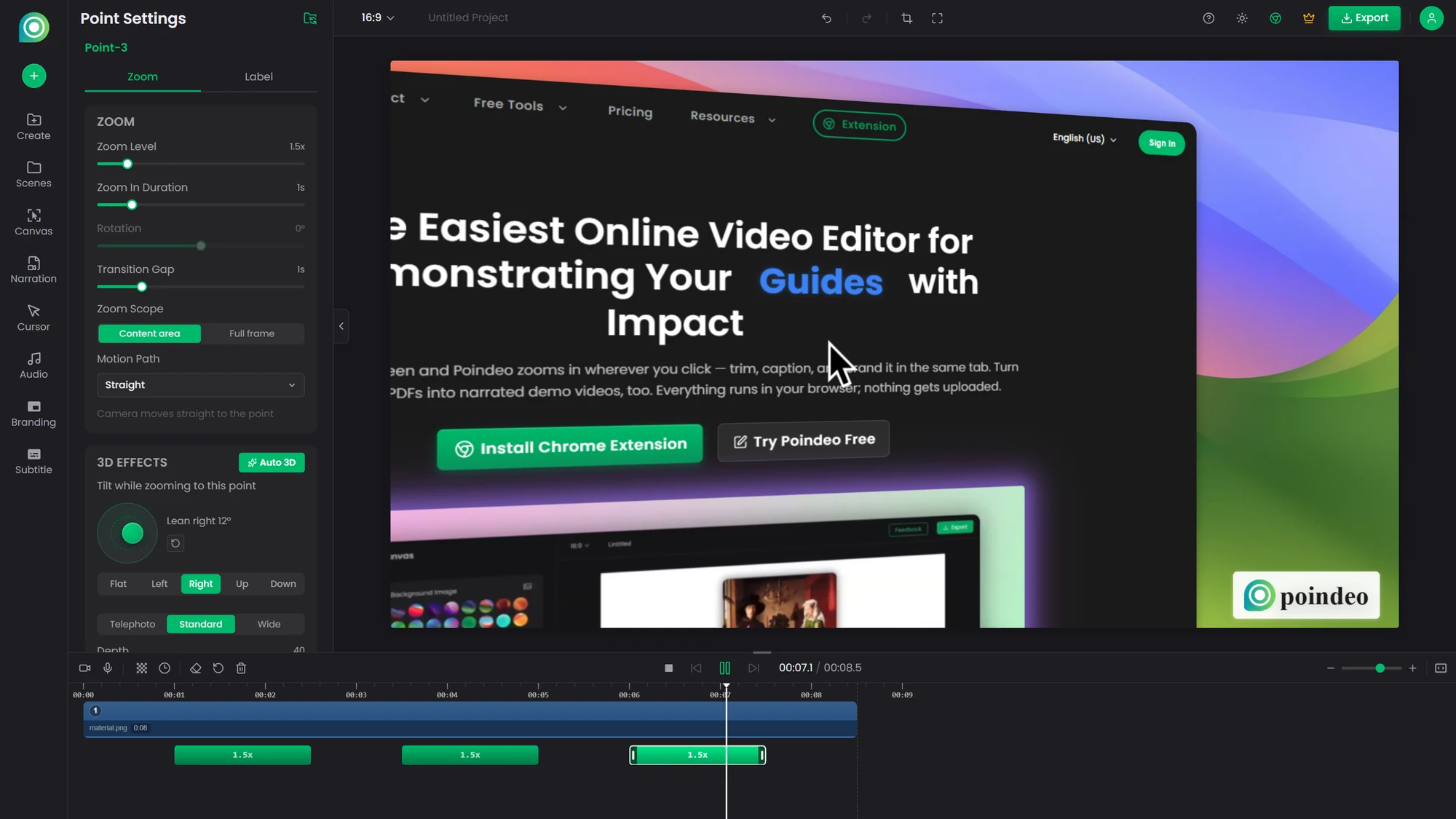
The 3D Effects module on a selected zoom point: presets, joystick, depth, and Auto 3D.
One deliberate constraint to know about: tilt and in-plane rotation are mutually exclusive per point. If you set a 2D rotation on a point, the tilt controls lock until you drag rotation back to 0°, and the reverse also applies. You pick one flavor of movement per zoom point, which keeps demos from piling up two competing motions on the same moment.
Step 4: Set the depth and add motion
The Depth slider controls how strong the perspective is — how much the near edge of the frame looms over the far edge. If you want discrete steps instead of a slider, the three presets map to real optical behavior:
- Telephoto (20° field of view) — compressed, subtle perspective. Safest for dense UI and small text.
- Standard (40°) — the default. Depth reads clearly without exaggerating edges.
- Wide (70°) — exaggerated perspective that reads as dramatic. Use where the frame is mostly a single element, not a spreadsheet.
Two refinements finish the look. The motion type can be set to Breathe, which eases the perspective in and out slightly as the camera enters and leaves the point — a small drift that makes the move feel less mechanical. And because the camera returns to a flat overview in the gaps between points, every zoom starts from a neutral frame, which resets the depth cue and keeps a multi-point demo from feeling seasick.
Step 5: Preview and export
Play the preview and watch each point: you should see the push-in carry the tilt, hold it while the label shows, then return to the flat overview. When it looks right, export. The free tier exports 720p MP4 with a watermark; Pro unlocks 4K and removes it, at $19.99/month, $3.33/month billed annually, or a $99 one-time lifetime license. GIF export is available too, which is handy for README demos.
Method 2: Dedicated 3D Camera Tools
If your goal is a polished camera move over the whole clip rather than 3D tied to specific clicks, two dedicated tools are worth a look.
TiltIt is a browser tool built around exactly this look: drop in a screen recording, pick from 70 cinematic camera presets, fine-tune on a timeline, and export up to 4K or GIF. It is the strongest option when you want a preset-driven move — a slow orbit, a dramatic push — applied to a hero clip. Pricing reported at launch is $79 one-time.
FocuSee, from Gemoo, is a Windows and Mac desktop app on the record-and-auto-polish model: it captures your screen, then automatically adds zoom effects, cursor tracking, backgrounds, and its branded 3D Motion effect, with automatic and manual creation modes. It is a good fit when you want one app to handle recording and polish and do not mind installing one. Plans start at $49.99/year for one computer (Advanced is $79.99/year for three), with a $199.99 lifetime license that covers version 2.x.
AutoZoom sits between the two: a Windows and macOS desktop recorder that automatically adds auto zoom, click visuals, captions, and 3D effects, at $69 lifetime. The trade-off across this whole category is the same — the 3D move belongs to the app's opinion of your video, not to the specific UI moments you chose.
Method 3: Mac Apps with 3D Built In
Mac users have two more integrated options. SmoothCapture records your screen (or iPhone) and animates the result on real 3D device mockups, with auto zoom, captions, and cursor effects included. ScreenSage Pro, a newer indie Mac app pitched by its developer on r/macapps, offers 3D camera movement and dynamic layouts for demos and vlogs. Both are worth a trial if you are all-in on macOS and want recording, editing, and 3D presentation in a single native app; check current pricing on their sites, since indie Mac tools in this niche change it often.
Method 4: Do It Manually in a Pro Editor
The original technique predates all of these tools — a Video StackExchange answer from 2014 still describes it: scale the clip up past the frame, then apply a perspective distortion so the frame appears off-angle, and keyframe both the scale and the angle over time. In After Effects that is a 3D layer or the Basic 3D effect; in DaVinci Resolve it is the Perspective palette; Premiere gets there with transform nesting or a round-trip to AE.
The manual route earns its "No After Effects" reputation in this article's title honestly: it gives you frame-exact control over the move, and it takes the longest. Animating a tilt that eases in, holds readable, and resolves back to flat — for every point in a demo — is easily 20 minutes per shot once you are practiced. It is the right choice when the move itself is the creative deliverable. For "make my walkthrough look produced by Friday", it is overkill.
Tips for 3D Zooms That Look Intentional
- Start at 8–12° and stop there. The presets sit at 12° for a reason: past roughly 30°, UI text stops being comfortably readable, and by 45° you are distorting the very interface you are trying to show. The joystick allows up to 45°; treat that as headroom for hero moments, not a default.
- Vary the direction between points. Three consecutive left-tilts read as a rendering accident. Alternate directions — or just use Auto 3D, which assigns them by position.
- Match depth to content density. Telephoto for dense tables and settings screens, Standard for typical pages, Wide only for single-element frames.
- Skip 3D on some points. A demo where every zoom tilts is as monotonous as one where none does. Leave transitional or obvious points flat.
- Check the gaps. The flat overview between points is part of the rhythm. If your points sit back-to-back with no gap, insert a beat so each tilt gets a clean entry.
The next time a flat walkthrough is headed for your release notes or landing page, a 12° tilt on three well-chosen zoom points is about ten minutes of work in a browser tab — try it on your own recording and export a 720p test before you commit to anything.
FAQs about 3D Zoom Effects on Screen Recordings
Is the CapCut 3D zoom effect the same thing?
No. CapCut's 3D Zoom is a family of AI effects and templates that animate still photos with depth motion for TikTok-style posts. A screen recording is already video, so you need perspective applied to a moving clip at specific moments — which is what per-point 3D tilt in a video editor does. CapCut's photo effect cannot take a UI walkthrough and tilt its zooms.
Do I need After Effects to add a 3D zoom effect?
No. After Effects gives you the most control, but for screen recordings the faster paths are a browser editor like Poindeo (3D tilt per zoom point, free tier), a dedicated tool like TiltIt (preset camera moves), or a desktop recorder like FocuSee or AutoZoom (automatic 3D motion). Manual keyframing is worth it only when the camera move itself is the deliverable.
Will a 3D zoom effect work on both Windows and Mac?
Browser-based tools work on any desktop OS, since the rendering happens locally in your browser — Windows, macOS, or Linux. Desktop apps are platform-specific: FocuSee and AutoZoom ship for Windows and Mac, while SmoothCapture and ScreenSage Pro are Mac-only.
Why are the 3D tilt controls greyed out?
Almost always hardware acceleration. 3D perspective is rendered with WebGL, which needs your browser's graphics acceleration enabled — in Chrome, under Settings, then System. Without it, editors that rely on WebGL intentionally disable the 3D module instead of rendering a broken preview.
How much does it cost to add 3D zoom effects to a screen recording?
Poindeo is free to start, with 720p watermarked exports; Pro removes the watermark and unlocks 4K at $19.99/month, $3.33/month billed annually, or $99 lifetime. TiltIt is a reported $79 one-time. FocuSee starts at $49.99/year with a $199.99 lifetime option, and AutoZoom is $69 lifetime. Manual 3D in a pro editor costs only the subscription you may already pay.