You know the demo that converts. The camera glides in on the exact button being clicked, snaps back out to show the whole dashboard, and somehow a raw screen recording ends up looking like it was directed.
Then you open your own latest recording — a flat, full-screen capture where your cursor wanders across three monitors' worth of UI — and someone on the team asks, "Which part am I supposed to be looking at?"
That gap is why "screen recorder with auto zoom" has become one of the most searched-for features among product marketers. Auto zoom means the recorder tracks your cursor and clicks while you work, then applies smooth zoom-in and zoom-out moves automatically — no keyframes, no editing timeline, no 45-minute date with a video editor.
But not every tool that claims "zoom effects" actually does this. Some make you place every zoom by hand. Some only work on macOS. Some bury the feature behind a business plan. This guide ranks the 6 best options in 2026 by one criterion above all: how automatic the zoom actually is — plus what happens after recording, what it costs, and who each one is right for.
Key Takeaways
- True auto zoom is rare: Only a handful of tools (Screen Studio, Poindeo, Screen Story, Guidde) actually detect your clicks and generate camera moves on their own. Most "zoom" features are manual keyframing rebranded.
- The overall benchmark: Screen Studio set the standard for cinematic auto zoom and still executes it best — but it's Mac-only and has moved to a subscription.
- Best cross-platform pick: Poindeo runs in the browser on Windows and macOS, applies auto zoom from click and hover detection, and lets you re-edit every zoom point after recording. Free to start.
- Manual still has a place: For long-form courses and technical documentation, Camtasia's manual zoom-n-pan gives you total control, at the cost of doing all the work yourself.
- Bottom line: If you make product demos on a schedule, pick the fully automatic tool that matches your platform — Screen Studio on a Mac, a browser-based option like Poindeo anywhere — and only drop into a manual editor when a project truly demands frame-level control.
Quick Comparison: Screen Recorders with Auto Zoom
| Tool | Platform | Automation Level | Zoom Editing After Recording | Pricing (from) |
| Screen Studio | macOS desktop | Fully automatic | Auto-actions adjustable | $29/mo or $9/mo yearly |
| Poindeo | Browser (Windows/macOS) + Chrome extension | Fully automatic (click & hover detection) | Every zoom point editable | Free / $19.99/mo or $3.33/mo yearly |
| Tella | Browser (Mac/Windows) + Windows app | Automatic (click-generated) | Zoom points editable | From $13/user/mo yearly |
| Screen Story | macOS desktop | Fully automatic | Presets + adjustments | Month Pass $19 / Yearly $89 |
| Guidde | Browser extension (AI capture) | Fully automatic (AI-generated) | Limited fine control | Free / $19/mo Pro |
| Camtasia | Windows/macOS desktop | Manual (zoom-n-pan, AI assist) | Full timeline control | $179.88/year |
What Counts as "Auto Zoom"? (And How We Judged)
Search results for this category mix three very different things under one label. Before the recommendations, it's worth separating them, because it's the difference between a tool that saves you an afternoon and one that quietly gives it back:
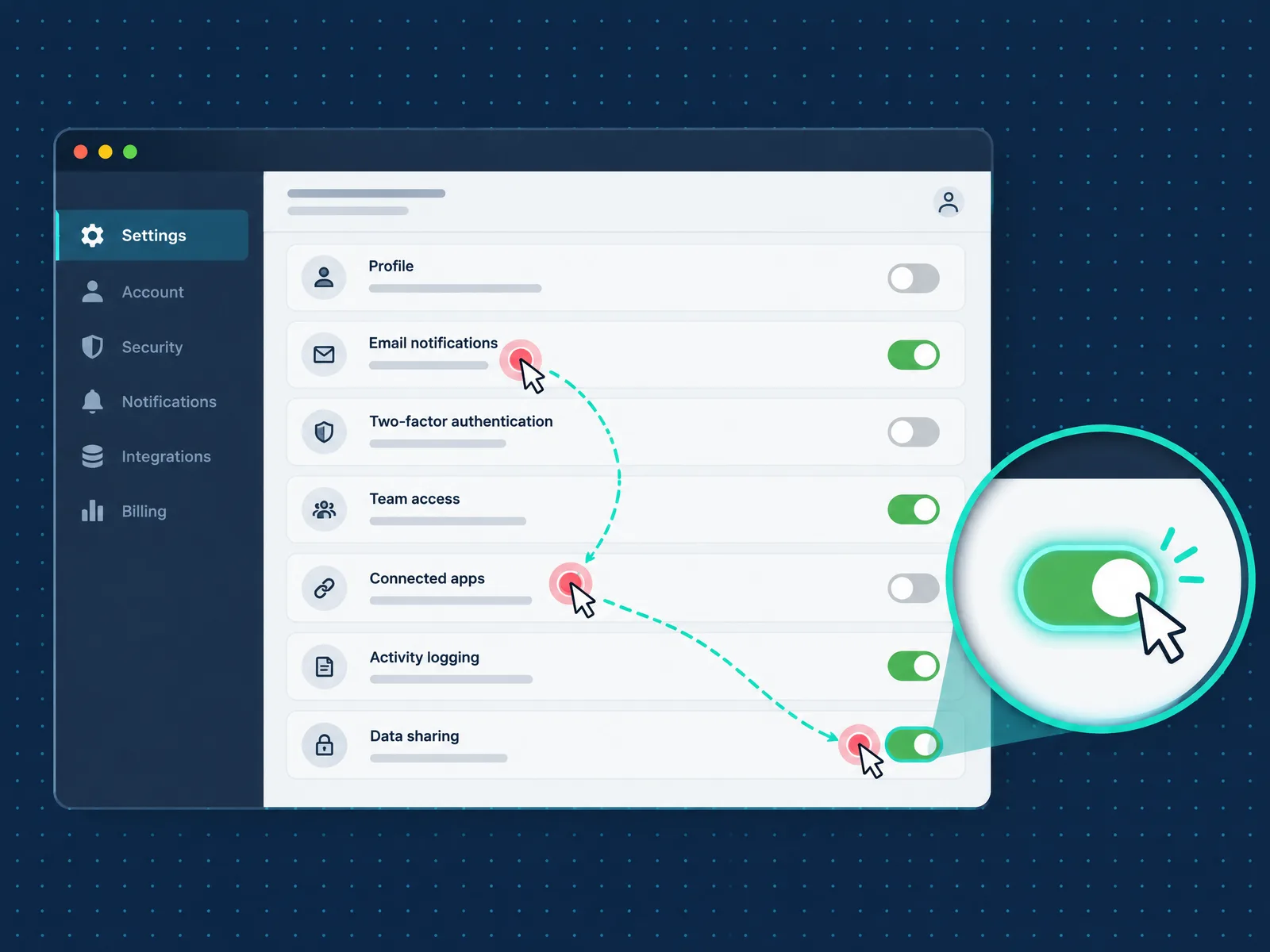
Auto zoom means the camera follows your clicks — no keyframes, no timeline choreography.
- Fully automatic: The recorder watches your clicks and cursor while you capture, then generates the zoom moves itself. You record, you preview, you're done.
- Semi-automatic: The tool provides polished zoom effects with smooth easing, but you choose where and when to apply them in the editor.
- Manual zoom: Classic zoom-n-pan or keyframing. You set the position, scale, and timing of every camera move by hand — powerful, and exactly the chore most people are trying to avoid.
We judged each tool on four criteria, weighted for product demo and tutorial workflows:
- Automation level — does the zoom happen because the tool understood your recording, or because you did the work?
- Control after recording — when the auto result is 90% right, can you fix the last 10% without starting over?
- Platform and workflow — browser vs. desktop, Windows vs. Mac, and how fast you get from recording to a shareable asset.
- Pricing model — free tier, subscription, or one-time purchase — because subscription fatigue is real when your recording needs are occasional.
One criterion we now track as a bonus marker: 3D camera tilt — whether zooms can carry a slight perspective lean rather than plain magnification. Among the tools in this list, Poindeo currently ships it, as per-point tilt presets with depth control and a one-click Auto 3D that sets every direction at once.
One more factor worth naming for anyone recording customer data or internal tools: where your footage is processed. Browser-based tools that edit locally keep files on your machine; cloud-pipeline tools upload your raw captures to their servers.
1. Screen Studio: The Benchmark That Defined Auto Zoom (Mac-Only)
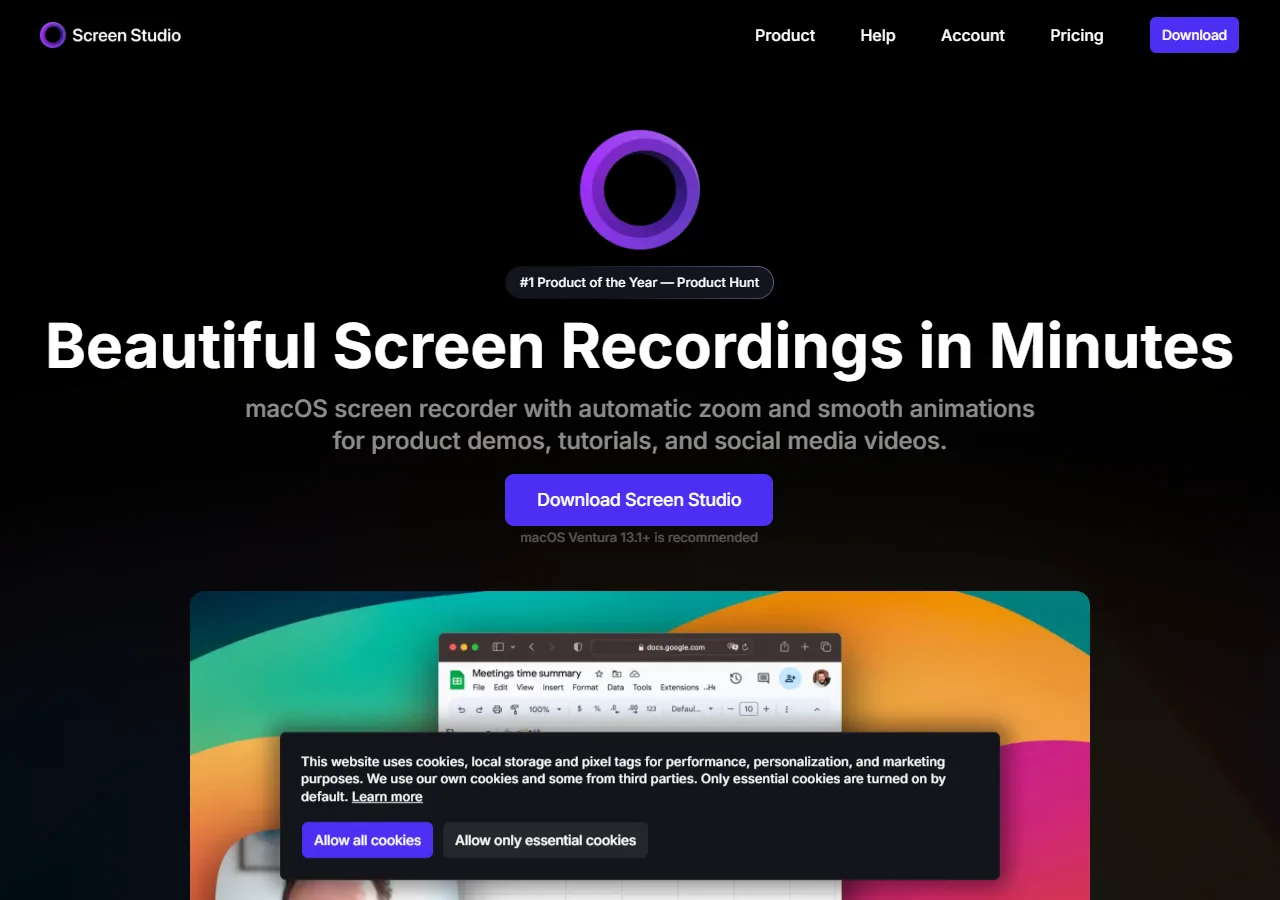
Screen Studio's macOS app — the cinematic auto zoom that defined the category.
Any honest list starts at the top: Screen Studio popularized this category, and its auto zoom — with beautiful motion smoothing, cinematic backgrounds, and cursor effects — defined what "polished screen recording" looks like. Plenty of founders built a Mac-era workflow around it, and in 2026 it remains the reference point every newer tool gets compared to.
The caveats in 2026 are structural rather than qualitative. It's Mac-only, which leaves the majority of product teams on Windows searching for alternatives (a problem big enough that we've covered the best Screen Studio alternatives separately, and rounded up five browser-based options for Windows in their own guide). And its subscription — $29/month, or $9/month billed yearly — changed the value math for occasional creators who record a few demos a quarter, not a few a week.
If you're on a Mac, record constantly, and want the most battle-tested rendering pipeline in the category, it's still the tool to beat.
Pros: Category-defining zoom quality; polished backgrounds and cursor effects; mature and stable.
Cons: Mac-only; subscription pricing after the model change; heavy desktop renders on long recordings.
Best for: Mac-only teams that record frequently and want the established, best-in-class option.
2. Poindeo: The Best Browser-Based Option (Windows and Mac)
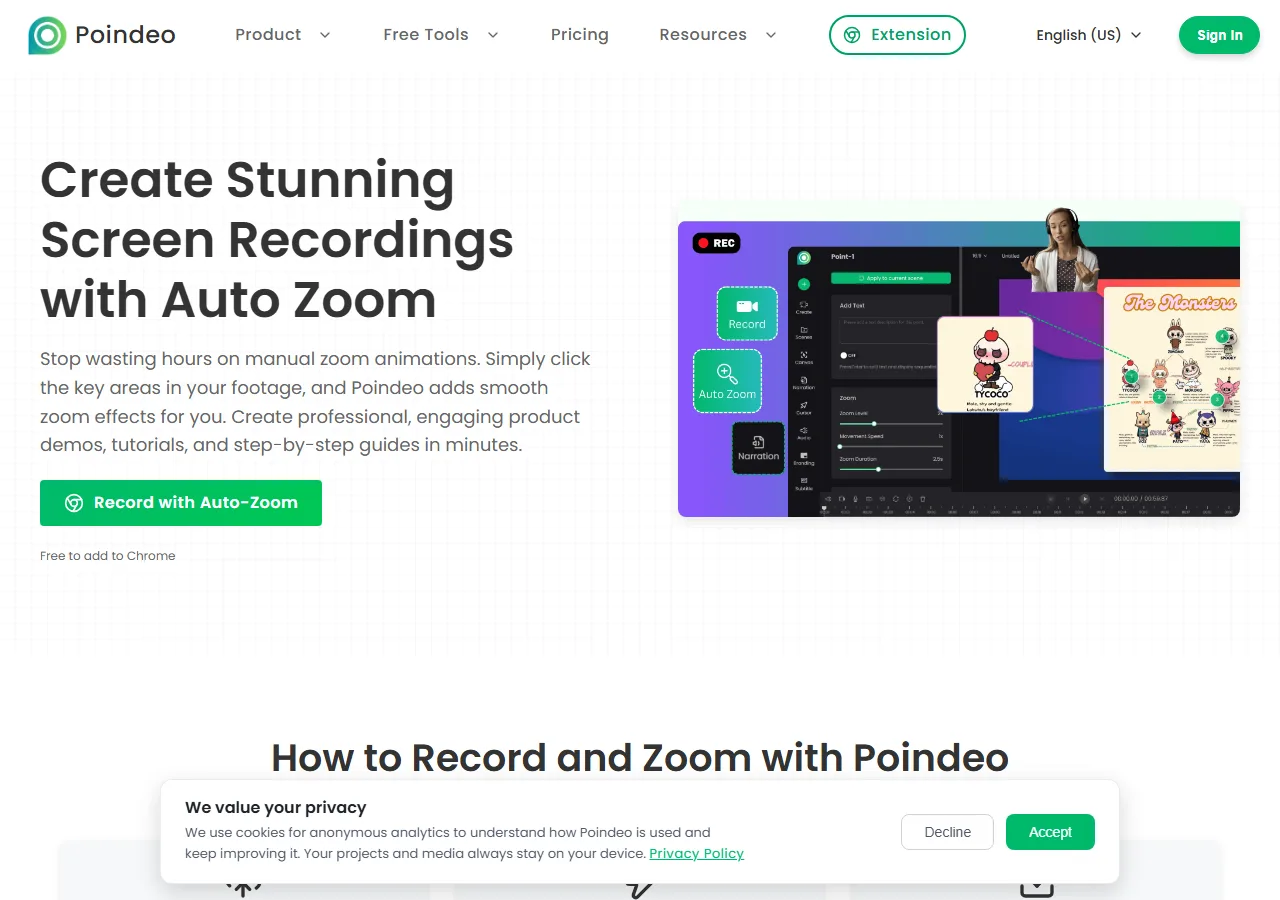
Poindeo's auto zoom screen recorder runs in the browser on Windows and macOS.
Poindeo is a browser-based video editor built specifically around dynamic zoom — and its screen recorder with auto zoom is the closest thing to that "record and you're done" experience you can get outside a dedicated Mac app.
While you record, Poindeo detects where you click (and where you hover, at a lower weight), and builds the camera choreography from those signals. The zoom even pre-starts slightly before your click lands, so the move feels like a camera operator anticipating the action rather than reacting a beat late. Recordings capture screen and webcam together, and everything is processed locally in your browser — sensitive UI never has to leave your machine.
The part that separates it from "one-shot" auto zoom tools: after recording, every zoom point is on the timeline and editable. Zoom level, movement speed, position mode — all adjustable with sliders when you want to override the machine's judgment. You export to 16:9, 9:16, or 1:1, and the zoom focus re-centers automatically for each aspect ratio. Update, October 2026: Poindeo now also ships 3D tilt effects — a subtle perspective lean on any zoom point, with direction presets, depth control, or Auto 3D assigning a smart tilt to every point in one click.
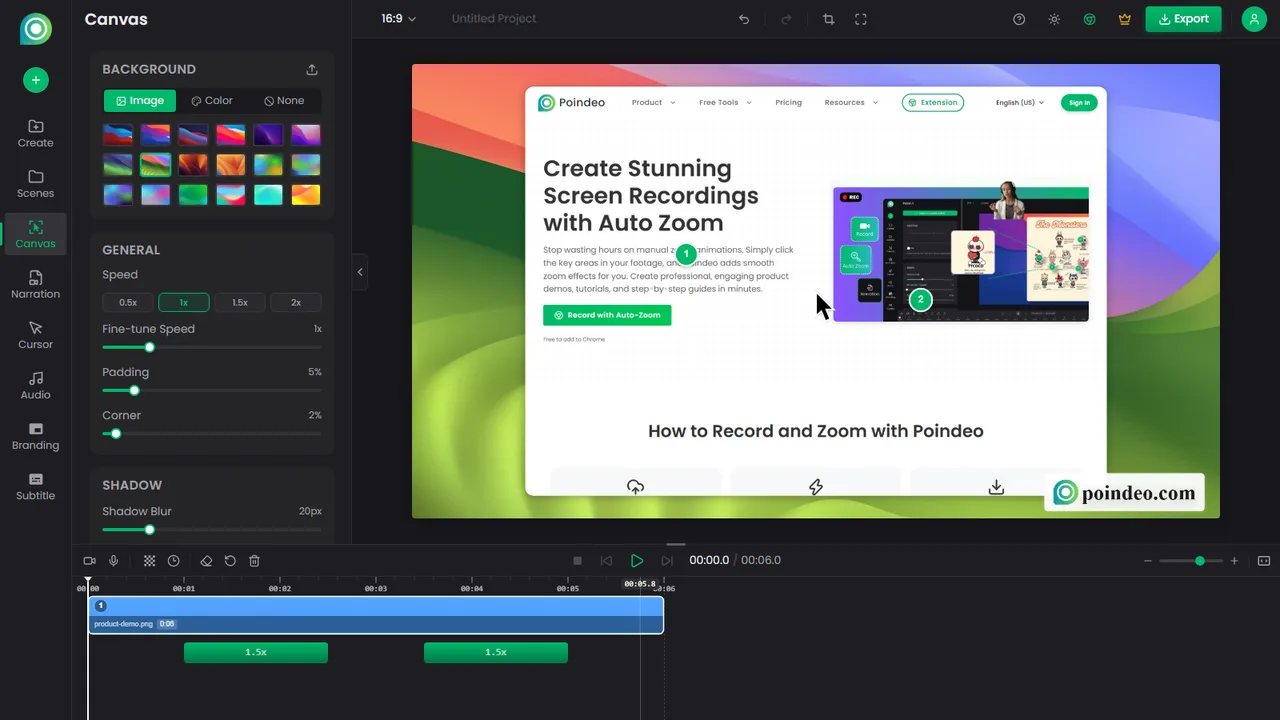
In Poindeo's editor, every auto-generated zoom point sits on the timeline — zoom level, timing, and position all adjustable.
Key features:
- Click & hover detection with configurable weights — clicks lead the camera, hovers support it
- Predictive camera movement — zooms begin before the click, not after
- Post-recording zoom editing — every auto-generated point stays adjustable
- Multi-source recording — screen + webcam + narration in one pass
- Local, in-browser processing — no uploads, no installs, Windows and macOS
- Multi-aspect export — one recording becomes YouTube, TikTok, and LinkedIn versions with zooms intact
- 3D tilt effects — a perspective lean on each zoom point, with one-click Auto 3D to set every direction at once
Pricing:
- Starter: Free (zoom effects included, 720p downloads)
- Pro: $19.99/mo, or $3.33/mo billed annually (4K export, unlimited videos)
- Lifetime: $99 one-time purchase
Pros: Genuinely automatic zoom with real editing depth afterward; cross-platform in the browser; free tier that includes the core feature; files stay local.
Cons: Browser-based, so fully offline workflows aren't its territory; if you need multi-track Hollywood-grade editing, it deliberately doesn't go there.
Best for: Product managers and marketers who need polished demos on a schedule, and Windows users locked out of the Mac-only tools above.
3. Tella: Web-Based Recording for Startup Teams
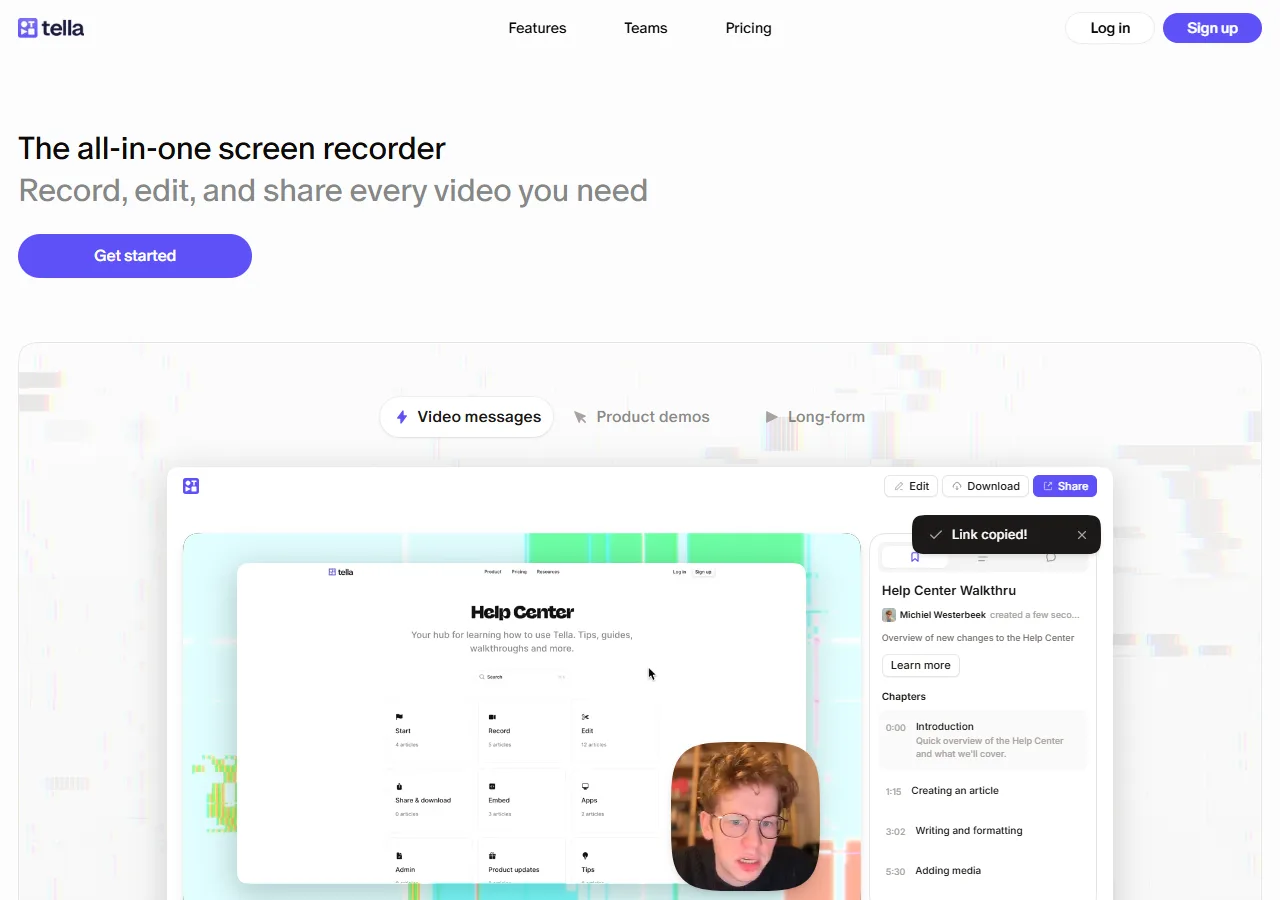
Tella's web recorder targets fast, polished async videos for startup teams.
Tella approaches the same problem from the async-video angle: quick, good-looking recordings for changelogs, update videos, and customer replies. Its web recorder works on any OS through the browser, and the output looks distinctly "startup 2026" — clean layouts, webcam framing, nice backgrounds. Plans run $13 (Pro) to $19 (Premium) per user/month billed annually — $26 and $39 if you pay monthly — with no permanent free tier.
Update, October 2026: Tella now generates zooms from your clicks automatically — moving it into the fully automatic tier — and each generated zoom stays editable, so you keep control over exactly when every zoom happens. An earlier version of this article described Tella's zoom as editor-directed; Tella shipped click-based Auto Zoom since publication. If the per-user pricing or hosted-player sharing doesn’t fit, our Tella alternatives comparison covers seven verified options.
Pros: Fast browser workflow on any platform; strong layouts and polish for async team video; 4K export and team features on paid plans.
Cons: No permanent free tier; $13–39 per user/month depending on billing cycle; sharing runs through Tella's hosted player.
Best for: Founders and startup teams making frequent short update videos where a few deliberate zooms are enough. (If your starting point is Loom rather than Screen Studio, our Loom alternatives comparison covers this lane.)
4. Screen Story: The Budget Mac Option
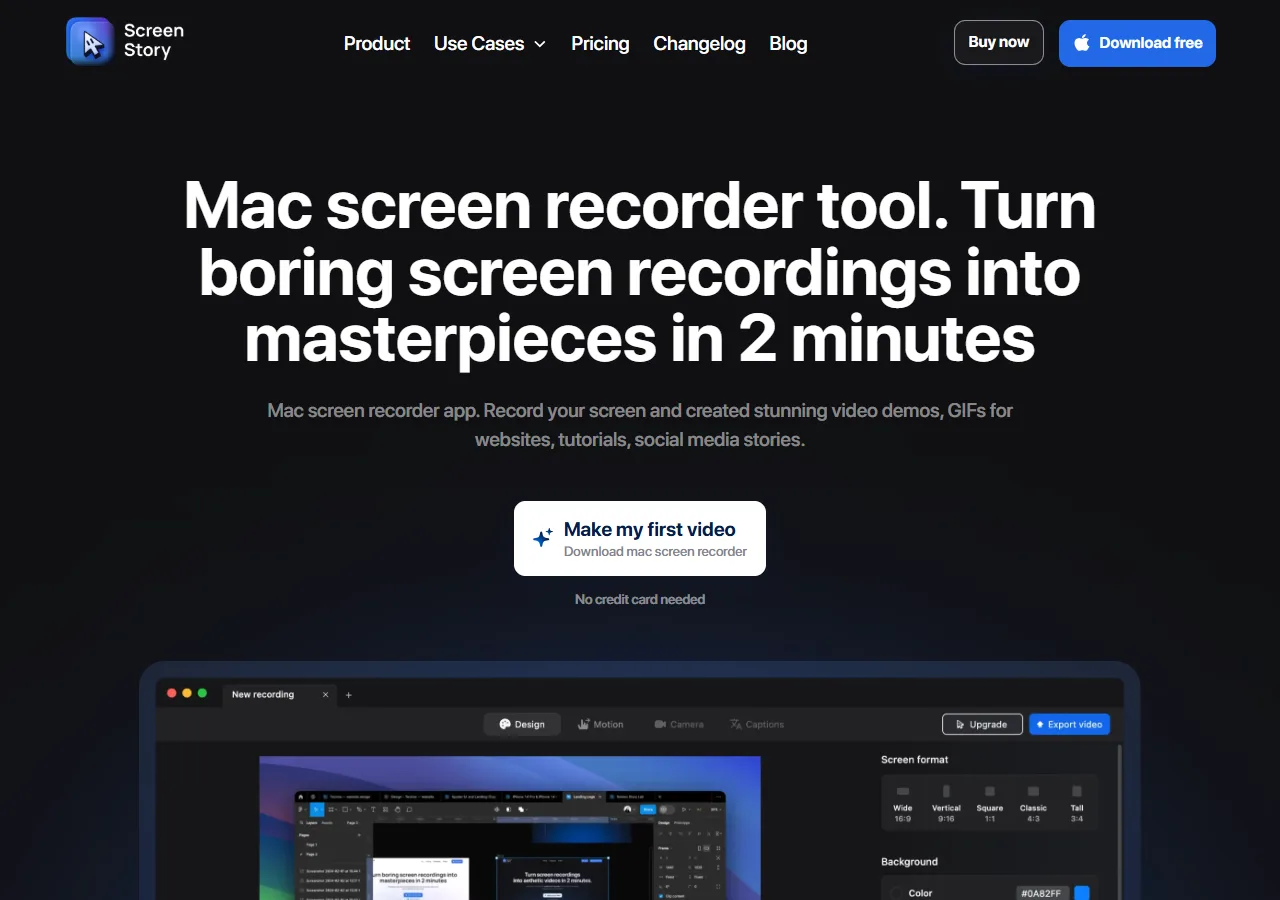
Screen Story delivers automatic zoom on macOS at a lower price point.
Screen Story does for a lower price what Screen Studio does: automatic zoom on your clicks, animated backgrounds, and a polished result without an editor. A $19 Month Pass or $89 Yearly Pass buys the auto-zoom look without the premium subscription, which makes it the pragmatic middle path for Mac users.
The trade-offs are the ones you'd expect from a smaller team: fewer polish options, a lighter feature set around the edges, and less of the ecosystem (templates, community presets) that has grown up around the category leader. But the core promise — you click, the camera follows — is there.
Pros: Automatic zoom at a friendlier price ($19 month pass, $89 yearly); simpler to learn than the premium tools.
Cons: Mac-only like its bigger rival; less depth if you push beyond the defaults.
Best for: Mac users, indie hackers, and students who want auto zoom on a tighter budget.
5. Guidde: AI Auto-Capture for Help Content

Guidde generates zoomed video plus step-by-step guides from one AI capture.
Guidde takes a different route to automatic zoom: instead of recording a free-form video, its browser extension watches you click through a workflow, then an AI pipeline generates a narrated, zoomed video plus a step-by-step guide from the capture. For support and customer-education teams drowning in repeated "how do I…" questions, that generation step is the whole point — one capture session produces help-center-ready output.
The catch for demo-makers: the output leans template-y. You get sensible zooms and callouts, but limited fine control over pacing and camera personality. Plans run Free ($0), Pro ($19/mo), and Business ($39/mo), scaling up as your team grows. As a screen recorder with auto zoom, it earns its place through sheer automation; as a craft tool, it's more machine than camera operator.
Pros: Fully AI-generated zooms, narration, and step guides from one capture; built for documentation at scale.
Cons: Limited creative control; per-seat pricing; video is one output among several rather than the star.
Best for: Customer success, support, and enablement teams producing SOP and help-center content in volume.
6. Camtasia: Manual Zoom, Total Control
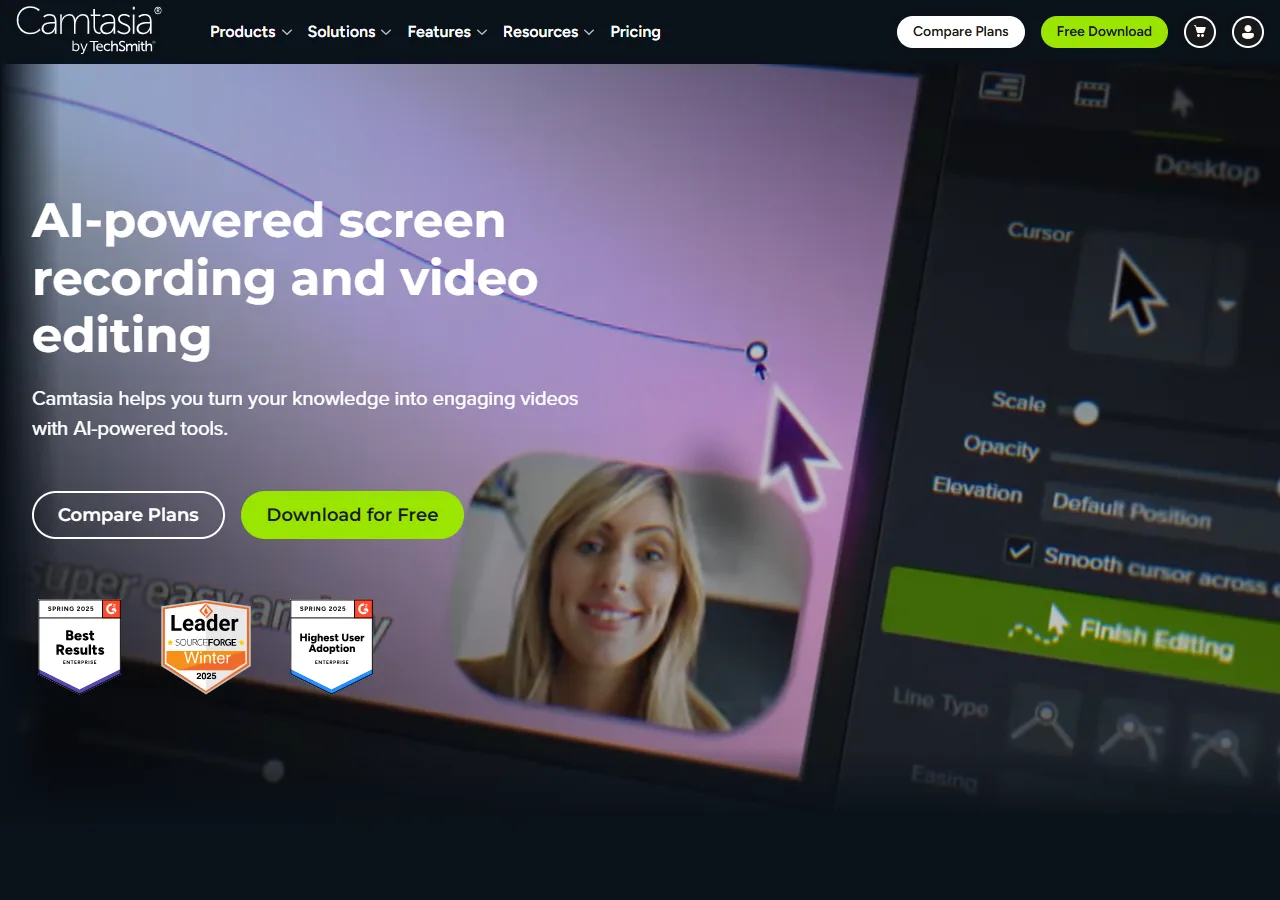
Camtasia pairs manual zoom-n-pan with a full multi-track timeline editor.
Camtasia is here as the honest counterweight: the tool you choose when automatic isn't the goal. Its zoom-n-pan is the classic manual workflow — you place every camera move on the timeline — and newer AI-assisted features soften (but don't remove) that work. In exchange you get a full multi-track editor: annotations, quizzes, SCORM export for LMS platforms, and frame-level precision on every zoom.
For 20-minute onboarding courses and technical documentation, that control matters more than speed. For a 60-second product demo due tomorrow, it's the long way around — this is the "keyframe fatigue" workflow that automatic tools exist to eliminate.
Pros: Complete editorial control; quizzing and SCORM for training; mature, predictable desktop app on Windows and Mac.
Cons: Manual zoom means manual work; steepest learning curve on this list; annual license cost.
Best for: Instructional designers and technical writers producing course-length, compliance-grade content.
Which Auto Zoom Tool Should You Choose?
| Your situation | Best pick | Why |
| Mac-only team that records weekly | Screen Studio | Category benchmark quality |
| Product demos on Windows (or mixed teams) | Poindeo | Browser-based, fully automatic, every zoom editable, 3D tilt included |
| Weekly async update videos | Tella | Fast, polished, editor-directed zooms |
| Mac + tight budget | Screen Story | Auto zoom without the subscription |
| Help-center content at scale | Guidde | AI generates zoomed video + step guide together |
| Long-form training courses | Camtasia | Manual precision, quizzes, SCORM |
A simple rule of thumb: the shorter and more frequent your videos, the more automation pays. The longer and more regulated your output, the more control pays.
From Recording to Publish: The 3-Step Workflow
Whichever tool you pick, the winning habit is the same — and it's the one that makes auto zoom look intentional instead of jittery:
- Move with purpose while recording. Auto zoom follows your cursor; if you fidget, circle, or drift, the camera has nothing clean to follow. Glide from point to point.
- Fix the 10%, keep the 90%. Review the generated zooms, nudge the two or three that landed on the wrong element, and resist the urge to re-choreograph everything. If you want the full walkthrough, our guide on creating demo videos with auto zoom covers each setting in detail.
- Export per channel. One recording should become a 16:9 for your landing page, a 9:16 for short-form social, and a 1:1 for feeds and docs. Tools that re-center zooms per aspect ratio save you from re-recording.
For a wider lens on the category — including interactive demo platforms and AI-avatar tools — see our ranked list of the best product demo video makers.
FAQs on Screen Recorders with Auto Zoom
Is there a free screen recorder with auto zoom?
Yes. Poindeo's free Starter plan includes the auto zoom feature with 720p downloads, and Guidde has a free tier for AI-generated captures. Screen Studio and Screen Story are paid desktop apps. If "free" is the priority, start with a browser tool where the free tier includes the automation — not just recording.
Does OBS have auto zoom?
No. OBS is a powerful free recorder, but zooming requires manual setup — scene crops, scripted plugins, or post-production editing. It's built for streaming and capture control, not automatic camera work. If you're coming from OBS for demo videos, a dedicated auto zoom tool fills exactly that gap.
Is Screen Studio available for Windows?
No — Screen Studio is macOS-only, with no Windows version announced. Windows users need either a browser-based tool like Poindeo or a cross-platform desktop editor like Camtasia. We compare the options in detail in our Screen Studio alternatives guide.
Can I add auto zoom to a video I've already recorded?
Partially. Auto zoom depends on click and cursor data captured during recording, so a plain MP4 can't get "true" auto zoom retroactively — but you can add zoom effects manually in an editor, or re-record with auto zoom enabled if the workflow is repeatable. For zooming existing footage generally, see our guide on how to zoom in on a video.
Does auto zoom reduce video quality?
Zooming crops and enlarges pixels, so recording resolution matters — capture at 1080p minimum (4K if your target output is 1080p) and zooms stay crisp. Tools that render the zoom from the original source frames, rather than from an already-encoded preview, look noticeably sharper.
Browser-based or desktop: which is better for auto zoom?
For auto zoom specifically, browser tools have two structural edges: they capture structured click data natively (which powers the automation), and there's nothing to install — which matters when you record on different machines. Desktop apps win on raw rendering horsepower for very long or very high-resolution projects. Most demo-makers live comfortably in the browser.
The Bottom Line
Auto zoom stopped being a nice-to-have the moment product demos became the front door of SaaS marketing. The tools that treat it as an afterthought — a manual feature dressed up in an automatic name — will cost you the very time they promise to save.
Pick the fully automatic lane that fits your setup — Screen Studio on a Mac, a browser tool like Poindeo on everything else: record once, let the camera follow your clicks, spend your minutes on the story instead of the timeline. Try Poindeo free in your browser — auto zoom included, no install required.