OpenAI's Codex Record & Replay promises something better than a screen recorder: demonstrate a workflow once, and the agent turns it into a reusable skill it can repeat on its own. That idea clicks with three very different needs — automating a repetitive task so you can stop doing it by hand, turning a one-off demonstration into a reusable SOP or skill the AI can reproduce next time, and generating repeatable demo footage without re-recording every release. In every case the point is the same: collapse "show me how this works" into a one-time cost, and let something else carry the repetition.
There is one problem: Record & Replay is only available on macOS. If you work on Windows, you cannot use the official feature at all — today, or on any announced timeline. The good news is that the underlying job can still be done on Windows. It just takes a stack of tools instead of one official button.
This article breaks down what a Windows replacement actually has to do, and the three routes that get the job done: Codex plus Playwright for web workflows, a record-first playbook for converting demonstrations into reusable steps, and desktop automation frameworks for non-browser apps. It also clarifies where Windows' built-in recorders fit — and where a video editor like Poindeo fits at the very end of the pipeline.
Key Takeaways
- Official Codex Record & Replay runs on macOS only, and OpenAI has not announced a Windows version.
- The gap is not that Codex can't run on Windows — it can. The gap is the official "watch a live desktop session and save it as a skill" pipeline.
- Route 1: Codex + Playwright turns a described workflow into an executable script that runs and records itself every time.
- Route 2: record first with any tool, then let an AI model extract the steps into a playbook, SOP, or automation script.
- Route 3: desktop automation tools (Power Automate Desktop, AutoHotkey, pywinauto, OpenAdapt) cover workflows that leave the browser — and Poindeo polishes any capture into a publishable demo.
What a Windows Replacement Actually Has to Do
Strip the feature down to its job description and you get five capabilities:
- Observe or describe a workflow
- Convert it into reusable steps
- Execute or document those steps
- Optionally record the result
- Optionally polish the recording into a demo
No single Windows tool does all five today. The realistic answer is a stack, and the three routes below each own a different slice of that job.
Which Route Should You Choose?
Before the detail, the honest map — match your need to a route, then read the section that applies:
| Your need | The realistic route |
| Automate a web app | Codex + Playwright |
| Turn a manual workflow into an SOP or playbook | Record first, let AI extract the steps |
| Automate Windows desktop software | Power Automate Desktop, AutoHotkey, or pywinauto |
Alternative 1: Codex + Playwright for Web Workflows
This route does not imitate Record & Replay literally. It replaces "watch me do it once" with "write a script that does it every time" — and it is the closest you can stay inside the Codex ecosystem itself.
Playwright is Microsoft's browser automation framework, and it runs perfectly on Windows. The workflow:
- Describe the workflow to Codex — the pages, the fields, the clicks, the expected results.
- Codex writes a Playwright script from your description.
- Playwright executes the script in a real browser, and its built-in video recording saves the run automatically.
- When the workflow changes, ask Codex to update the script and re-record — the footage regenerates itself.
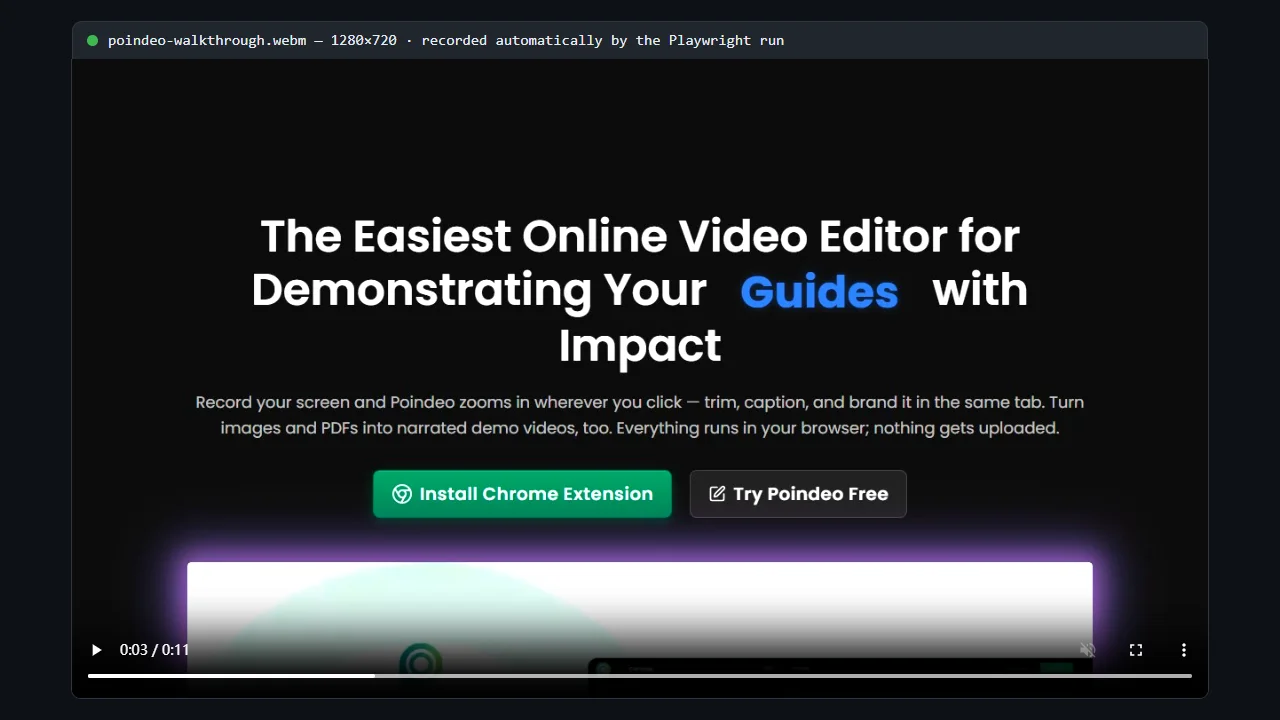
A walkthrough video the Playwright run recorded by itself — the run produces a real video file, so the footage regenerates every time the script executes.
This fits web apps, SaaS back offices, form and login flows, upload and export tasks — anywhere the work happens in a browser tab. It is genuinely repeatable, stable enough to run in CI, and it doubles as a testing setup that produces demo footage as a side effect.
The honest limits: it only covers the browser, so desktop software is out. It never watches your manual run — you have to describe the workflow in words first. And you own the script: selectors break when the UI changes, and fixing them is on you (though asking Codex to repair them is exactly what it is good at).
Alternative 2: Record First, Then Let AI Extract the Workflow
The opposite order also works: demonstrate the workflow yourself, capture it with anything you already have, and let an AI turn the recording into reusable steps. This is a whole category of methods, not one product.
The pattern has three stages:
- Capture. Any recorder works: OBS, Xbox Game Bar, the Snipping Tool, Loom, a Zoom recording — even the video a Playwright run produces, plus browser DevTools traces or your own written notes for context.
- Extract. A multimodal AI model watches the video and pulls out the steps: pages visited, fields filled, buttons clicked, conditions checked, exceptions handled.
- Output. Those extracted steps become whatever you need — a written SOP, a manual QA checklist, a tutorial — or, fed back to Codex, a runnable Playwright, Puppeteer, or Selenium script.
This pattern surfaced publicly in an r/AI_Agents thread whose author had built a product around it: record first, then generate a playbook that runs through Claude, Gemini, or Codex. The developer's pitch claims the discipline of a fixed recording beats live-session automation — no dead-air tokens, re-recordable inputs, no lock to one model. Worth noting the self-interest: they sell that product. But the method itself doesn't depend on any single tool. A screen recording plus a capable multimodal model, with Codex converting the extracted steps into code, gets you the same result for free.
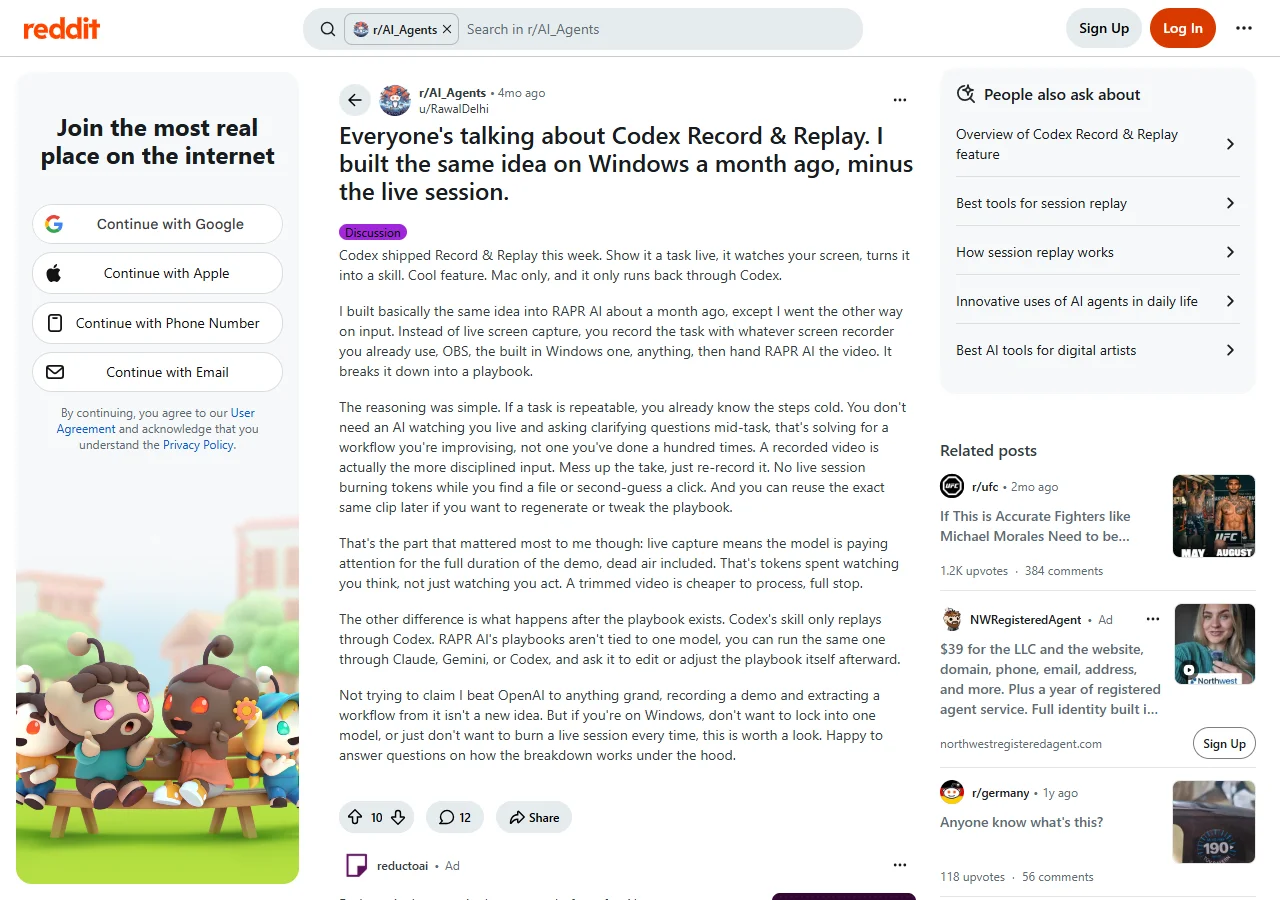
The r/AI_Agents thread where the record-first playbook surfaced — linked above so you can read the full discussion.
The limits mirror the strengths: an AI watching video can misread what happened, so a human should review the output. Complex UIs, hidden states, and permission-gated flows are where extraction gets shaky, and generated scripts may not run as-is on the first try.
Alternative 3: Desktop Automation for Windows Apps
When the workflow leaves the browser — Excel macros, legacy desktop clients, enterprise tools with no web interface — Playwright can't follow. Windows has its own automation stack, and Codex's role shifts from recording your actions to writing and maintaining the scripts.
Power Automate Desktop. Microsoft ships this RPA tool with Windows 10 and 11, and it's the official home page for it. It records graphical flows for Office apps, file operations, and legacy enterprise systems, and it's friendly to non-developers. The catch: a Power Automate flow is not a Codex skill, the two worlds connect only indirectly, and complex UIs make flows brittle.
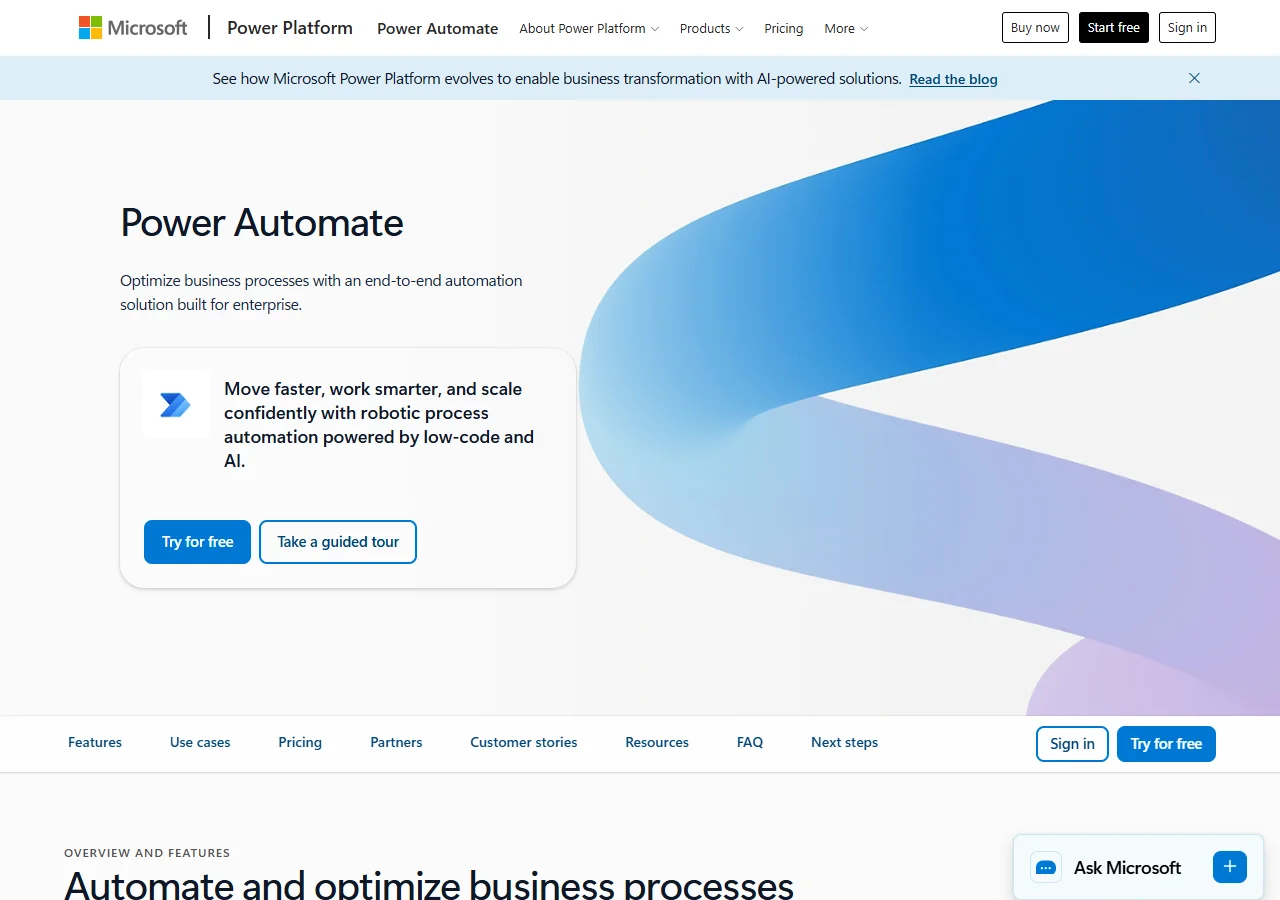
Power Automate Desktop — the RPA tool Microsoft ships with Windows 10 and 11.
AutoHotkey and pywinauto. For developers, AutoHotkey scripts fixed windows, hotkeys, and repeated mouse-keyboard sequences, while pywinauto drives Windows applications from Python through the OS accessibility layer. Both are exactly the kind of code Codex writes well — describe the app and the sequence, then let it generate and later repair the script. They remain sensitive to UI changes and need debugging, which makes them less reliable than web automation.
OpenAdapt. The open-source OpenAdapt project sits closest in spirit to Record & Replay on Windows: it records human activity on the desktop and uses AI to build automations from the recording. It is genuinely the research direction to watch — and also experimental. Maturity varies across its features, so treat it as a promising bet rather than a stable replacement for an official OpenAI feature.
Where Windows' Built-in Recorders Actually Fit
None of this makes Xbox Game Bar or the Snipping Tool an "alternative to Codex Record & Replay." They involve no Codex and generate no reusable anything. They are capture tools — useful as the input stage for the record-first route above, or as the raw-footage stage for a demo editor. That's their whole, honest role:
| Tool | What it captures | Best used for |
| Xbox Game Bar | Full app window, system audio | Hands-off recording of one running app |
| Snipping Tool | Screen region with optional mic | Quick clips of a specific area |
| PowerPoint export | Screen region with webcam overlay | Walkthroughs narrated inside a slide deck |
Where Poindeo Fits: The Finishing Half
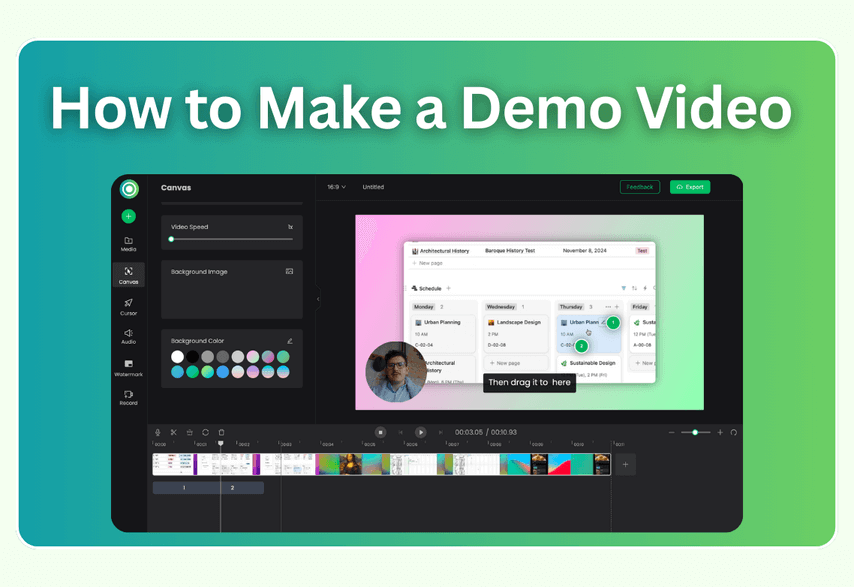
Poindeo does not replace Codex Record & Replay as an automation tool. It solves the last-mile problem: once you have a recording — from a Playwright run, OBS, Game Bar, the Snipping Tool, or a manual capture — Poindeo turns that raw footage into a polished product demo.
That maps to the third need from the top of this article: producing something presentable. Raw automation output is flat, full-screen, and hard to follow. Poindeo's auto zoom follows the action and adds camera moves at every point of interest, subtitles can be generated automatically, sensitive information gets blurred or mosaicked before publishing, and the result exports as MP4, GIF, or images for docs and READMEs.
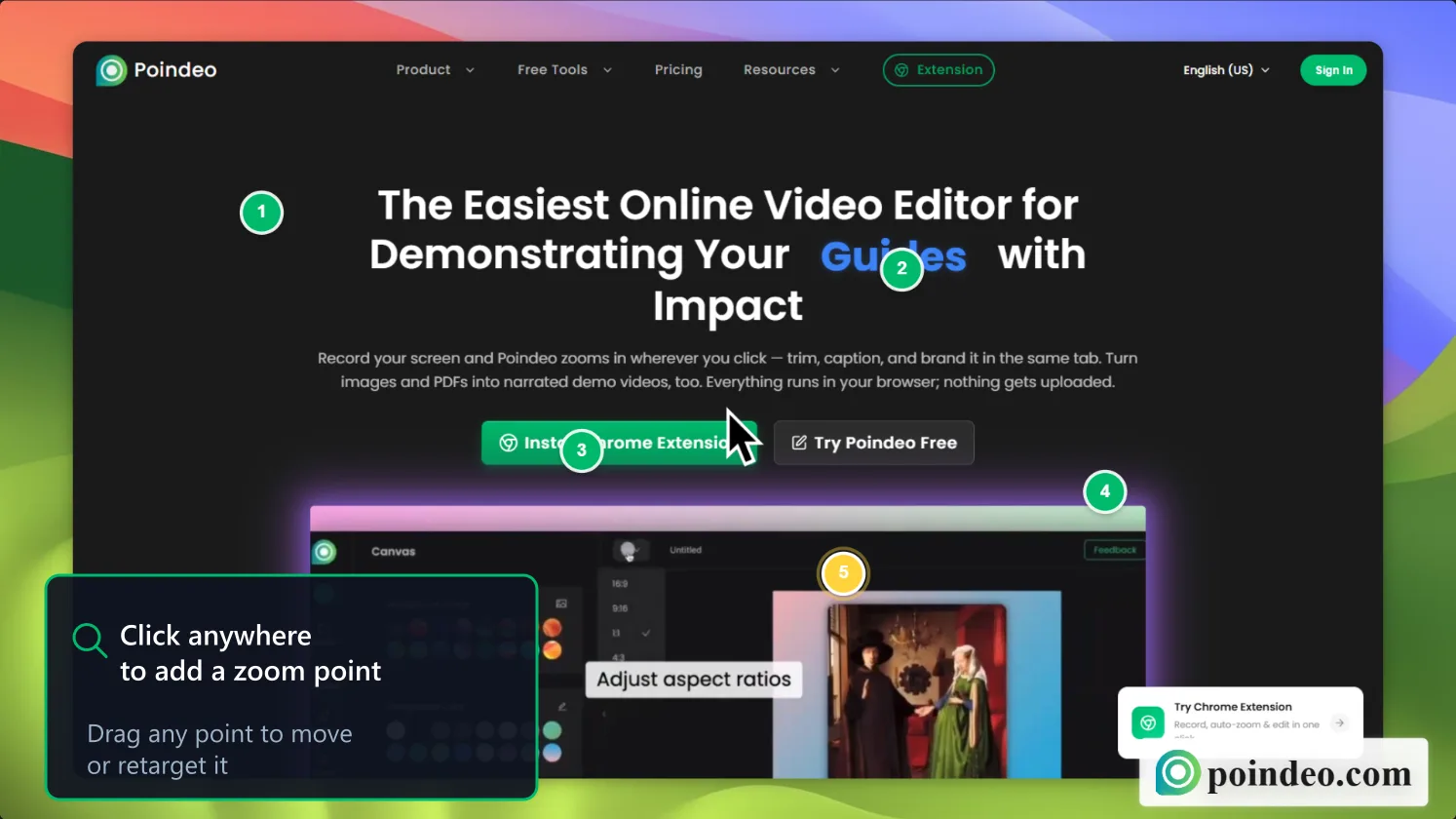
Zoom points are added by clicking directly on the canvas — no keyframes, no timeline surgery.
Because it runs entirely in the browser, nothing about the workflow changes on Windows — the same cannot be said for Mac-only editors like Screen Studio — and recordings are processed locally rather than uploaded to a cloud editor. Poindeo is free to start with zoom effects included and 720p export; Pro is $19.99/month or $3.33/month billed yearly with 4K export, and a $99 lifetime option buys it outright. One forward-looking note: if Poindeo adds MCP support, an agent could eventually hand footage straight to the editor — but that is speculation about a direction, not a feature that exists today.
FAQs about Codex Record & Replay on Windows
Is Codex Record & Replay coming to Windows?
OpenAI has not announced a Windows version or a timeline for one. The official documentation still describes Record & Replay as a macOS feature, so anything promising a Windows release date is guessing.
Can I run Codex itself on Windows?
Yes — the Codex CLI and IDE integrations work on Windows. What's missing is only the official Record & Replay pipeline that watches a live desktop session and saves skills from it. Everything else Codex does, including writing Playwright and AutoHotkey scripts, is available to you today.
What is the closest thing to Record & Replay on Windows right now?
It depends on your workflow. For browser workflows, Codex plus Playwright gives you real automation with automatic recording. For anything that starts as a human demonstration, the record-first playbook route converts a video into reusable steps. OpenAdapt is the project to watch for desktop recording-to-automation, with the caveat that it is still experimental.
Does Poindeo automate my workflow?
No — and it doesn't pretend to. Poindeo is the presentation layer: automation comes from the routes above, and Poindeo turns whatever footage they produce into a demo worth publishing.
The Windows answer to Codex Record & Replay is not a single clone — it is a stack. Codex plus Playwright handles web workflows with executable, self-recording scripts. The record-first playbook approach turns human demonstrations into SOPs, checklists, or code. Desktop automation tools cover the software Playwright can't reach, with Codex helping write the scripts. And once any of those routes produces footage, Poindeo handles the last mile: zooms, captions, blurs, and export-ready polish. The workflow layer automates; the presentation layer sells it. If your next step is a demo, you can start in the screen recorder with auto zoom tool — free in your browser, no install.