Many businesses, educators, and students have used Microsoft Teams for communication and collaboration. It is an ideal tool for chats and meetings, but you can utilize it beyond live conversation. It’s also a cost-effective way to record demo videos and host files like training videos.
While Teams is not a dedicated video editing tool, its built-in recording function is still worth trying for many demonstrations and education. It’s simple and fast, no need to install a screen recording software, and efficient to share within your group and organization.
This guide will walk you through the entire process on how to record a high-quality demo video using Teams. We’ll also offer a professional alternative when you need.
Common Use Cases for Recording on Teams
Usually, you can use Teams to record the screen and webcam for product demonstrations, software tutorials, internal training, or more content sharing. Here are some common use cases:
- Internal Training and How-to Guides: Create short instructional videos to demonstrate workflows or specific tasks. The simplicity and built-in distribution make it perfect for internal training.
- Product Demos, Onboarding, and Knowledge sharing: With Teams’ centralized cloud storage, you can record standard workflows and create an accessible library and knowledge base.
- Educational Content: Teams’ Screen Sharing and Presenter Modes allow you to create educational recordings and also easily share with students within a class’s Team. And students can go back to watch the recording later.
- Asynchronous Communication: You can use the basic chat box or meeting recording to quickly record a personal video message and share it directly in a chat or channel.
How to Record a Demo Video on Teams with Steps
Recording a demo video on Teams is simple by starting a private meeting of just yourself. Check out the steps below:
Step 1. Start a Private Meeting
Open the Calendar in Teams and select "Meet now" to start the meeting. Click “Join now”, and skip inviting others to record only yourself.
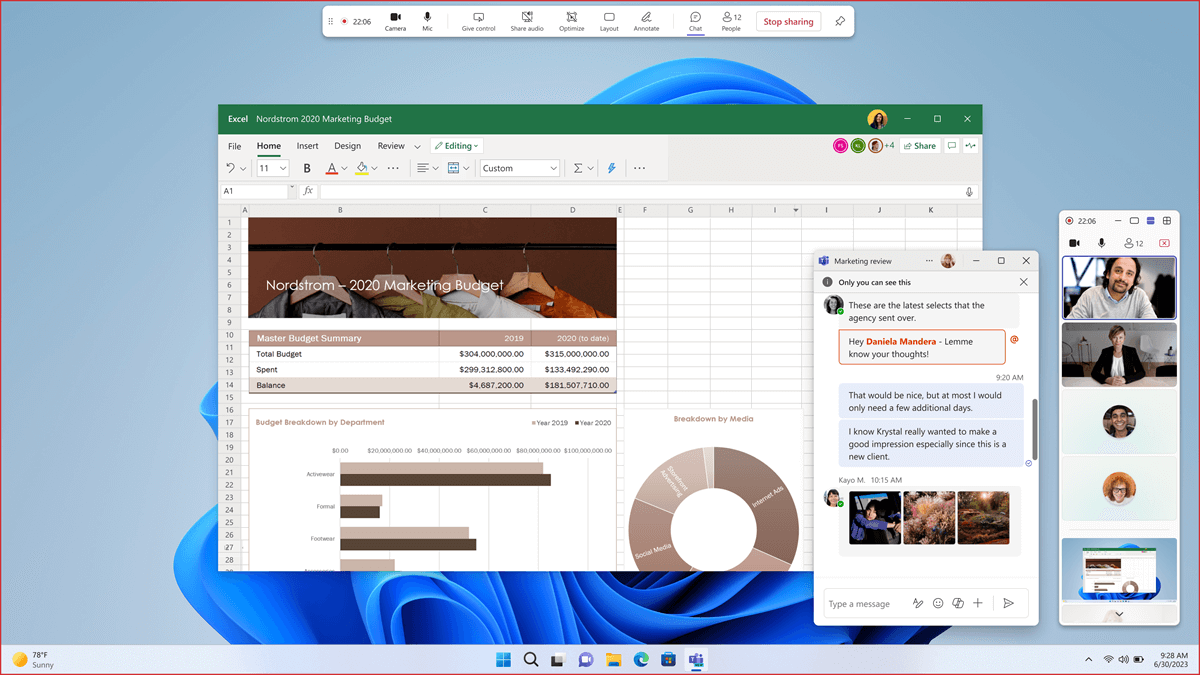
Step 2. Share Your Screen
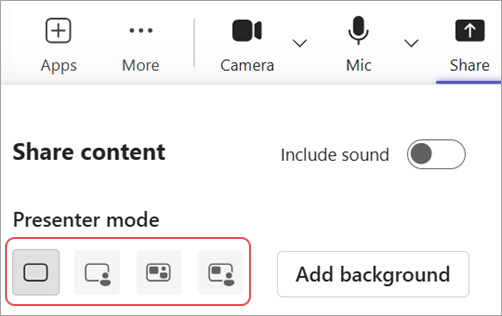
Tap on the Share icon to share your screen or a specific application window. Choose your presenter mode, like Standout or Side-by-side.
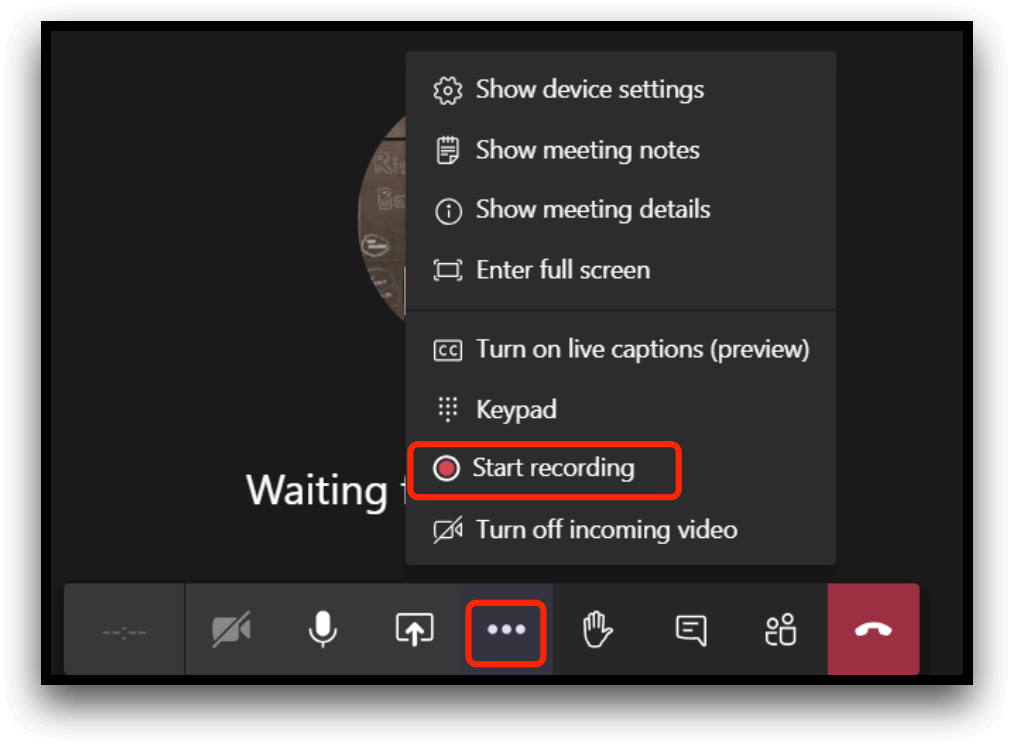
Step 3. Record the Demonstration
Click the three dots in the meeting controls to “Start recording” now. Present your demo with your webcam and voiceover. Once finished, click the three dots again and choose “Stop recording”.
Tips: Use presentation tools to highlight important points, annotate, and collaborate on content in real-time.
Step 4. Save and Share
The recorded MP4 video file will be available in the meeting’s chat history after the meeting ends, and will also be saved in your OneDrive under “Recordings”. You can then download it or share a link directly.
Pros and Cons of Recording Demos with Teams
Pros
- Engaging Presenter Modes: Overlay your webcam on your screen share using different layouts to create a more personal and engaging presentation.
- Efficient Recording & Collaboration: Easy for quickly sharing screens and recording yourself for guides and internal tutorials. Save and share directly within your group or organization.
- No Installation Needed: No learning curve for a new screen recorder, and especially friendly for Microsoft users.
Cons
- Limited Editing Features: Because it's a communication platform first, Teams lacks advanced editing tools like zoom-in effects, annotations, or text overlays.
Tips for Recording a High-Quality Demo Video on Teams
You can adopt some of the tips below to record a great demo video:
- Prepare your Content: Have any relevant windows and documents ready to be shared. Write a script or a simple outline. This will help you deliver a smooth and clear message.
- Ensure Clear Audio: Audio quality is crucial. Ensure your environment is quiet and prepare a good headset. This will make your voice clear.
- Teams Settings: Use Teams’ background blur or a custom background to keep the focus on you and your content.
Recommend: A Professional Alternative to Record Demo Video
If Teams can’t satisfy your needs for recording a professional video due to its limitations, you may consider a specialized tool.
Here I recommend Poindeo, an online tool designed for creating polished demonstrations quickly and easily. It offers easy recording and editing tools to create a stunning video. Ideal for product demos, training videos, lessons, and more.
Why Poindeo is ideal for demos
- Screen Recording Support: Record your screen and webcam separately or simultaneously. Available to choose a browser tab, a window, or the whole screen with system audio.
- Zoom in on Details for Highlights: Easily click the mouse on the specific areas, and smooth zoom animations are created automatically.
- Advanced Editing: Customize your video recording with a trimming tool, beautiful backgrounds, audio addition, and auto-subtitles.
- Convert Screenshots and Documents into Demos: You can also upload a set of images / a PDF file and convert them into a video. Record a voiceover to narrate the static content and animate it.
- Wide Downloads: Save your creation as a high-quality video with resolutions up to 4K. Choose to export video clips as GIF or thumbnail images.
Demo video example
FAQs about Recording Demo Video
How do you record a video on Teams?
You can simply record a video on Teams by starting a private meeting, sharing your screen, recording, and saving.
Can I record a video of just myself on Teams?
Yes. Start a meeting on Teams, and skip inviting others, then you can record a video of just yourself.
How to record a demo video on Windows?
You can record a demo video on Windows with the built-in snipping tool (Press Windows key+Shift+S or PrtSc key to start recording), Microsoft Teams, or professional demo makers.
Can I record a Teams meeting as a participant?
You can only record a meeting if the meeting organizer has permitted you to do so.
Conclusion
Microsoft Teams is a cost-effective solution for creating internal training videos, quick guides, and demonstrations. Follow the steps and tips in this post to start recording a demo video. And when you need a professional demo maker, try Poindeo to make your videos shine.