Nowadays, more and more people want to see the product immediately, on their own terms. A SaaS demo is no longer just a sales meeting—it’s a way for buyers to self-educate, self-qualify, and signal real intent before talking to your team. Done right, your demo becomes the bridge between interest and purchase.
In this guide, you’ll learn how to design SaaS demos that do more than “show features.”
You’ll learn how to create demos that reduce friction, surface real buying intent, and work across your entire funnel—from first touch to serious evaluation.
What is a SaaS Demo?
For a long time, the word "demo" was synonymous with a 30-minute Zoom call. A sales rep would share their screen, walk through every single tab in the settings menu, and hope the prospect didn't fall asleep.
In 2026, the definition has shifted. A SaaS demo is now defined as any visual or interactive experience that demonstrates how a software product solves a specific user problem. There are the 3 types of demos:
- Live Sales Demo
A live sales demo is a synchronous, sales-led walkthrough, typically conducted via video call. Its main strength lies in real-time interaction: sales teams can tailor the presentation, answer objections immediately, and adapt to the buyer’s specific use case. However, this format is resource-intensive and difficult to scale. It also requires buyers to commit time upfront, which can limit its effectiveness in the early discovery phase.
- Explainer or Demo Video
Explainer and demo videos are pre-recorded, linear assets commonly used on homepages and landing pages. They work well for high-level product storytelling, positioning, and brand consistency, ensuring every viewer receives the same core message. The trade-off is limited interactivity—viewers remain passive, making it harder for them to assess product fit or experience real workflows.
- Interactive Product Tour
An interactive product tour allows users to explore a simulated version of the product at their own pace, clicking through key features and workflows. This format reduces friction for early-stage evaluation and supports self-directed learning. On the other hand, interactive tours require upfront setup and ongoing maintenance to stay aligned with product updates, and they may not address complex, edge-case questions as effectively as a live conversation.
How to Create a SaaS Demo: A 5-Step Strategic Framework
Creating a great demo isn't about recording your screen and hoping for the best. It requires a narrative arc. Follow this framework to ensure your demo actually converts.
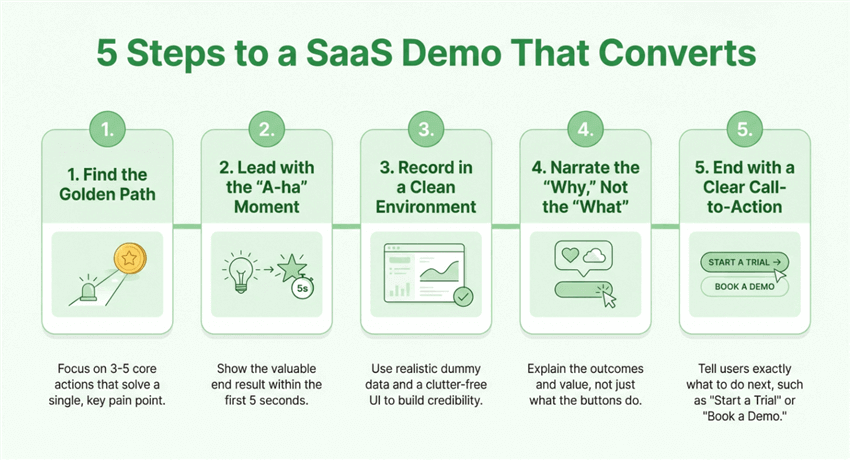
Step 1: Identify the "Golden Path"
The biggest mistake SaaS companies make is trying to show everything. Your demo shouldn't be a manual; it should be a highlight reel.
- Action: Look at your product analytics. What are the 3–5 actions that high-value users take in their first 24 hours? This is your "Golden Path."
- Focus: Solve one specific pain point. If your software does "Project Management," don't show the settings, the billing, and the profile colors. Show the user how to create a task and automate a workflow in under 30 seconds.
Step 2: Storyboard the "A-ha" Moment
Every demo needs an "A-ha" moment—the exact second the user realizes, "Wow, this makes my life easier."
The Hook: Start with the end result. If your SaaS generates AI reports, show a beautiful, finished report in the first 5 seconds. Spend the rest of the demo showing how easy it was to get there.
Step 3: Capture a Clean UI
Visual debt kills demos. If your recording includes messy data, 50 Chrome tabs, or a "Trial Expired" notification in the corner, you lose professional credibility.
Pro Tip: Use a dedicated "Demo Environment" with dummy data that looks realistic. Use names like "Acme Corp" and realistic-looking charts.
Step 4: The Narrative Overlay (The "Why," not the "What")
If your demo says, "This is the Dashboard, and this is the Settings button," you are wasting the user's time. They have eyes; they can see the buttons.
Instead, say: "From this dashboard, you can see exactly which projects are over budget, allowing you to reallocate resources in one click."
Step 5: The "Next Best Action" (CTA)
A demo without a Call to Action (CTA) is just entertainment. What do you want them to do next?
- Short-term: "Try this feature yourself."
- Long-term: "Start a 14-day free trial" or "Get a custom quote."
The Poindeo Advantage: Professional Demos Without the Professional Editor
While the framework above works for any strategy, Poindeo was built to solve the specific friction points of SaaS creators. Most video editors (like Premiere Pro or Final Cut) are too complex, and most screen recorders (like Loom) are too "flat."
As a professional product demo video maker, Poindeo bridges this gap by being a browser-based powerhouse that turns simple captures into dynamic guided stories.
- Automatic, Smooth Zooms
The hardest part of a product demo is keeping the audience's eyes on what matters. Usually, this requires hours of "keyframing" in an editor.
As you record your screen, Poindeo automatically generates smooth zoom and pan effects on your mouse clicks. It highlights the workflow naturally, ensuring your audience never misses a step. You can later edit these zoom levels or positions directly on the timeline with a simple click.
- From Static Assets to Dynamic Stories
Sometimes, a screen recording isn't enough. You might have a beautiful PDF pitch deck, a set of high-res screenshots, or existing video clips.
Poindeo lets you drag and drop images, PDFs, and videos onto the same timeline. You can continue narrating over a static document while using Poindeo’s zoom tools to focus on specific lines of text or chart details. This transforms a flat PDF into a "guided tour" in minutes.
- Professional Polishing
Poindeo eliminates the "design gap" for indie developers and marketers.
- Custom Backgrounds: Choose presets that fit your brand style so your window isn't just floating in a black void.
- One-Click Subtitles: Automatically generate captions to make your demos accessible and "mute-friendly" for LinkedIn scrollers.
- Branding & Watermarks: Add your logo once, and it stays consistent across all your exports.
- Format Flexibility: Instantly resize your demo for a YouTube (16:9), TikTok (9:16), or a shareable GIF for an email.
Step-by-Step: Recording Your "Auto-Zoom" Demo with Poindeo
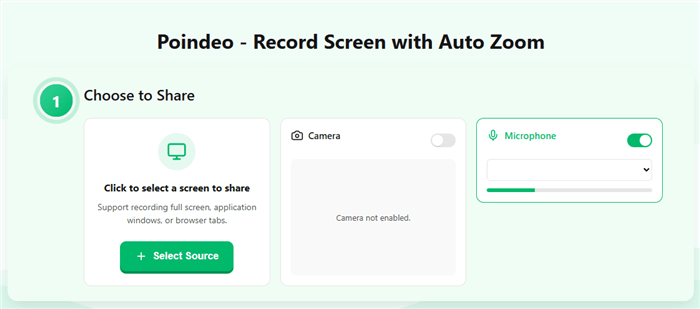
Step 1. Set Your Capture Area
Launch the Poindeo extension or web app and select your source: a specific browser tab, a single application window, or your entire screen. Toggle your microphone and camera to add a personal narrative.
Step 2. Prepare Your Recording Preferences
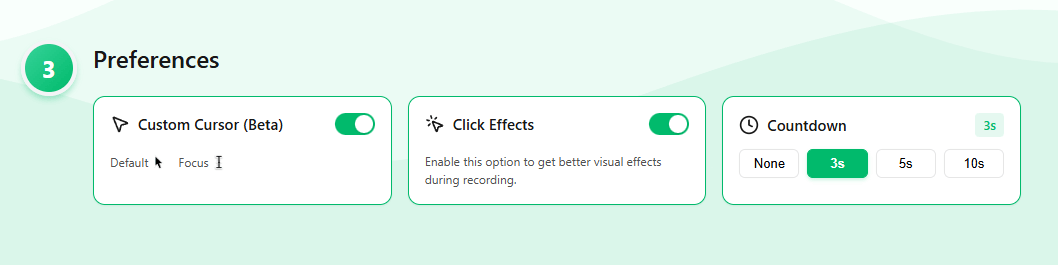
Before you start recording, quickly review your Preferences. You don’t need to manually enable Auto-Zoom—Poindeo applies it automatically during recording based on your cursor movement and clicks. Recommended setup:
- Custom Cursor: Turn on to make pointer movements clearer and easier to follow
- Click Effects: Enable to visually highlight interactions
- Countdown: Set a short delay (e.g. 3s) to get ready before recording starts
Step 3. Record Your Workflow:
Perform your product walkthrough naturally. Every time you click a feature or move through a process, Poindeo captures the metadata to create smooth, professional zoom and pan effects that keep the audience focused.
Step 4. Refine on the Timeline.
Once finished, use the intuitive editor to polish the zooms. You can click any zoom event on the timeline to adjust the zoom level, change the duration, or switch between "Follow Cursor" and "Fixed" position modes.
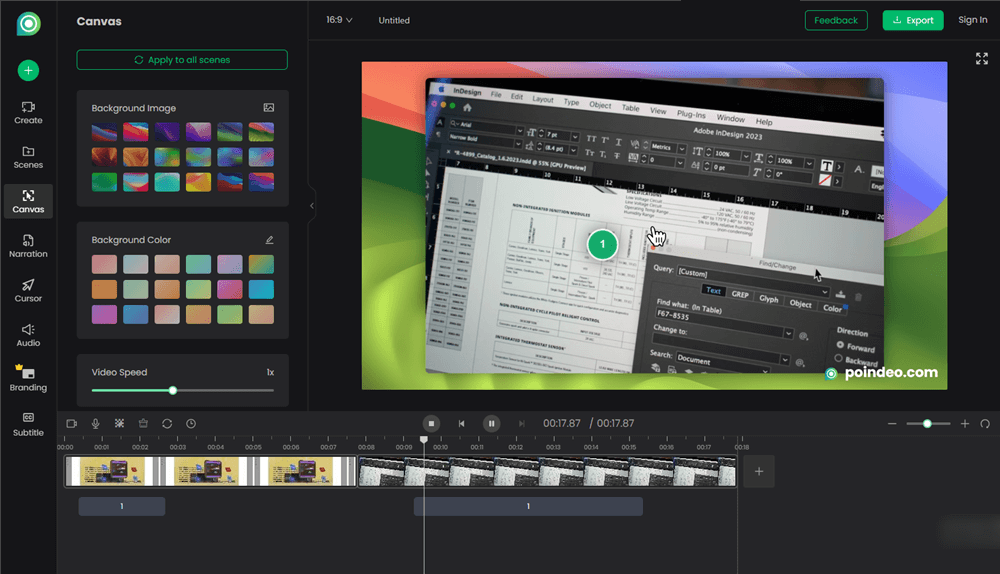
Step 5. Annotate and Export:
Add the final professional touches by generating AI subtitles, adding text annotations to explain key steps, and choosing your branding. Export your creation as a high-quality MP4, a GIF, or a single frame image for immediate sharing.
5 Product Demo Use-Cases to Inspire You
Where should you actually use these demos? The answer is: anywhere a customer interacts with your brand.
| Use-Case | Why it Works | Best Format |
| The "Hero" Embed | Replaces static images on your homepage to show immediate value. | Interactive Tour |
| Product Hunt Launch | Grabs attention in a crowded feed and proves the product works. | Short Video/GIF |
| The "Leave-Behind" | Sent after a sales call so the champion can "demo" it to their boss. | Personalized Link |
| New Feature Blogs | Shows existing users how to use a new update without a manual. | Micro-Demo (10-15s) |
| Outbound LinkedIn | Breaks through the noise by offering a "30-second tour" instead of a meeting. | Interactive Snippet |
Final Thoughts
The era of "hiding the product" is over. Buyers are more educated and more impatient than ever. By leveraging a tool like Poindeo, you are giving your prospects exactly what they want: a fast, clear, and engaging way to see your value.
Your SaaS demo shouldn't just be a video on your site; it should be the engine of your entire sales and marketing funnel.
Are you ready to stop losing leads to a "Book a Demo" wall? Start your first Poindeo demo for free today.
FAQs on SaaS Demo
How long should a SaaS product demo be?
For an interactive tour, 10–15 steps is the sweet spot. If it’s a video, keep it under 2 minutes. If a user wants more, they will sign up for a trial or a live call.
Should I gate my product demo?
We recommend a "Soft Gate." Allow users to see the first few steps of the demo to build interest. Once they reach the most valuable part, trigger a lead capture form to "See the Full Tour." This significantly increases lead quality because only interested prospects will provide their info.
How do I measure the ROI of my SaaS demo?
Look at three metrics:
- Completion Rate: How many people made it to the last step?
- CTR to CTA: How many people clicked "Start Trial" after finishing?
- Sales Cycle Length: Do prospects who view the demo close faster than those who don't? (Hint: They usually do).
Is an interactive demo better than a free trial?
They serve different purposes. A free trial is a commitment—the user has to set up data and learn the system. An interactive demo is a "Commitment-Free Look." It lowers the barrier to entry and helps users decide if the trial is worth their time.
At what stage of the funnel should I use a demo?
Demos work best in the early to mid funnel—before a sales call. They help buyers self-educate, qualify themselves, and arrive at conversations with clearer intent and better questions.
Who should the demo be designed for: buyers or users?
Ideally, both—but prioritize the primary evaluator. Early demos should focus on outcomes and workflows, while deeper demos can address day-to-day usability for end users.
How detailed should a SaaS demo be?
A demo should highlight core workflows, not every feature. The goal is to show how the product solves a real problem, not to replicate full documentation or onboarding.