Write the script before you record. The script is the content: every line you say, what is on screen while you say it, and when the camera zooms. Recording without one costs you eleven takes and a final video that buries the point.
This page gives you the template — a fill-in table with timing and word budgets — plus five real, public demo videos (Slack, Superhuman, Notion, GitHub Copilot, Loom) broken down into the same structure, so you can see the skeleton under the polish.
Key Takeaways
- A demo script is a three-column document: what you say, what is on screen, and when the camera moves. A feature list is not a script.
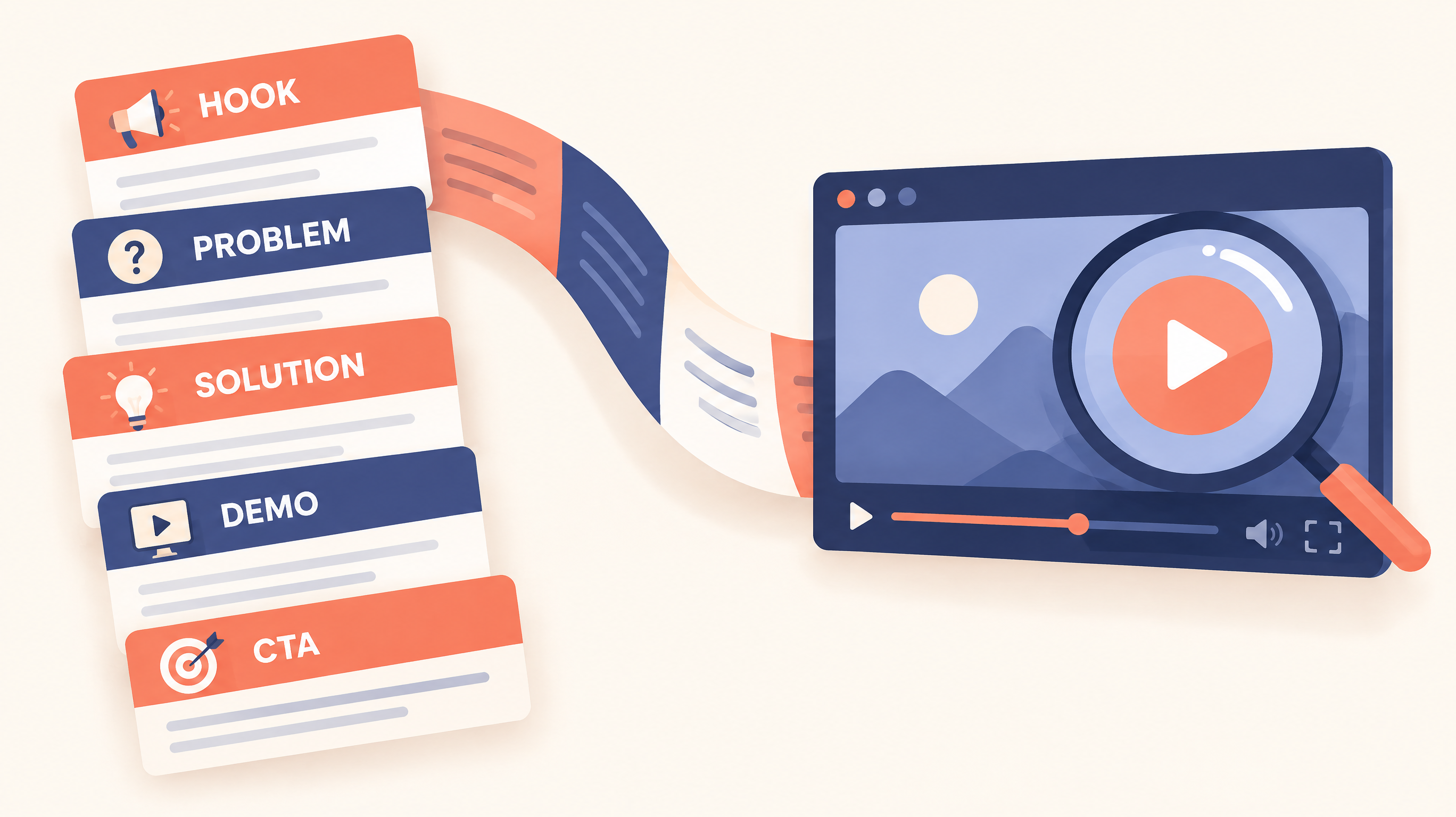
- The structure that works: Hook → Problem → Solution → Walkthrough (2–3 features max) → Proof → CTA. One premise, one action.
- Write to the clock, not the page: spoken voice-over runs about 140 words per minute, so a 90-second demo is roughly 210 words.
- Zoom cues belong in the script, not in the edit. Marking the "moment of proof" per scene is what makes a demo feel produced.
- Below: one complete fill-in example, plus five real demo videos with verified links, each mapped onto the template's beats.
What Is a Product Demo Video Script?
A product demo video script is a scene-by-scene plan that pairs every line of voice-over with what appears on screen and when the camera zooms. That pairing is the discipline: every sentence you speak has to be about the thing the viewer is watching, in that second.
A working script has three columns:
- Voice-over (what you say). Short lines. Conversational. Written to be spoken aloud, not read.
- On screen (what they see). The exact screen, state, and data the viewer is looking at while each line plays.
- Camera and zoom cue. When to zoom in on the detail that proves your point, and when to pull back to show context. Zooms tell the viewer where to look.
The Product Demo Video Script Template (Copy This Table)
Copy the table below into a doc. Replace every [bracketed] placeholder, delete the rows your format does not need, and read it aloud against a timer. The timings add up to 90 seconds, the default length for a landing page hero; cut scenes proportionally for shorter formats.
| Scene & time | Voice-over — what you say | On screen — what they see | Camera & zoom |
| 1. Hook — 0:00–0:05 | Most [target users] lose [hours / money] to [pain] every week. There is a faster way. | The end state: a glimpse of your product showing the winning result, logo visible. | Quick zoom into the key number or moment, then back out. |
| 2. Problem — 0:05–0:15 | Today, [current process] means you [step 1], then [step 2], then [step 3] — and it still [painful outcome]. | The messy status quo: the spreadsheet, the five tabs, the manual workaround. | Hold the full wide shot on the mess. |
| 3. Solution — 0:15–0:25 | [Product] is a [category] that [core outcome] — in [timeframe], without [old constraint]. | Clean product dashboard, empty and calm. | Zoom out to reveal the whole product. |
| 4. Walkthrough beat 1 — 0:25–0:45 | Connect [input] and [Product] builds [artifact] automatically. Notice [specific detail]. | The product doing the core action, end to end, with realistic data. | Zoom into the detail you just named. |
| 5. Walkthrough beat 2 — 0:45–1:05 | When [trigger], [Product] [smart behavior] — so you [benefit]. | The differentiating behavior happening live. | Follow the action; zoom when the result lands. |
| 6. Proof — 1:05–1:20 | [One defensible proof point: customer count, rating, before-and-after number, or a real quote.] | The proof itself: dashboard counter, review stars, quote card. | Zoom into the number. |
| 7. CTA — 1:20–1:30 | Start free at [URL] and [single action]. [Product]: [five-word tagline]. | Big URL and logo on a clean background. | One final zoom onto the URL. |
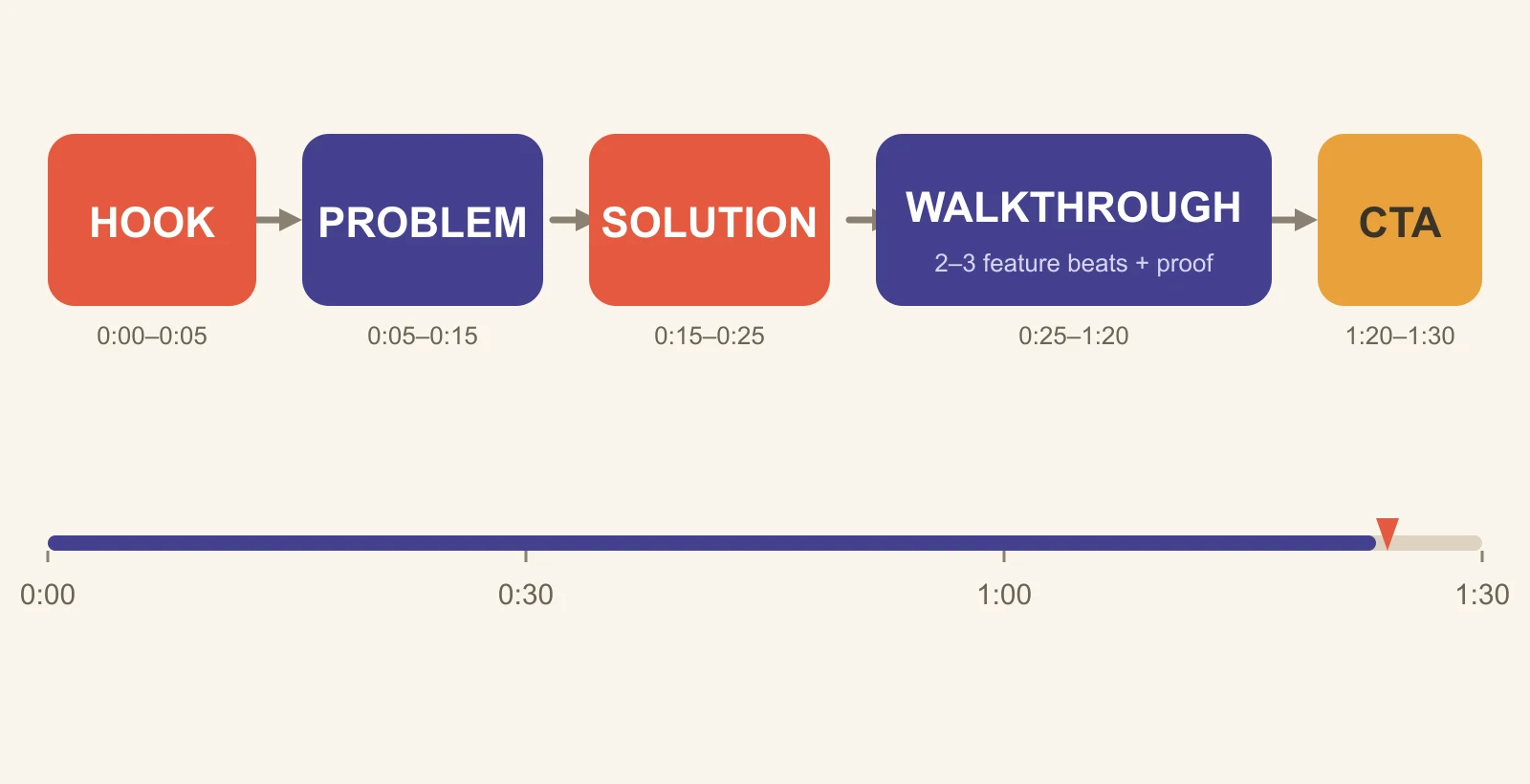
The five beats every demo script walks through, in order, before the call to action.
Two rules while filling it in:
- One premise. The whole video argues one sentence: [product] gets [audience] to [outcome]. Any feature that does not serve that sentence gets cut.
- One action. The CTA asks for exactly one thing. "Start free" or "book a demo" — never both, never plus three socials.
The Word Budget: Write to the Clock
Voice-over lands at roughly 130–150 words per minute at a relaxed pace. Budget before you write, or the edit will do the budgeting for you:
| Video length | Words (at 140 wpm) | What fits |
| 15 seconds | ~35 | Silent GIF: captions only, no voice-over. |
| 30 seconds | ~70 | One hook, one feature, one CTA — social teaser. |
| 60 seconds | ~140 | Landing hero, Product Hunt, paid ad. |
| 90 seconds | ~210 | Full landing hero — the default template above. |
| 2 minutes | ~280 | YouTube walkthrough, feature deep-dive. |
| 3 minutes | ~420 | Help center tutorial, onboarding, sales follow-up. |
Read your draft aloud with a timer before recording. If it runs long, cut scenes — do not speed up.
Three Hook Patterns That Work
The first five seconds decide whether the next eighty-five get watched. Pick one pattern and commit:
| Pattern | Example first line | Best when |
| Problem-first | Still rebuilding that report by hand every Friday? | The pain is known and acute — the viewer has it today. |
| Job-first | Here is how ops teams close the month in two days, not two weeks. | You are educating a market or defining a new category. |
| Outcome-first | This dashboard replaced our entire weekly status meeting. | The outcome is surprising or tangibly better than expected. |
Where This Template Comes From
The beat order above is not invented. It is the common skeleton under the real demo videos we break down in our product demonstration videos guide, and you will recognize it in all five examples below. Three production constraints set the numbers:
- Pace. Spoken voice-over runs 130–150 words per minute, so duration dictates word count — never the reverse.
- Muted autoplay. Landing pages autoplay videos without sound, so the hook has to work visually before it works verbally.
- Attention decays. The longer the video, the harder every scene has to work to earn the next one — which is why the template cuts features instead of adding seconds.
Depart from any of this if you have a reason. But depart knowing why the standard order exists.
How to Fill In the Template (7 Steps)
- Write the premise sentence. [Product] gets [specific audience] to [measurable outcome]. Tape it above your monitor.
- Pick the single CTA. One action, decided now, before any words are written.
- Choose 2–3 features. Not your best features — the ones that prove the premise. Three is the ceiling; two is usually better.
- Fill the table top to bottom. Brackets first, polish later. Complete-but-sloppy beats polished-but-half-done at this stage.
- Read aloud and time it. At ~140 wpm, check each scene against its time budget. Cut words, not pace.
- Mark the zoom cues. For every scene, find the moment of proof — the number, the diff, the one click that does the magic. That is where the camera pushes in.
- Do one table read. Read it to a teammate. If they can restate the premise and the CTA afterward, record it.
One Complete Fill-In Example (Sample Product)
Here is the template completely filled in, for a sample product: PulseGrid, a fictional B2B project-risk analytics tool. This is what "done" looks like before recording — about 130 words, every bracket replaced, a zoom cue per beat. Swap in your product, details, and numbers. For the broader SaaS playbook — personas, demo environments, sandbox data — see our SaaS demo guide.
| Scene & time | Voice-over | On screen | Camera & zoom |
| Hook — 0:00–0:05 | Your projects slip quietly — and you find out in Monday's meeting. | A project dashboard with one task flagged red among green ones. | Slow zoom into the single red task. |
| Problem — 0:05–0:15 | Today that means status chats, stale spreadsheets, and three tools that never agree on what is late. | Split screen: chat app, spreadsheet, kanban board — visibly out of sync. | Wide static shot on the mess. |
| Solution — 0:15–0:22 | PulseGrid watches every project, and tells you what is slipping while there is still time to fix it. | Clean PulseGrid dashboard assembling itself. | Zoom out to reveal the full board. |
| Walkthrough — 0:22–0:40 | Connect Jira, Asana, or GitHub, and PulseGrid scores every project for risk in seconds. Watch the score move the moment a sprint stalls. | The connect screen, then risk scores filling in; one score turns amber as a timeline shifts. | Zoom onto the score as it flips amber. |
| Walkthrough — 0:40–0:50 | When a project heats up, you get one alert with the reason attached — not fifty notifications. | A single alert card: "Sprint 14 at risk: 3 tasks slipped 2+ days." | Zoom into the reason line. |
| CTA — 0:50–1:00 | See which projects are slipping right now — free at pulsegrid.com. | Logo and URL on a clean background. | Final zoom onto the URL. |
Every voice-over line is about the thing on screen at that second, and both walkthrough beats prove the same premise: early warning.
5 Real Demo Videos, Broken Down as Scripts
The five videos below are real, public, and linked. Watch each one with the template's beat rows in mind — the tables are our reconstruction of each video's structure, so you can see the skeleton, not just the polish.
Slack: "So Yeah, We Tried Slack" — 2:20
So Yeah, We Tried Slack is the customer-proof demo: the video team that made the ad refused to try Slack at first — "products like that never work" — then converted, and their conversion became the video.
| Template beat | What the video does | Take into your script |
| Hook | Opens on the skeptic's own words — the objection, not the product. | Lead with the objection your buyer privately holds. |
| Problem | The doubt itself is the problem; there is no feature montage. | A persona with doubts beats a list of features. |
| Proof | The conversion timeline ("six months later, they were using it"). | Dates and specifics make proof believable. |
| Product beats | Product moments play inside the story, not after it. | Show the product as evidence, not as a tour. |
| CTA | "Check it out for yourself" — one plain-language action. | A conversational CTA fits a story-shaped demo. |
Use this structure when your product's biggest obstacle is "I doubt it works."
Superhuman: "Introducing Superhuman" — 1:00
Introducing Superhuman is a sixty-second launch film for the Superhuman suite — Mail, Go, Grammarly, and Coda — built entirely on speed and outcomes.
| Template beat | What the video does | Take into your script |
| Hook | Straight into the suite and its promise — no company history. | The brand name is not a hook; the outcome is. |
| Walkthrough | Rapid single-outcome moments, one per app. | One beat, one outcome — never a menu tour. |
| Proof | The pace itself is the argument: everything shown is fast. | When speed is the differentiator, cut every slow beat. |
| CTA | Closes on the mission, with the link doing the work. | Sixty seconds is a complete demo if every beat lands. |
At ~140 words per minute, a minute of voice-over is about 140 words — this film shows how much fits when nothing pads.
Notion: "What is Notion?" — 1:27
What is Notion? is the category explainer: the title is the exact question a newcomer types, and the video answers it before showing anything.
| Template beat | What the video does | Take into your script |
| Hook | Opens by answering its own title — knowledge, projects, and AI in one place. | Name the category in one sentence before any feature. |
| Solution | A single definition carries the whole positioning. | One-line category definition beats three paragraphs. |
| Walkthrough | Quick capability beats: notes assigning action items, agents handling routine work. | Each beat should show busywork disappearing. |
| Proof | Closes on scope: simple to customize, powerful enough to run a company. | A range promise covers both small and serious buyers. |
Use the explainer shape when your category is new or misunderstood — the script's job is definition first, persuasion second.
GitHub Copilot: "Your AI Pair Programmer" — 6:28
GitHub Copilot: your AI pair programmer is GitHub's official launch introduction, developed with OpenAI — and it runs over six minutes because its audience is technical.
| Template beat | What the video does | Take into your script |
| Hook | The metaphor in the title: an AI pair programmer. | One strong metaphor can carry a whole category. |
| Problem | Developers juggle syntax across languages and frameworks, and much of the code is tedious. | Name the daily tax your audience pays. |
| Walkthrough | Code completing itself in the editor — the product's magic moment, shown live. | Build the script around the single most surprising moment. |
| Length | Six-plus minutes that hold, because every minute shows capability. | Long is acceptable when every minute proves something. |
The developer exception to every length rule: skip the production polish, keep the code on screen, and let the demo run as long as it keeps proving.
Loom: "How to Get Started with Loom" — 4:41
How to get started with Loom is the onboarding tutorial: a Loom team member walks through setting up the recorder, capturing a first video, and editing it.
| Template beat | What the video does | Take into your script |
| Orient | States what you will accomplish before touching the product. | Tell the viewer the finish line first. |
| Setup | Shows installation honestly — desktop app and browser extension. | Showing setup friction builds trust; hiding it builds tickets. |
| Core task | Records the first video, end to end. | One core task per video; save the rest for the sequel. |
| Extras | Frames, backgrounds, and edit touches come last. | Extras belong at the end, clearly optional. |
This is the help-center shape: no hook drama, no selling — the task is the hook, and the next video is the CTA.
Choosing the Right Length for Your Demo
If the placement is decided, the length mostly decides itself:
| Placement | Length | Notes |
| Landing page hero | 60–90 seconds | Above the fold, autoplay muted — hook must work without sound. |
| Social / paid ad | 15–60 seconds | Vertical crop, captions burned in, hook in the first second. |
| YouTube / feature post | 2–3 minutes | Chapter long walkthroughs so viewers can jump to their question. |
| Help center / onboarding | 2–5 minutes | Task-first, no selling, CTA points to the next task. |
| README / store listing | 15–30 seconds | Silent GIF loop; the loop is the distribution. |
When in doubt, cut. A 60-second script with two features beats a 3-minute script with six — the viewers you lose to length never see features four through six.
From Script to Finished Video in One Afternoon
The script is half the job. The other half is producing it without a studio or an agency — which is what Poindeo is built for: a browser-based demo video editor that records your screen and voice, then turns your script's camera column into real camera movement automatically.
The workflow, script in hand:
- Rehearse once, aloud. Not to memorize — to find the lines your mouth trips over, and fix them in the doc while it is cheap.
- Record in one take. Screen plus voice together, following the table row by row. Accept small stumbles; you can trim, and the energy of a real take beats a sterile one.
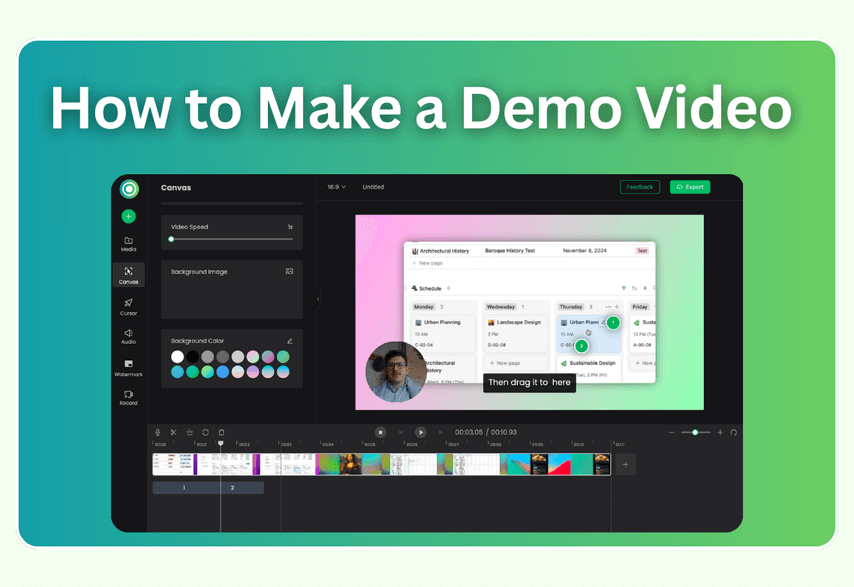
- Let the zoom cues run themselves. Your Camera & zoom column is now a shot list. Poindeo's auto zoom follows clicks and highlights into the moments you marked — no keyframing. The full setup is in how to add auto zoom to screen recordings.
- Caption and cut. Auto-generate subtitles (muted autoplay is the default on landing pages), trim the dead seconds between scenes, and drop your end card.
- Export for the placement. 16:9 for the site, a 9:16 crop for social, and a silent GIF cut of the strongest three seconds for the README.
Honest boundaries: Poindeo records browser tabs and browser-based apps, so a native desktop app needs a native recorder instead. The free tier exports 720p; Pro unlocks 4K and multi-format exports. For the full production walkthrough — webcam setup, narration polish, hosting — see how to make a demo video, step by step.
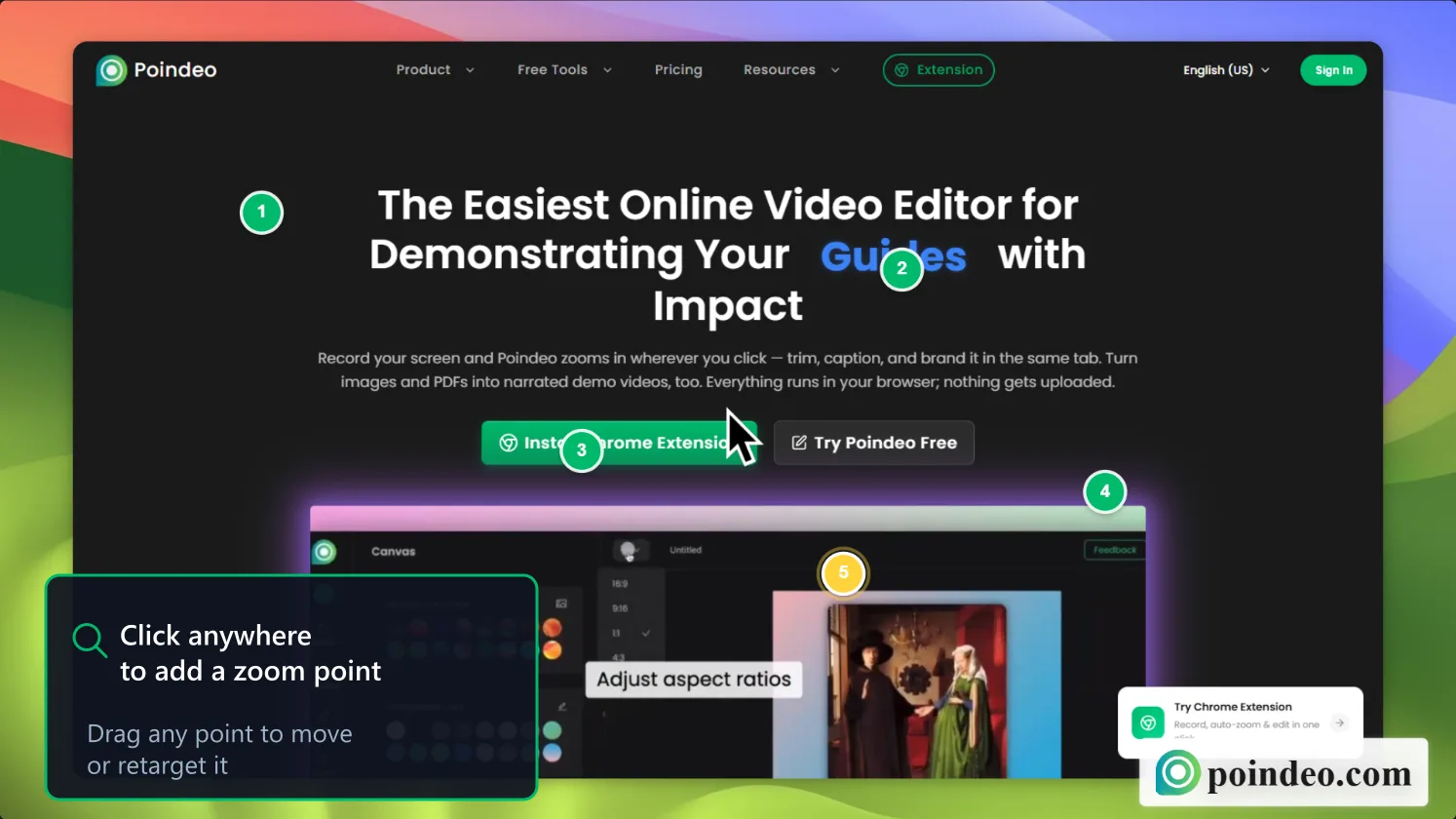
Zoom points in Poindeo's editor — each one is a "Camera & zoom" row from your script, placed on the timeline.
5 Script Mistakes That Sink Demo Videos
- Opening with your org chart. "Hi, I'm Alex, product marketing manager at..." — the viewer is gone before your job title ends. Cut everything before the value.
- The feature dump. Six features, no premise. Pick the two or three that prove your premise sentence; give the rest their own videos.
- Writing 300 words for 60 seconds. If the word budget says 140, the edit will say it louder. Cut scenes, not pace.
- Adjectives instead of artifacts. "Powerful, seamless, revolutionary" proves nothing. The proof row should hold a number, a rating, or a before-and-after the viewer can verify — on screen, with realistic data.
- The three-headed CTA. "Sign up, follow us, and check out our blog" averages zero actions. One video, one ask.
FAQs About Product Demo Video Scripts
How long should a product demo video script be?
For a landing page hero, 60–90 seconds — roughly 140 to 210 spoken words. YouTube walkthroughs run 2–3 minutes (the GitHub Copilot example above shows technical audiences will stay longer), help center videos up to 5. The word budget table converts any length to a word count at ~140 words per minute.
How many features should a product demo show?
Two or three, maximum, and only those that prove the premise sentence. Feature four does not make the demo more informative — it makes features one through three less memorable. If you genuinely have more to show, that is a demo series, not a longer demo.
Should I write the script before or after recording?
Before, for anything narrated — the script is what keeps a single take coherent. The exception is the silent GIF format: record the raw action first, then write captions to match the strongest three-second cuts, storyboard-style.
Can AI write a good demo script?
It can write a structure — hook, problem, solution, CTA in plausible English — in seconds. What it cannot do is know your product's actual behavior, your customers' real vocabulary, or which proof points you can defend. Treat AI output as a fill-in draft: every claim it invents about your product must be replaced with something true before recording.
Do I need a professional voice-over?
Usually not. For product demos, an authentic voice from the team converts as well as or better than polished talent — the Loom example above is a team member, not a narrator. What matters is audio quality: a quiet room, a decent mic, and the script in front of you so you are not improvising.
What if my product is not exciting enough for a demo?
"Boring" products have painful problems — that is the trade. The problem row does the selling, and the zoom cue does the drama: an invoicing tool zooming into an invoice flipping from Sent to Viewed is genuinely watchable if the script has built the right expectation in the ten seconds before it.
Conclusion: Copy the Template, Steal the Beats
Copy the template into a doc, fill the brackets, read it aloud against a timer, and cut until it fits the word budget. Then steal beats from the real demos above: Slack's objection-first hook, Notion's one-sentence category definition, Loom's task-first orientation.
When the script is done, record it with Poindeo — free to start — and the camera column takes care of itself.