
How to Make a Tutorial Video with Voice-Over and Auto Subtitles
You have taught this lesson a dozen times in person. Now your students are remote, and the fastest way to reach them is a screen recording: open the app, talk through the steps, share the link. So you record one, watch it back, and notice two problems. The buttons you clicked are barely visible at full-screen resolution, and when a student watches on a muted phone, your voice-over explains nothing at all.
A good tutorial video solves both problems on purpose. This guide walks through the full workflow — plan a script, record your screen with a voice-over, zoom into the details that matter, generate subtitles automatically from your narration, and export a finished video. Everything happens in your browser, and you can start free.
Key Takeaways
- Script before you record: pair every line of narration with the on-screen action it describes.
- Record your screen and voice-over in one pass — talking while clicking produces far more natural pacing than narrating a silent recording afterward.
- Auto subtitles generated from your voice-over take minutes, not hours — but always proofread the segments before applying them, because speech recognition garbles technical terms.
- Full-screen captures hide detail. Add zoom effects at the moments you want viewers to focus on.
- Free browser tools now cover the entire pipeline: record, edit, subtitle, and export at 720p without installing anything.
Step 1: Write a Script That Pairs Saying with Showing
Improvised tutorials ramble. A script keeps your recording tight and — crucially — becomes the source text for your subtitles later.
You do not need a Hollywood screenplay. A two-column table does the job:
| Narration (what you say) | On-screen action (what they see) |
| "To change the export resolution, open the Settings panel." | Cursor moves to Settings, panel opens |
| "Choose 4K if you plan to publish to YouTube." | Click the 4K option, option highlights |
Write the way you speak, in short sentences — around 140 spoken words per minute is a natural pace for tutorials. If a line takes more than one breath to say, split it.
A few planning rules that consistently improve tutorials:
- One video, one task. "How to set up your gradebook" beats "Everything about the gradebook." Short, single-purpose videos are easier to rewatch and easier to find.
- Open with the outcome. The first five seconds should show or state what the viewer will be able to do by the end.
- Plan the zoom moments while scripting. When you write "click this small icon," flag it — that is a zoom point.
If you want a fuller framework, we cover script structure in depth in our demo video script template guide — the same say/see pairing applies to tutorials.
Step 2: Record Your Screen with a Voice-Over
This is where the browser-based workflow pays off. Instead of installing a screen recorder, an audio editor, and a video editor, you record and narrate in one place — Poindeo runs the whole pipeline online.
- Open the editor at poindeo.com and create a new project.
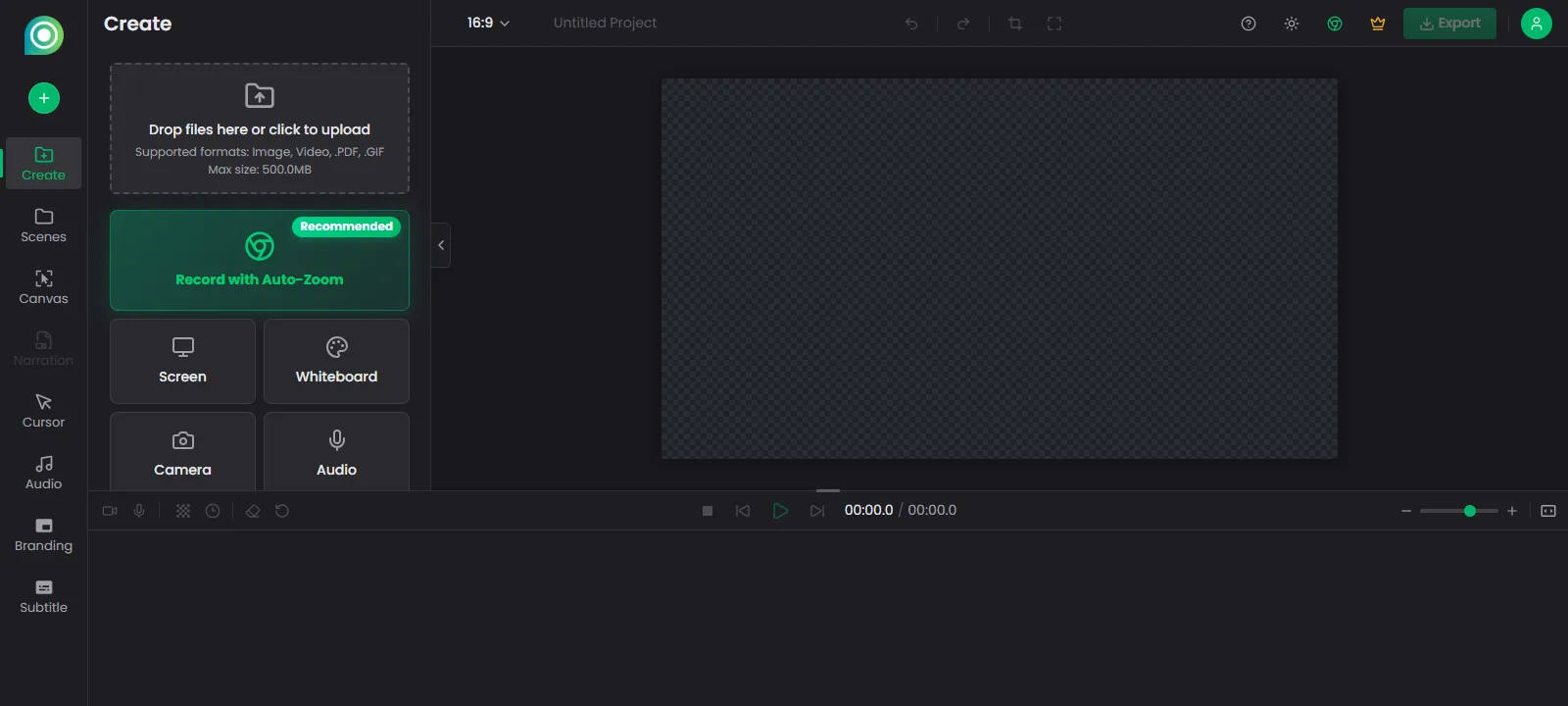
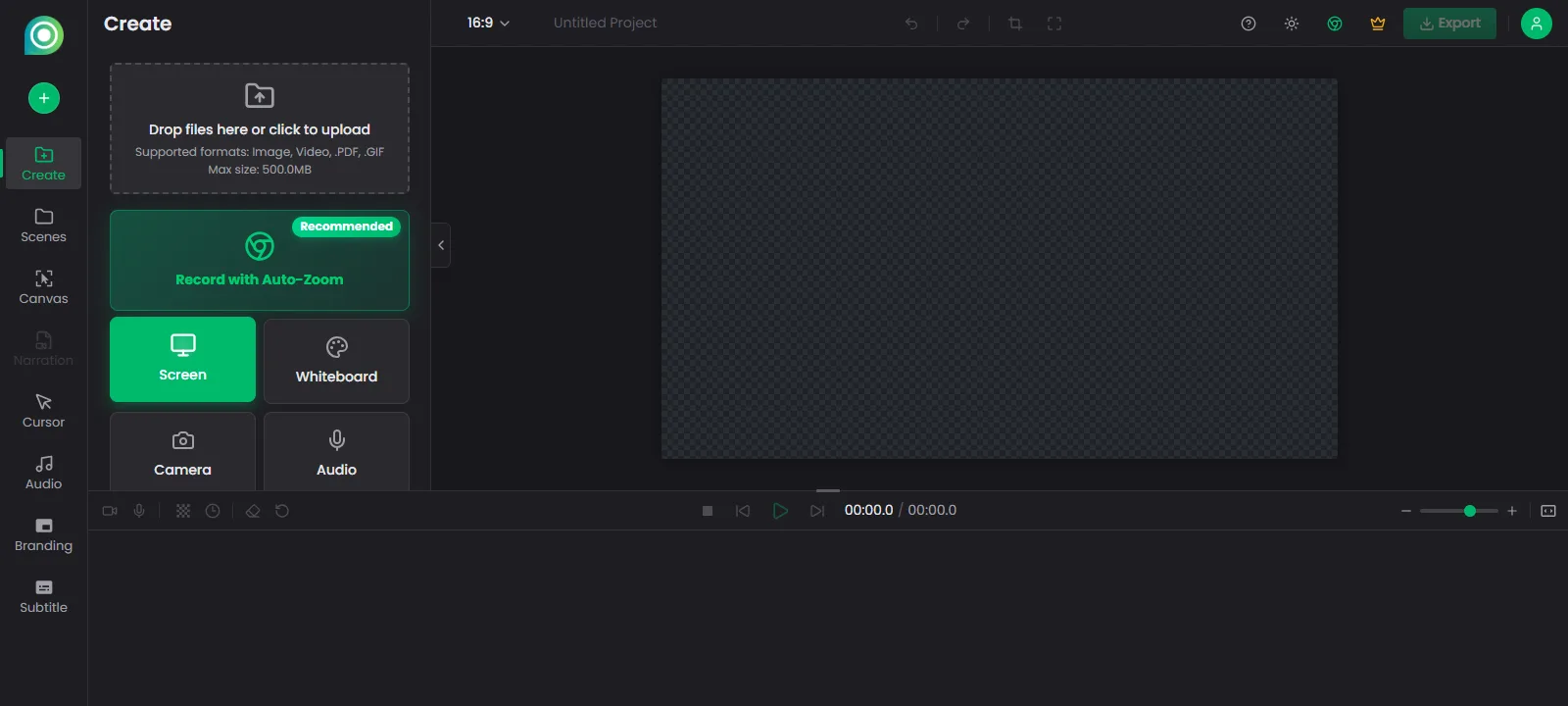
- In the Create panel, choose Screen as your recording mode.
- Toggle the microphone on and pick your input device. Recording your voice while you drive the screen captures natural, conversational pacing — if you can talk through the task in front of a student, you can record it.
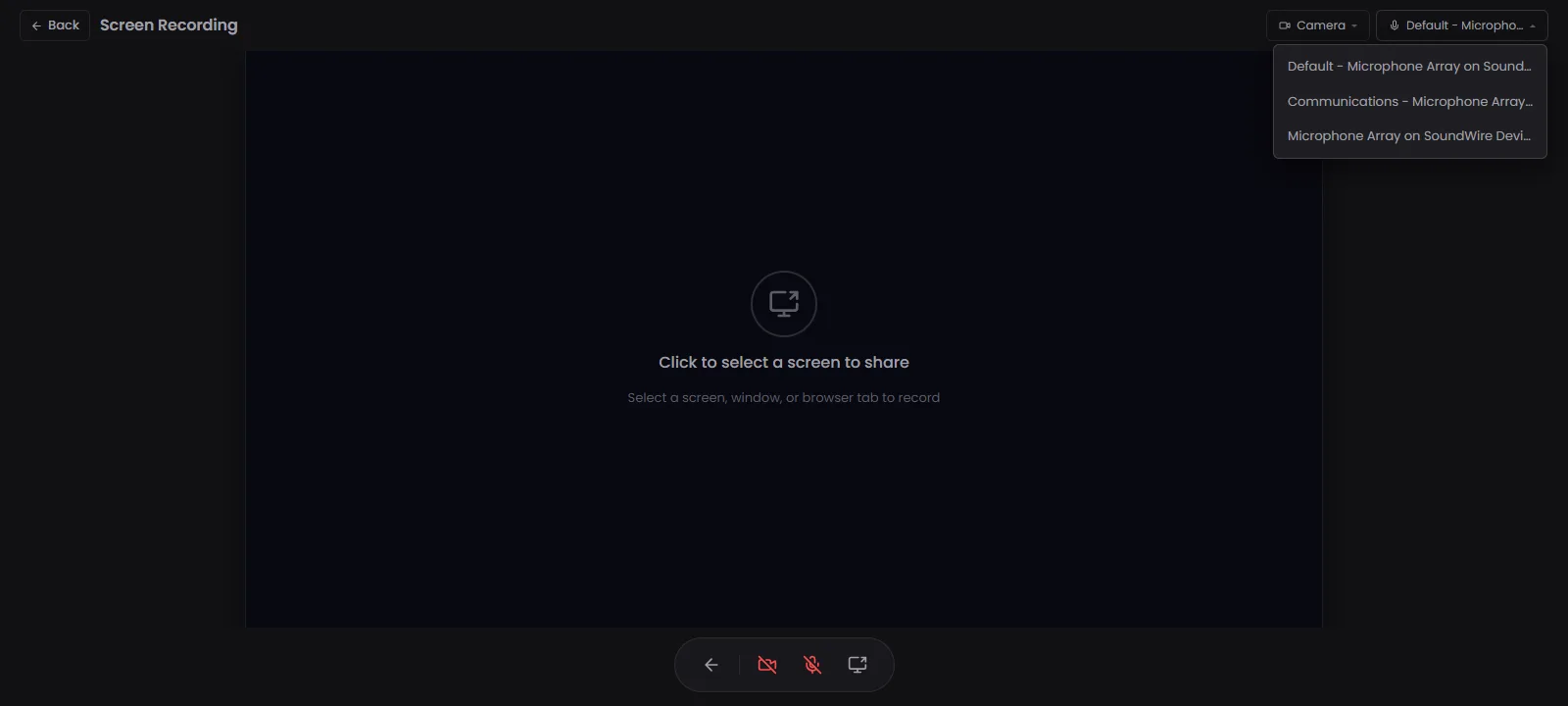
- Choose the browser tab or window you want to capture and hit Record.
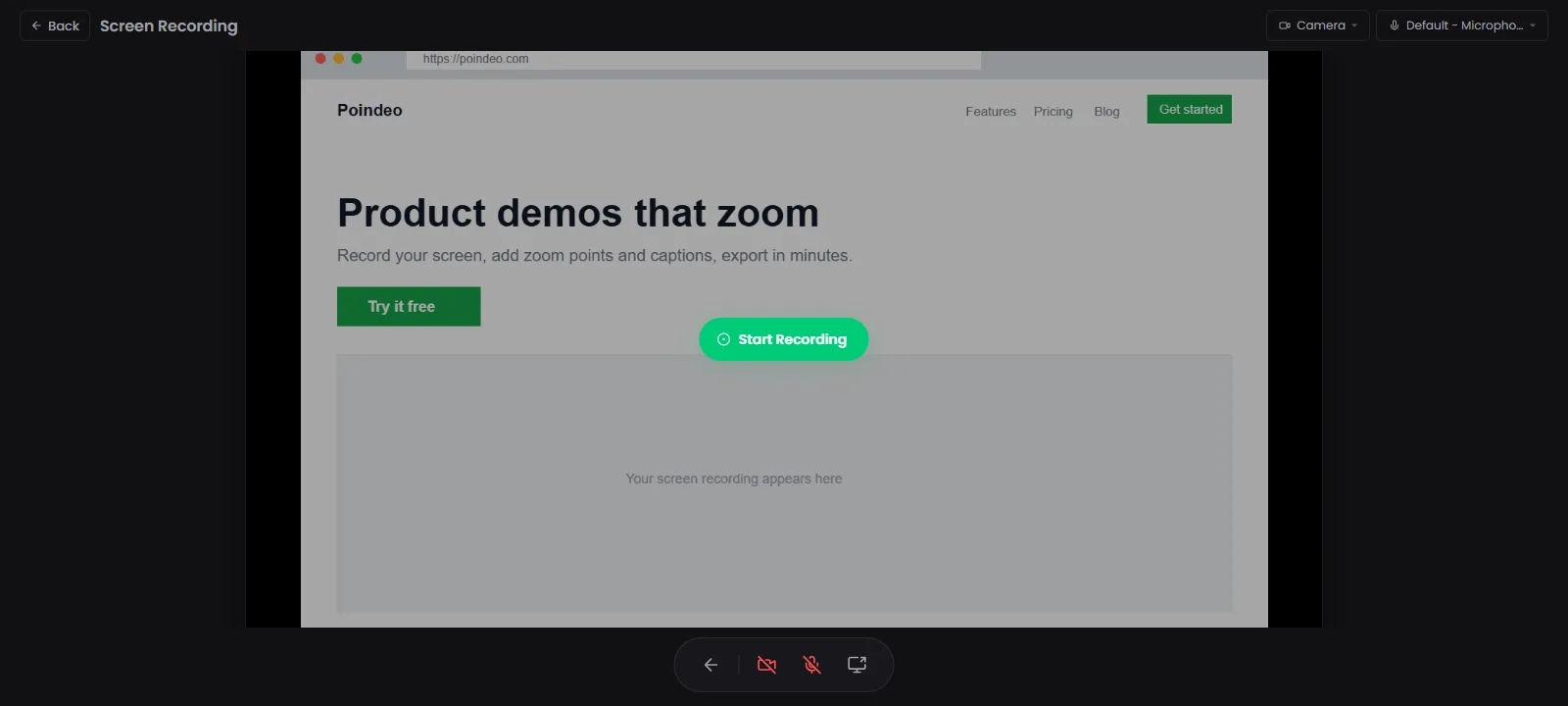
- Work through your script. Made a mistake? Do not stop the recording — pause for two seconds and repeat the sentence correctly. The pause is easy to spot on the timeline later, and you will fix the wording when you review subtitles.
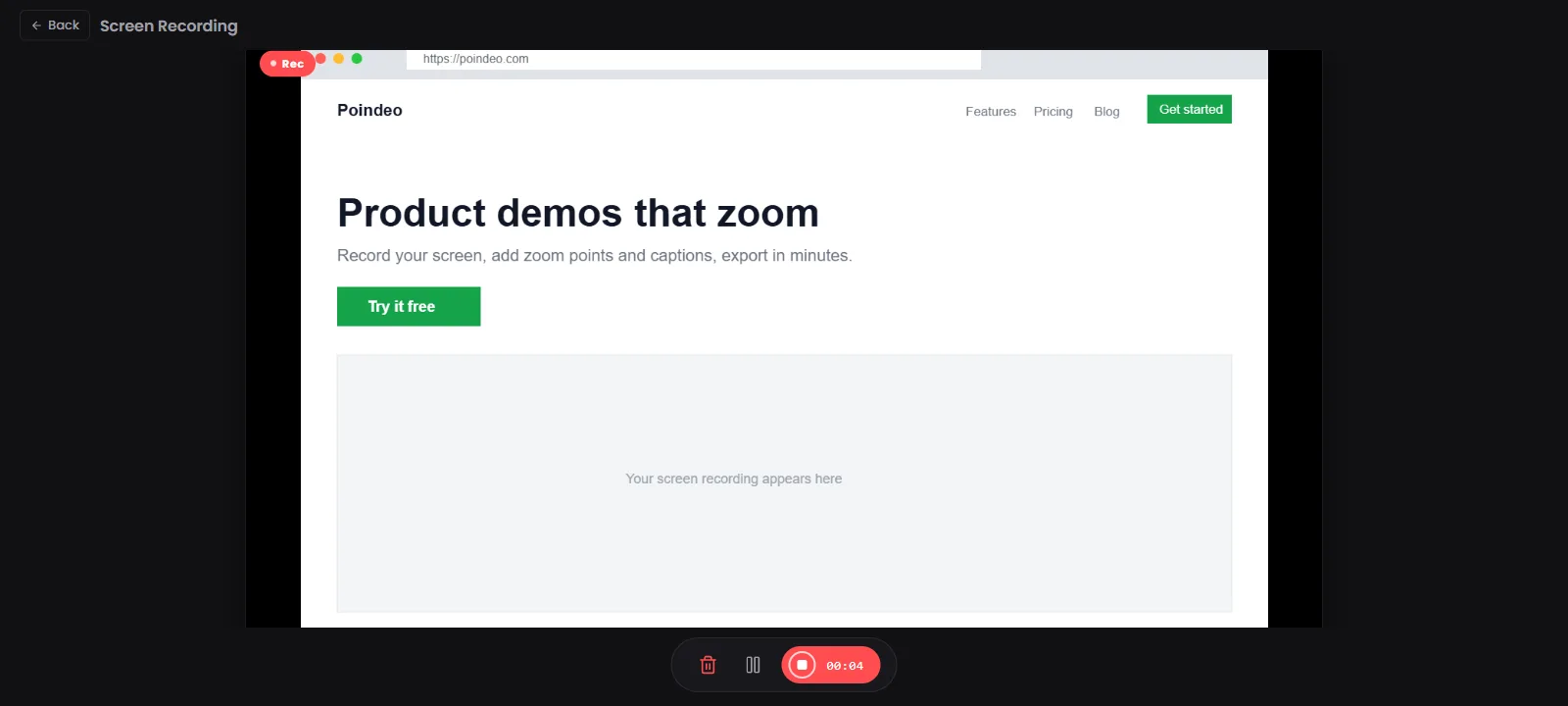
A few recording tips worth their weight in retakes:
- Get the mic close. A headset or USB microphone within a foot of your mouth beats a laptop microphone across the desk.
- Kill the background noise. Fans, air conditioning, and open doors all leak into the track. A quiet closet beats a noisy office.
- Record a 10-second test first. Play it back with headphones before committing to the full take.
One compatibility note: browser screen capture requires Chrome or Edge. If you start on Safari or a mobile browser, the record option will not be able to share your screen — switch to a desktop Chromium browser and your project comes with you, since everything is saved online.
If you prefer recording audio separately — say you already have narration, or you are voicing over slides — you can also import a video, images, or a PDF lesson and record the voice-over on top. That workflow is covered in how to narrate over images and PDFs.
Prefer a fully local setup? OBS Studio records screen and microphone for free, and Audacity is a solid free audio editor. The trade-off is assembling the pieces yourself — and auto-subtitles will need yet another tool. That is exactly the shuffle the browser pipeline is designed to skip.
Step 3: Zoom Into the Moments That Matter
Once your recording sits on the timeline, watch it once at playback size and ask: where does the important stuff get hard to see? Every settings toggle, toolbar icon, or form field qualifies.
In Poindeo, pause the playhead at that moment and click the canvas to add a zoom point. The camera glides in, holds on the detail while you explain it, and pulls back out when you add the next point. You are not cropping or re-rendering — the zoom is a camera move layered over your original recording, so it stays smooth and reversible.
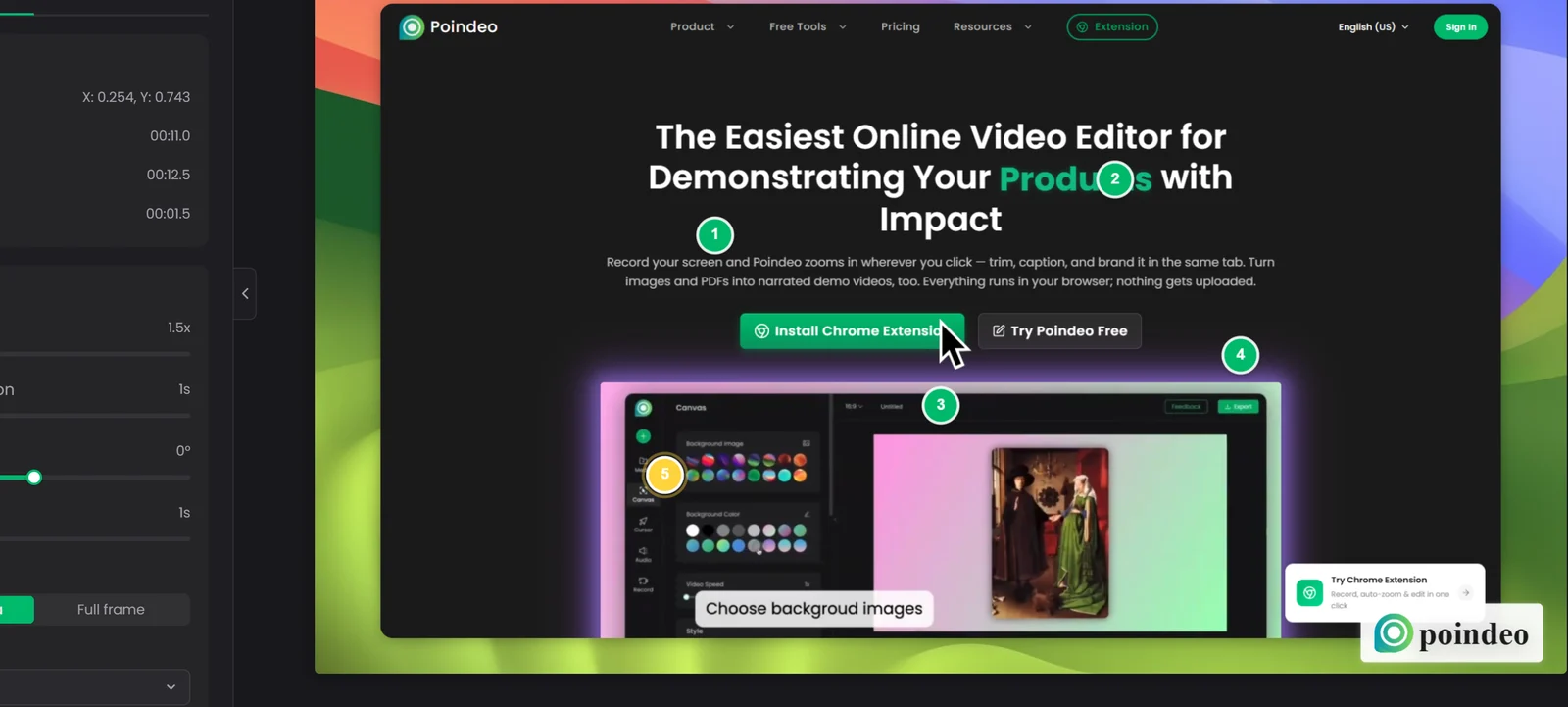
Two pacing habits keep zooms feeling intentional rather than seasick:
- Zoom fewer times than you think you need. Three or four well-chosen zooms in a three-minute tutorial read as polished; fifteen read as restless.
- Hold each zoom for at least a sentence. A zoom should cover one complete thought — usually one line of your script.
We break down zoom pacing and targeting in more detail in how to add auto zoom to a video.
Step 4: Generate Auto Subtitles from Your Voice-Over
Here is the step that used to eat entire afternoons. Speech recognition has largely solved the transcribe-by-hand problem: modern models turn a clear voice-over into timed subtitle segments in about the time it takes to play the audio.
In Poindeo:
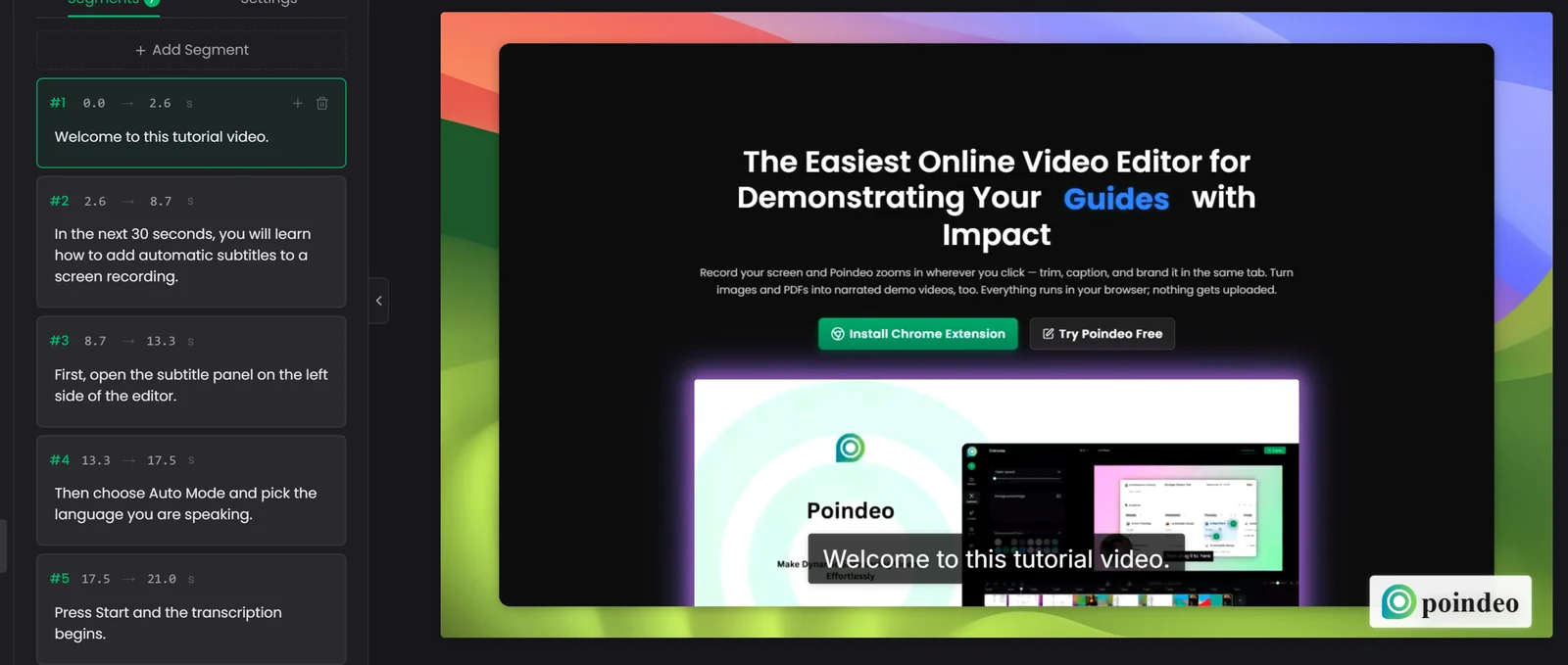
- Open the Subtitle panel and choose Auto mode.
- Select the spoken language — English, Japanese, French, Spanish, German, Chinese, Korean, or auto-detect.
- Start recognition. You will see a progress bar while the audio is transcribed.
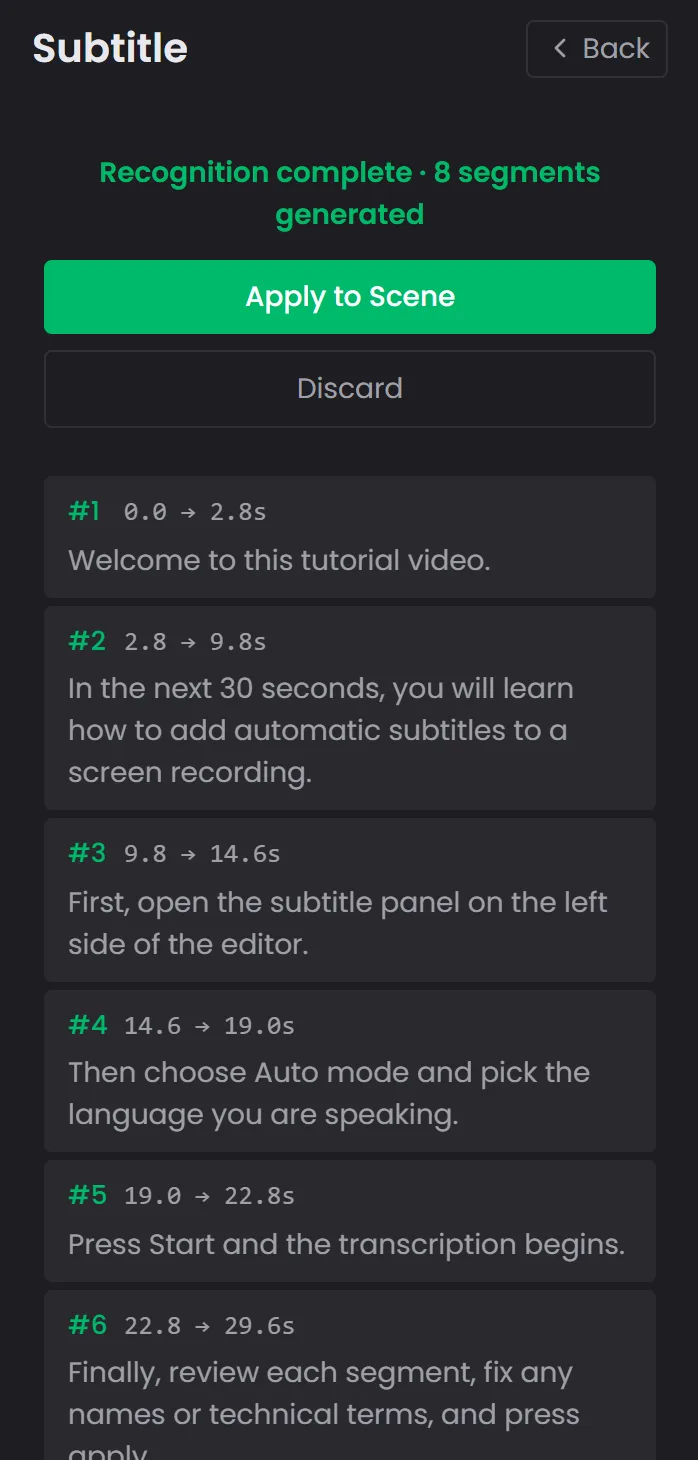
- Review the results before applying them. Every recognized segment appears in a list with its time range and text, and you can edit any line in place.
That fourth step is the one experienced creators insist on. As one video editor put it on Reddit, the real question is how to add captions automatically "without spending forever fixing them afterward." Recognition handles the timing and the bulk of the words; you are there to catch the failures — product names, jargon, homophones, missing punctuation. Editing the segments before you apply them takes minutes, because the timing is already right and only the odd word needs surgery.
After applying the segments, style them to match your lesson: font, size, color, background, and position are all adjustable, and subtitles are burned into the exported video, so they display identically on YouTube, an LMS module, or a file shared directly with students.
No voice-over at all? You can still have subtitles. Poindeo's subtitle panel also accepts pasted text — one subtitle per line — and generates timed segments from it. That is the fastest path for script-first creators who have already written every line, and it works for silent tutorials where on-screen text carries the teaching. (One honest boundary: the text-to-speech option in that panel previews pacing in your browser and builds subtitle timing, but the exported video does not gain a synthetic voice track — for narrated tutorials, record your own voice in Step 2.)
Step 5: Export and Share
With the edit assembled, zooms placed, and subtitles applied:
- MP4 export covers virtually every destination — YouTube, an LMS, Google Classroom, Vimeo, or a direct download. The free plan exports at 720p; Pro unlocks 4K for full-resolution screen detail.
- GIF export is underrated for documentation: a 10-second looping GIF of one tricky step embeds directly into a README, help doc, or announcement post, where video players often do not.
- Upload once, link everywhere. A subtitled tutorial posted to your LMS or channel works as a reference students return to all term.
Before you publish, do one full watch-through with the sound off. If you can follow the lesson on subtitles alone, it is ready.
Where to publish depends on who your students are. A public YouTube upload maximizes reach and search traffic; an unlisted link works better for internal training or a paying course where you control access; and an LMS module or Google Classroom assignment keeps the video next to its quiz and materials. Because the export is a standard MP4 with subtitles burned into the picture, the same file works in all three. One platform note: YouTube will also auto-generate its own captions from your audio, which can stack on top of your burned-in subtitles — turn YouTube's version off in the video settings so viewers see one clean set.
Comparing the Three Ways to Make a Tutorial Video
| Approach | Tools | Best for | Trade-off |
| Browser editor | Poindeo | Teachers and course creators who want record → zoom → auto subtitles in one place, with nothing to install | Requires Chrome or Edge for screen capture |
| Desktop suite | Camtasia, iSpring | Teams already living in PowerPoint or producing heavily edited courses | License cost and a learning curve; subtitles usually a separate pass |
| Free stack | OBS + Audacity + CapCut | Budget-zero creators comfortable stitching three tools together | Most manual work; auto-subtitle quality varies by tool |
There is no wrong answer — the browser route simply collapses the pipeline into the fewest steps, which is why it is the one this guide walks through.
FAQ
How accurate are auto-generated subtitles?
On a clear voice-over with minimal background noise, expect the large majority of words to be correct, with errors concentrated in proper nouns, acronyms, and technical jargon. Budget a few minutes to proofread the segment list before applying — the timing is automatic, so you are editing words, not syncing.
Do I need an external microphone?
No, but it is the single cheapest quality upgrade in the entire workflow. A built-in microphone in a quiet room produces usable audio; a modest USB or headset microphone placed close to your mouth produces noticeably cleaner audio, which also improves subtitle accuracy.
How long should a tutorial video be?
For a single task, two to five minutes is the sweet spot — long enough to be complete, short enough to rewatch. For a multi-step course, produce a series of single-task videos rather than one long recording.
Can I make a tutorial video for free?
Yes. The browser workflow in this guide records, edits, zooms, subtitles, and exports at 720p on the free plan. A fully local free stack — OBS for capture, Audacity for audio, CapCut for captions — also works if you accept more manual assembly.
Can I add subtitles without recording a voice-over?
Yes. In Poindeo's subtitle panel, paste your script with one subtitle per line and it generates timed segments — no audio required. This suits silent tutorials and text-first lessons.
What is the difference between a tutorial video and a demo video?
A tutorial teaches the viewer to do something themselves; a demo shows them what a product can do. Both benefit from voice-over, zoom, and subtitles — we cover the demo side in our step-by-step demo video guide.
Record Your First Tutorial in One Sitting
The workflow above is deliberately short: script the say/see pairs, record screen and voice-over together, zoom the key moments, auto-subtitle with a proofread, export. Your first tutorial does not need to be perfect — it needs to be watchable, audible, and readable. The tooling handles the last two.
Start recording in your browser — free, no install required.