Search "cursor video editing" and you will find a crowd of startups pitching themselves as "the Cursor of video" — and a Cursor community thread where editors ask what it would take to build exactly that. The wish is real: the copilot experience developers get in Cursor, but for video.
Here is the part most of those pitches skip: you do not need to wait for a new editor. Cursor already speaks the Model Context Protocol, and a local MCP server can hand your agent a real video editor — timeline, canvas, export and all. Cursor video editing is a one-line setup, and this guide walks it end to end: connect, verify, run a full edit from a raw screen recording, and share the setup with your whole team through the repo.
Key Takeaways
- One line connects the editor: cursor mcp add poindeo -- npx -y poindeo-mcp@latest — registered at project scope, needing Node 22.18+.
- The registration lands in your workspace config, so committing it gives every teammate the same video agent with zero setup on their side.
- Your agent gets 60 timeline operations in a real browser editor: zoom points up to 5×, camera paths, 25 transitions, subtitles, mosaics, labels.
- The agent checks its own work — frame.capture returns the actual rendered frame to the panel, so it verifies framing instead of guessing.
- Everything runs locally; the MP4 export lands in your Downloads folder. Free tier: 2 scenes, 720P, watermark.
"The Cursor of Video" Is Already in Cursor
The pitches you see online share a checklist for what a real editing copilot would be: it sees the whole project, it does things instead of advising, it plans multi-step tasks, and it reviews its own work. It is a good checklist — and it describes exactly what an MCP server gives Cursor today.
Poindeo MCP connects Cursor's agent panel to the Poindeo browser editor. The agent reads your project (scenes, durations, element IDs), imports media, applies edits through the editor's real command layer, captures rendered frames to verify the result, and exports an MP4 to your disk. Not a chatbot advising you about edits — a copilot touching the timeline.
The difference from the "new AI editor" route is where the intelligence sits. Those products wrap their own editor around their own model. Here, the agent you already trust in Cursor drives an editor built for zoom-and-pan demo work, and every edit is a normal, undoable step in that editor's history. Ctrl+Z still works. You can take over at any moment.
If you use multiple agents, this is the third client we have covered — the Claude Code setup and the Codex setup use the same server with different install paths.
What You Need Before You Start
- Cursor — any recent version; the agent panel is where the tools surface.
- Node 22.18+ — Cursor launches the server via npx. Check with node --version; install from nodejs.org if needed. On Windows, restart your terminal and Cursor after installing Node so PATH picks it up.
- Chrome or Edge — the first tool call opens the Poindeo editor in your default browser; Chromium browsers give the full feature set.
- A Poindeo account (optional) — free projects allow 2 scenes and 720P export with a watermark. Logging in unlocks 1080P to 4K.
Install: One Line, Project Scope
In your terminal, at your project root:
cursor mcp add poindeo -- npx -y poindeo-mcp@latest
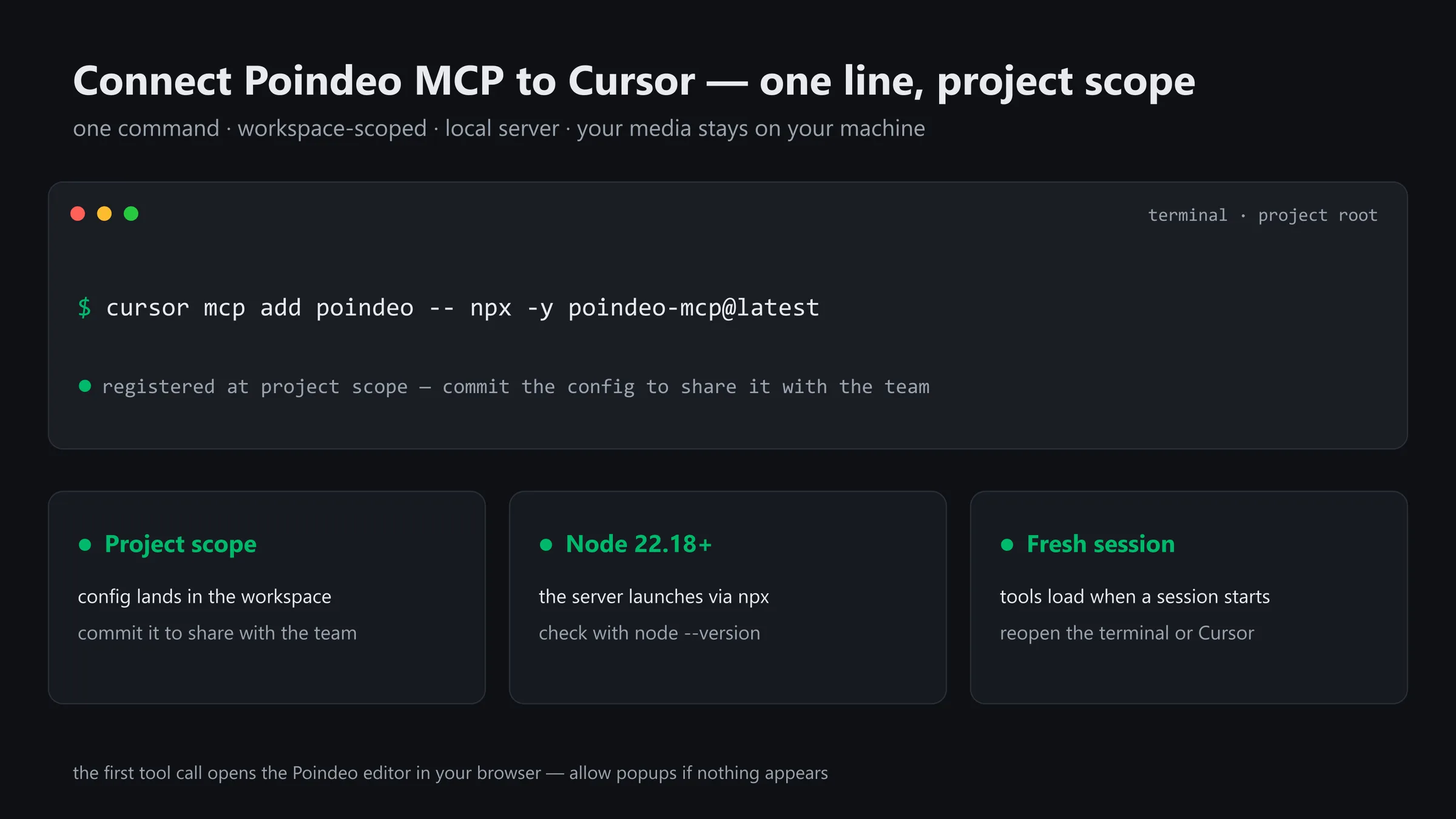
One command registers the server at project scope — commit the workspace config and the whole team gets the same video agent.
Three things this line does:
- Registers the Poindeo MCP server for this workspace at project scope — the config lands in the workspace's MCP settings, not in some global spot you will forget.
- Points npx at poindeo-mcp@latest, so each session resolves the current version — no manual upgrades.
- Keeps the server local: it runs on your machine, talking to the editor in your browser. Media never uploads.
Because the registration is project-scoped, it is shareable. Commit the workspace MCP config to the repo and the next person who pulls gets the same video agent — their Cursor picks up the server definition, npx fetches it on first use, and nothing else changes on their machine. A team demo-video workflow with a one-time setup.
The command above also lives on the official Poindeo MCP page, kept current alongside the other clients.
After the command finishes, restart your terminal session in Cursor (or reopen Cursor) — MCP servers load when a session starts, so a session opened before the registration will not see the tools yet.
Confirm the Connection
Open the agent panel and ask:
What can you do with Poindeo?
A connected agent answers concretely — read the project, add zoom points, generate subtitles, export an MP4. If it reports no Poindeo tools, two usual suspects:
- A stale session. Reopen the terminal or start a fresh agent chat — servers load at session start.
- "npx is not recognized." Node is missing or PATH is stale. Install Node 22.18+, then restart the terminal and Cursor. On slow networks the first npx download can time out — just retry.
The first tool call opens the Poindeo editor in your browser. If nothing appears, a popup blocker probably swallowed the tab — allow popups and ask again.
Your First Edit: A Demo Clip for the PR
The most common Cursor-shaped need: you shipped a feature this week, and the PR or release notes want a short clip. You have a raw screen recording; you want it tight, zoomed, and captioned.
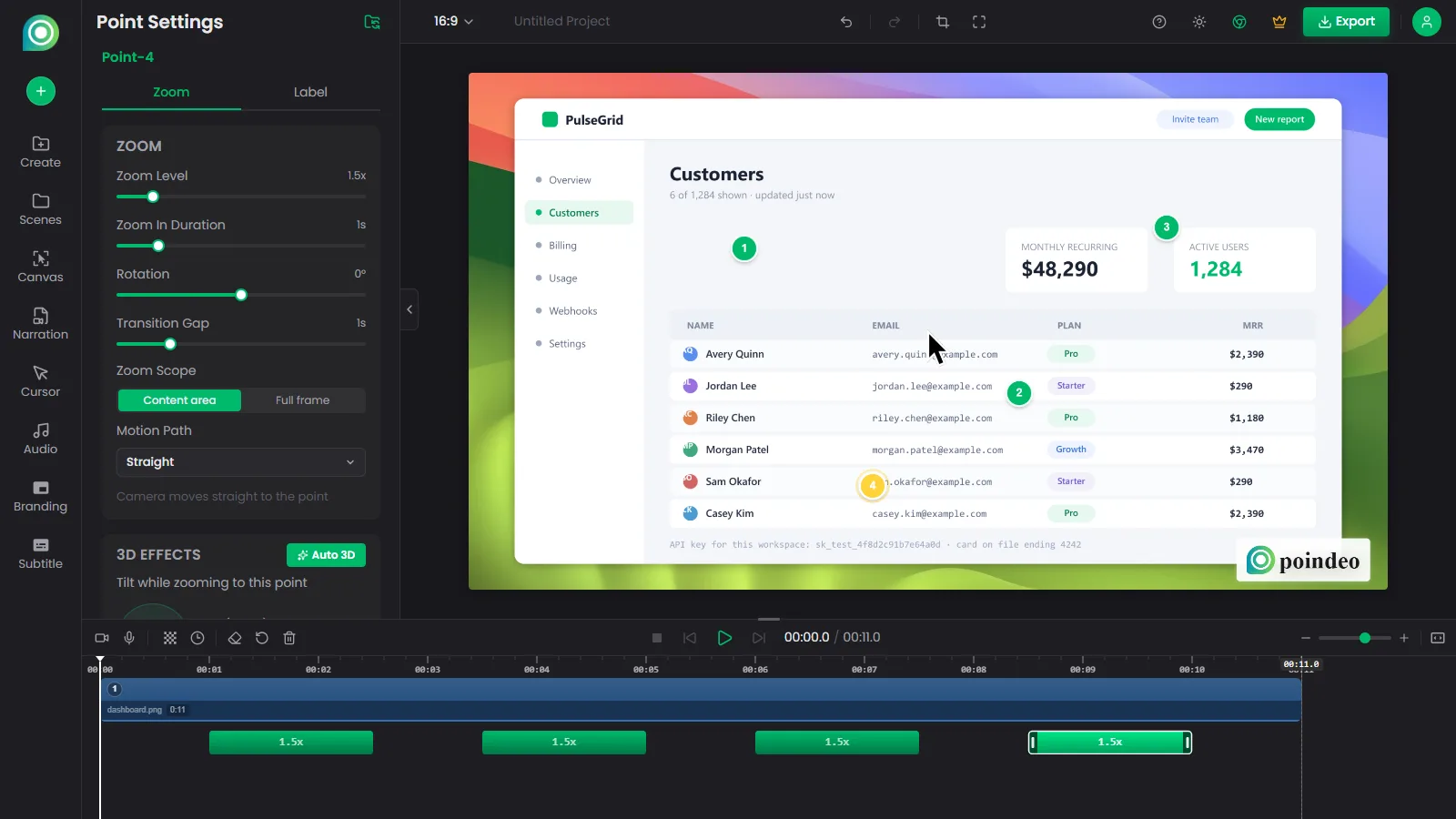
Zoom points land on the timeline as exact, undoable steps — the agent verifies each one with a captured frame.
- Brief the agent in the panel. Turn this recording into a 60-second demo — zoom in on each control that changes, add subtitles from the narration, and trim the dead air at the start. If the recording is not in the editor yet, the agent imports it.
- It reads the project first. Scenes, durations, element IDs — then it samples a labeled contact sheet of up to 60 frames to find the moments worth zooming.
- Zoom points land with exact values. Timestamp, zoom level up to 5×, easing, hold duration — each one a real, undoable timeline step. Hold the zoom on the dropdown a beat longer is a one-line revision, not a re-edit.
- Cleanups land in the same pass. Subtitles from the narration, a mosaic over the test account's email, a label on the new panel, background music low.
- The agent verifies before you look. It captures the frame at each zoom peak and checks its own work — centered on the control, subtitle legible, mosaic covering what it should. You see frames in the panel, approve, or adjust.
- Export on your word. The agent states its plan — resolution, format, duration — and waits. Confirm, and the MP4 lands in your Downloads folder, ready for the PR description.
Editing, exporting, and frame capture all work with the editor tab in the background — you never have to leave Cursor. Video imports and live playback preview want the tab visible; everything else does not care.
The IDE Advantage
Video tasks in a developer's week are rarely standalone projects — they sit inside code work. The demo clip for the PR, the bug repro you want to annotate for an issue, the feature GIF for the README. Those are five-minute jobs that traditionally cost twenty because they mean opening a timeline editor and becoming an editor for a while.
With the editor wired into Cursor's panel, the five-minute job stays five minutes. You stay in the context where the task came from, the agent does the mechanical work, and the frames come back to you in the conversation for a yes or a no.
And because the workflow rides on the editor's command layer, anything the agent does is reversible in the editor itself. Open the tab, Ctrl+Z the last zoom, drag a subtitle — then go back to the panel and keep directing. Human hands and agent hands mix without a handoff ceremony.
Beyond the Presets
The editor UI ships fixed presets. The agent composes underneath them, so you can ask for moves no preset covers:
- Give the intro a slow 5-second push-in with a subtle 3-degree tilt, then a smooth transition into the walkthrough.
- Re-plan the auto-zoom points with fewer, longer zooms, and show me the plan before applying it.
- Blur the tokens in the corner, speed the middle scene to 1.2x, and add soft music under the narration.
Recordings made with the Poindeo browser extension carry cursor trajectories, so zoom points can follow the clicks automatically — and the agent can re-plan their density whenever pacing feels off.
Good to Know Before You Edit
- Updates are automatic. The server self-updates in the background via npx@latest; restarting Cursor applies the new version. No manual upgrades.
- Data stays local. The server runs on your machine and talks to the editor in your browser. The only other traffic is anonymous telemetry — version numbers and error summaries, never media or project content — disable it with POINDEO_MCP_NO_TELEMETRY=1.
- Recording stays yours. Screen, camera, and microphone capture are gated by browser permission dialogs, so only you can start a recording. The agent takes over the moment one finishes: import, auto-zoom, edit, export.
- Cost. The MCP server is free. The editor's free plan covers 2 scenes per project and 720P export with a watermark; subscriptions unlock 1080P to 4K without it.
FAQ
How do I add the Poindeo video editor to Cursor?
One line in your terminal at the project root: cursor mcp add poindeo -- npx -y poindeo-mcp@latest. It needs Node 22.18+ (check with node --version), registers at project scope, and takes effect for sessions started after the command — reopen the terminal or restart Cursor.
Can I share the setup with my team?
Yes — that is what project scope is for. The registration lands in the workspace's MCP config; commit it to the repo and teammates' Cursor picks up the server definition automatically. Their first tool call fetches the server via npx, nothing else changes on their machines.
Can the agent actually see what it edited?
Yes. frame.capture returns the actual rendered frame into the conversation at full canvas resolution, and frame.sample returns a labeled contact sheet of up to 60 frames — the agent plans from and verifies against real pixels, not assumptions.
Is my footage uploaded anywhere?
No. The MCP server runs locally, the editor runs in your browser, and exports are written to your own disk. Anonymous telemetry (version numbers, error summaries) can be disabled with POINDEO_MCP_NO_TELEMETRY=1.
How is this different from the Claude Code and Codex setups?
Same server, different plumbing. Claude Code installs it from its plugin marketplace; the Codex setup uses a desktop plugin or a CLI registration; Cursor registers it with one cursor mcp add command at project scope. Once connected, the editing workflow is identical across all three.
What does it cost?
The server is free. The editor's free plan allows 2 scenes per project and 720P export with a watermark; paid plans unlock 1080P, 2K, and 4K without it. The agent always states its export plan and waits for your confirmation before exporting.
Conclusion
The "Cursor for video editing" the community keeps asking for does not require a new product. It requires connecting the editor you already have to the agent you already trust — one command, project-scoped, shareable through the repo.
Start with the recording on your desktop and one honest prompt in the panel. Watch the zoom points land with exact values, approve the frames the agent shows you, and export when it looks right. The setup command lives on the Poindeo MCP page — and the demo clip for your current PR is a five-minute job now.