You drag a screen recording into Codex and ask for a product demo. What comes back is usually one of two things: a flat, minimal cut that does exactly what you asked and nothing more, or a folder of ffmpeg commands you have to run and trust. Codex can plan an edit beautifully — but on its own, it has no timeline to work on, no canvas to look at, and no way to check its own output.
Codex video editing gets genuinely good when the agent drives a real editor instead of scripting around one. This guide shows how to connect Poindeo MCP to Codex — desktop app or CLI — and then walks a full workflow from raw recording to exported MP4, with the agent checking its own frames along the way.
Key Takeaways
- Codex can direct a video edit, but it needs an editor to direct. Poindeo MCP gives it one: 60 timeline operations running in a real browser-based editor, locally on your machine.
- Desktop app path: download the plugin package, then in the app go Settings → Plugins → Add custom plugin, select the file, and press Install. Ready in a new conversation — no app restart.
- CLI path: one line — codex mcp add poindeo -- npx -y poindeo-mcp@latest — which needs Node 22.18+.
- The agent verifies its own work: frame.capture returns the actual rendered frame, so Codex looks at the picture before you ever see a problem.
- Media never leaves your computer; exports are written straight to your Downloads folder. Free tier covers 2 scenes and 720P export with a watermark.
What Codex Can Do With Video on Its Own
Before the setup, it is worth being honest about the baseline, because you have probably already tried it.
The conversational route — dragging a file into the chat and describing the edit — works, up to a point. Practitioners who push it far, like Dan Sanchez's five-step Codex editing workflow, converge on the same findings: Codex does the minimum your prompt requires, the creative brief has to be written before the prompt, and the first projects burn a lot of credits on back-and-forth because neither you nor the model can see the timeline while it works.
The programmatic route swaps the chat for code: you have Codex write Remotion components or ffmpeg pipelines, the approach Sarah Shen documents for end-to-end video generation. It makes edits reproducible but moves the whole job into a text editor. Great for engineers, invisible for everyone else, and still no rendered frame comes back into the conversation until you export and watch it yourself.
Cloud plugin routes hand the footage to a rendering service and give you back a video. That solves the capability gap, but your media makes the round trip.
What all three routes share: the agent edits blind. It applies changes, hopes, and waits for your reaction. The feedback loop that makes human editors good — look at the frame, adjust, look again — is missing.
What an MCP Video Editor Changes
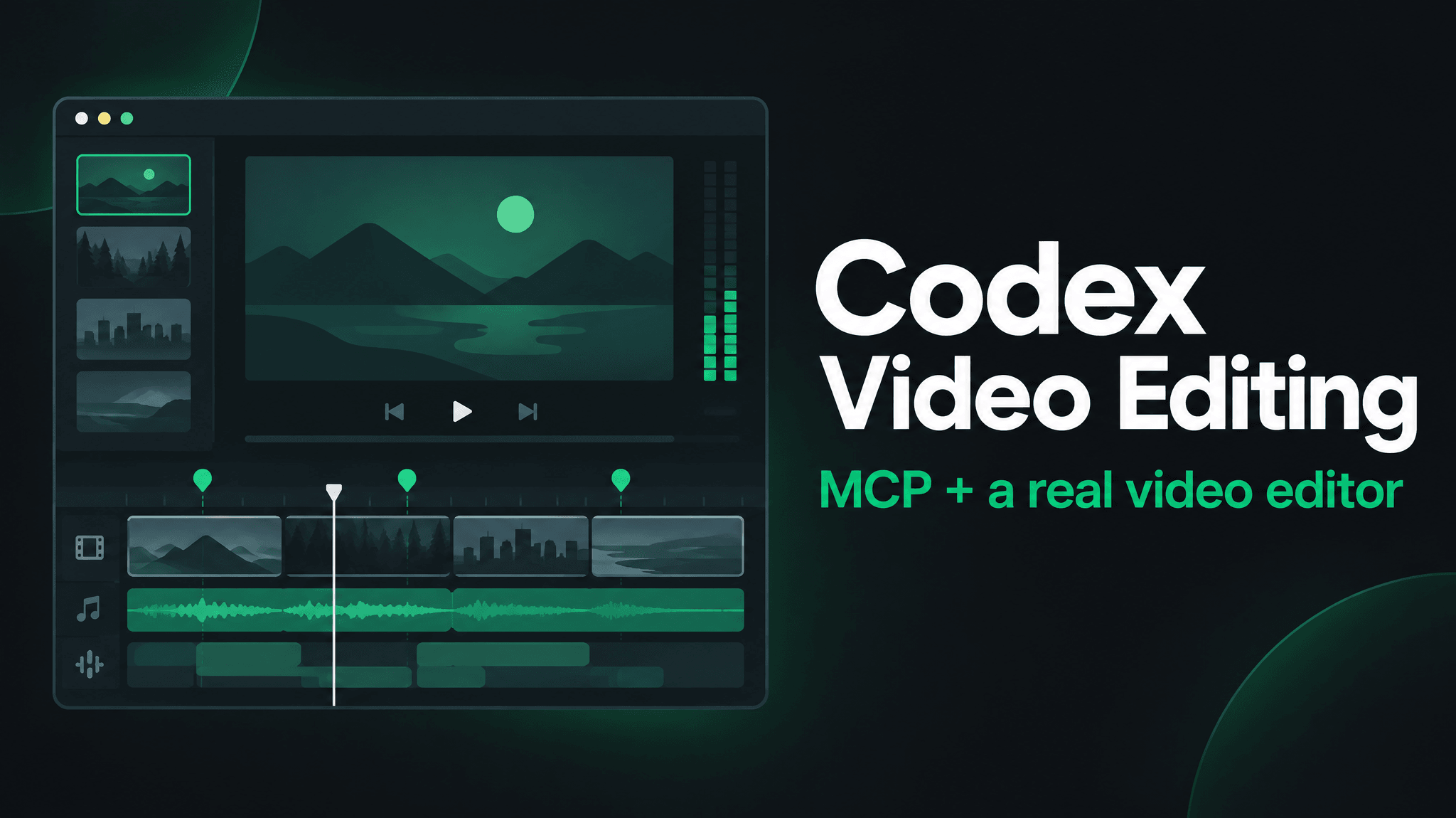
Poindeo MCP connects Codex to the Poindeo browser editor through the Model Context Protocol. Instead of generating edit instructions, Codex operates the editor directly:
- Read the project — scenes, durations, every element ID it needs to target
- Import media — local video, images, GIFs, or PDFs, arranged into scenes
- Apply 60 kinds of edits — zoom points up to 5×, camera paths with pan and tilt, 25 transitions, subtitles, mosaics, labels, per-scene speed
- Check the result — frame.capture hands the actual rendered frame back to the agent; frame.sample lays up to 60 labeled frames into one contact sheet
- Export — an MP4 written straight to your Downloads folder, after the agent states its plan and waits for your confirmation
The editor runs locally in your browser. The MCP server runs on your machine. Your footage never uploads anywhere.
If you use Claude Code as well, we covered its marketplace-based setup in a separate guide on Claude Code video editing — the same server, a different install path.
What You Need Before You Start
Three things, and two of them you likely have:
- Codex, in whichever form you use it. The desktop app (Codex inside the ChatGPT app) installs Poindeo as a self-contained plugin — no Node.js required. The Codex CLI launches it via npx, which needs Node 22.18+ — check with node --version, and grab it from nodejs.org if needed.
- Chrome or Edge. The first tool call opens the Poindeo editor in your default browser; Chromium browsers give the full feature set.
- A Poindeo account (optional). You can try without one — free projects allow 2 scenes and 720P export with a watermark. Logging in unlocks 1080P to 4K.
Install Path A: The Codex Desktop App
This is the main path, and it takes about a minute:
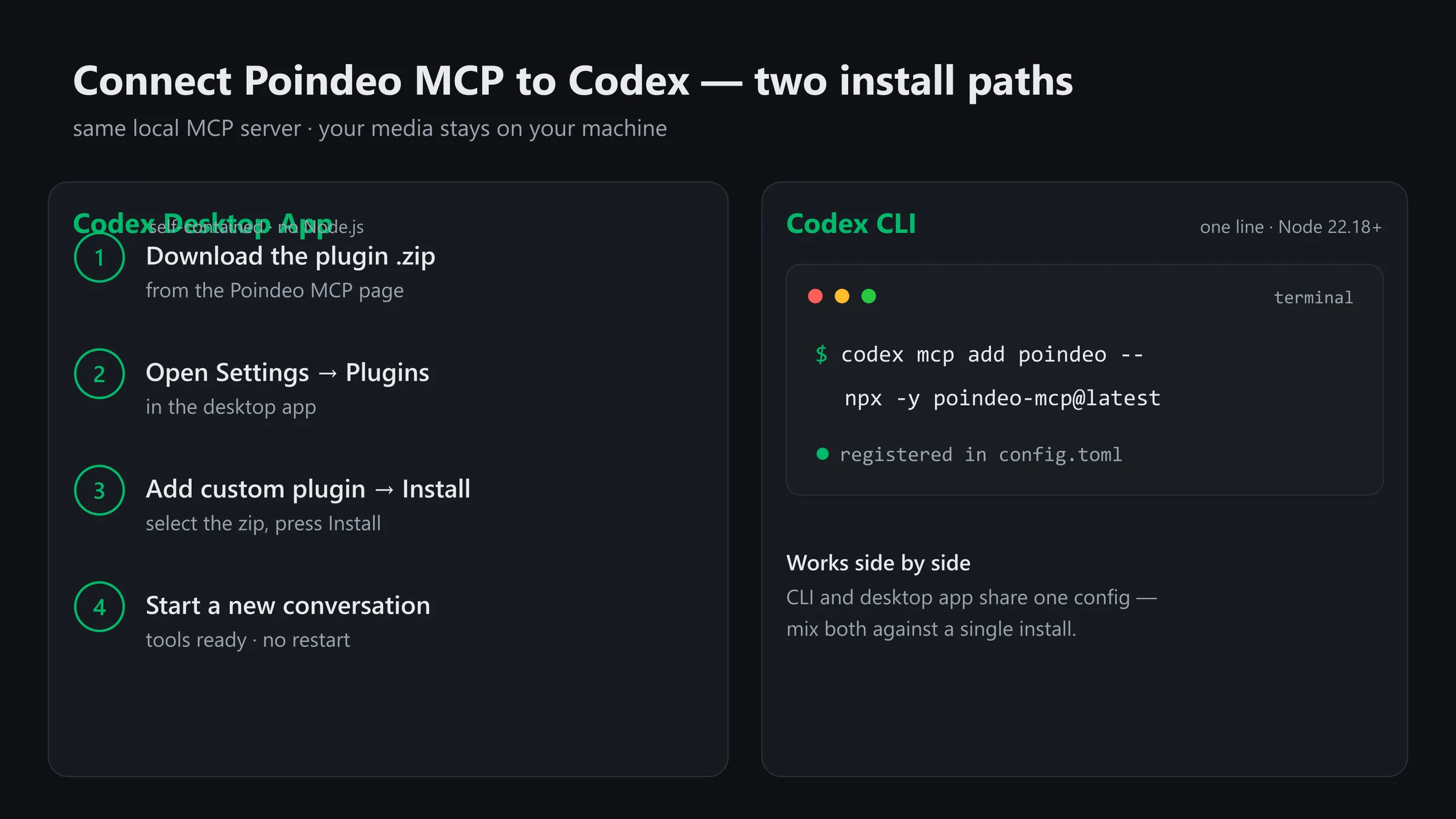
Two ways to connect: the desktop app uploads a self-contained plugin; the CLI registers the same server in one line.
- Download the plugin package from the Poindeo MCP page — a small zip file.
- Open Settings → Plugins in the desktop app.
- Click Add custom plugin, select the downloaded zip, and press Install.
- Start a new conversation. The tools are ready immediately — no app restart needed.
That is the whole install. Two details worth knowing:
- The plugin is self-contained — it does not use your local Node.js, so nothing to install or version-match.
- Prefer the terminal? The same install exists as a one-line installer — curl -fsSL https://source.poindeo.com/downloads/install-codex.sh | sh on macOS and Linux (fully quit and reopen the app afterwards), or the PowerShell variant irm https://source.poindeo.com/downloads/install-codex.ps1 | iex on Windows (it stops the background service itself; just restart the app).
Install Path B: The Codex CLI
If you live in the terminal, one line registers the server in your Codex config:
codex mcp add poindeo -- npx -y poindeo-mcp@latest
Notes for this path:
- It needs Node 22.18+ on your PATH. On Windows, after installing Node, restart your terminal and Codex so PATH picks it up — "npx is not recognized" is exactly this symptom.
- The entry resolves poindeo-mcp@latest at session start, so you are always on the current version.
- The CLI and the desktop app share the same config file, so you can mix both against one install.
All commands above live on the official MCP page too, kept current as the plugin directory listing ships.
Confirm the Connection
Ask one question in a fresh conversation:
What can you do with Poindeo?
A connected Codex answers with concrete abilities — read the project, add zoom points, generate subtitles, export an MP4. "No Poindeo tools found" means it is not connected.
Two quirks that are not actually problems:
- In the plugin list, Poindeo may show as "not installed." That is just the display state of the official install record — if the tools respond, ignore it.
- The first tool call opens the Poindeo editor in your browser. If nothing happens, a popup blocker probably swallowed the tab — allow popups and ask again.
Your First Edit: From Raw Recording to Finished Demo
Here is a complete session, the kind you can run on your first day. Assume you have a screen recording of your product and want a tight demo with zooms on the important clicks.
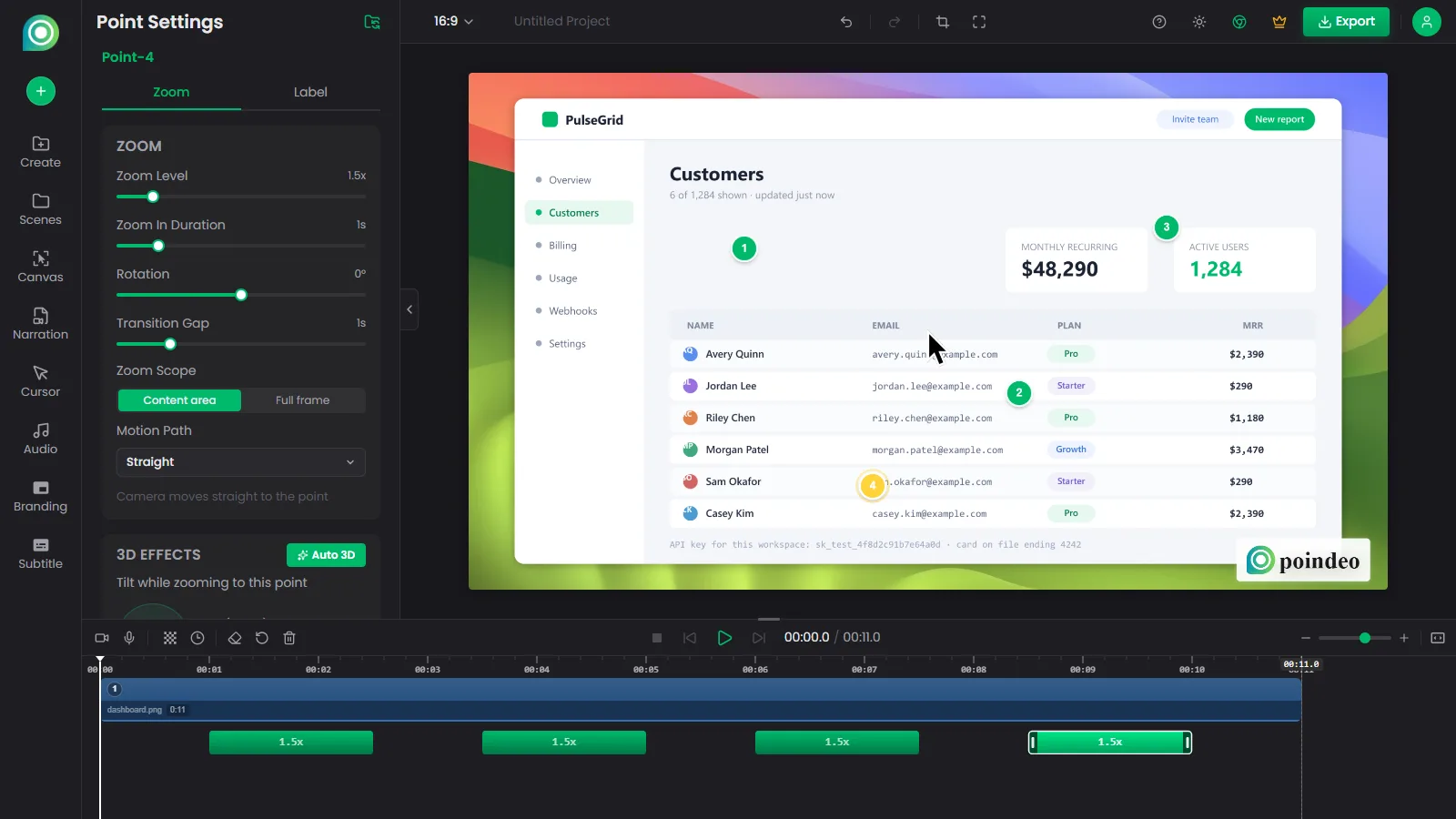
Zoom points land on the timeline as exact, undoable steps — not as a regenerated video.
- Point Codex at the goal. I have a screen recording of our dashboard. Turn it into a product demo — zoom in on each important click, add subtitles, and keep it under 90 seconds. If the recording is not in the editor yet, the agent imports it first.
- Let it read the project. Codex calls get_project, sees the scenes and element IDs, and plans which moments deserve attention. For a long recording, it samples a 60-frame contact sheet to find the clicks.
- Zoom points go in with exact values. Timestamp, zoom level, easing, hold duration — each point is a real, undoable step on the timeline, not a regenerated video. Tighten the zoom on the pricing table, hold it a beat longer is a one-line revision.
- Subtitles and cleanups land in the same pass. Generated subtitles for the narration, a mosaic over the customer email in the corner, a label at the intro. Sixty operations cover the timeline end to end.
- Review the frames yourself. Ask show me the frame at each zoom peak — the captures come back into the conversation, and you approve or adjust without opening the editor once.
- Export on your word. The agent states its plan — resolution, format, duration — and waits. Confirm, and the MP4 lands in your Downloads folder.
Editing, exporting, and frame capture all work with the editor tab in the background. Video imports and live playback preview want the tab visible; everything else does not care.
The Codex Advantage: Verifying Frames, Not Guessing
This is the part that changes the editing experience compared with all-conversational attempts.
Because frame.capture returns the actual rendered frame to the agent, Codex can look at its own work: is the zoom actually centered on the button, is the subtitle legible against the background, did the mosaic cover the whole email? It fixes what it sees wrong before you ever watch a draft. The back-and-forth credits that go into discovering what a blind edit looks like go instead into judgment calls you actually care about.
And since almost every agent edit goes through the same command layer as your own clicks, Ctrl+Z in the editor reverts anything Codex did. You can take over manually at any moment, or nudge in chat and let the agent continue.
Beyond the Presets
The editor UI ships fixed presets. The agent is not limited to them — it composes canvas primitives into moves no preset covers:
- Give the intro a slow 5-second push-in with a subtle 3-degree tilt, then glide into the walkthrough with a smooth transition.
- Re-plan the auto-zoom points with fewer, longer zooms, and show me the plan before applying it.
- Blur the email addresses, add soft background music at low volume, and speed up the middle scene to 1.2x.
Recordings made with the Poindeo browser extension carry cursor trajectories, so zoom points can follow the action automatically — and Codex can re-plan their density whenever the pacing feels off.
Good to Know Before You Edit
- Updates are automatic. The plugin self-updates in the background; restart the app and the new version takes effect. No manual upgrades.
- If tools stop showing up: plugins load when a session starts, so begin a fresh conversation first. Still nothing — fully quit and restart the app, and check the toggle under Settings → Integrations → Plugins.
- Data stays local. The server runs on your machine and talks to the editor in your browser. The only other traffic is anonymous telemetry — version numbers and error summaries, never media or project content — disable it with POINDEO_MCP_NO_TELEMETRY=1.
- Recording stays yours. Screen, camera, and microphone capture are gated by browser permission dialogs, so only you can start a recording. The agent takes over the moment one finishes: import, auto-zoom, edit, export.
- Cost. The MCP server is free. The editor's free plan covers 2 scenes per project and 720P export with a watermark; subscriptions unlock 1080P to 4K without it.
FAQ
Does Codex video editing work in the desktop app or the CLI?
Both, and they share one config. The desktop app installs Poindeo as a plugin (Settings → Plugins → Add custom plugin) with no Node.js dependency; the CLI registers it with a single codex mcp add command that launches the server via npx and needs Node 22.18+.
Can Codex actually see the video it is editing?
Yes. frame.capture returns the actual rendered frame into the conversation at full canvas resolution, and frame.sample returns a labeled contact sheet of up to 60 frames — so the agent plans from and verifies against real pixels, not assumptions.
Is my footage uploaded anywhere?
No. The MCP server runs locally, the editor runs in your browser, and exports are written to your own disk. Anonymous telemetry (version numbers, error summaries) can be disabled with POINDEO_MCP_NO_TELEMETRY=1.
What does it cost?
The server is free. The editor's free plan allows 2 scenes per project and 720P export with a watermark; paid plans unlock 1080P, 2K, and 4K without it. The agent always states its export plan and waits for your confirmation before exporting.
How is this different from the Claude Code setup?
Same MCP server, different install path. Claude Code installs it from its plugin marketplace with two commands and verifies with /mcp; Codex installs it as a desktop plugin or one CLI registration. Once connected, the editing workflow is identical.
Can the agent record my screen for me?
It can open the right recording panel, but the recording itself is gated by browser permission dialogs — only you can start it. The moment you stop, Codex takes over: importing, editing, and exporting are all automated.
Conclusion
Codex already knows how an edit should go. What it was missing was an editor — a timeline to act on, a canvas to look at, and a file to hand back. Poindeo MCP supplies all three, locally, in about a minute of setup.
Start with one real recording and one honest prompt. Watch the zoom points land with exact values, ask for a frame at the peak, and export when it looks right. The full setup commands are on the Poindeo MCP page — and your first demo is probably already sitting in your recordings folder.